

The Complete POS Hardware Checklist for Opening a New Restaurant or Bar

Opening a new restaurant — or upgrading an existing one — starts with one question: what equipment do you actually need? Not what a vendor wants to sell you. What your operation requires to run without friction on a Friday night at 7pm.
I've seen restaurants where the owner spent $80K on interior design and $600 on a POS terminal. Then they wonder why the kitchen is backed up, staff are punching in wrong orders, and the card reader rejects half the contactless payments. The hardware you choose on day one sets the ceiling for how efficiently you can run — and how much you'll bleed in processing fees, downtime, and labor costs for the next three years.
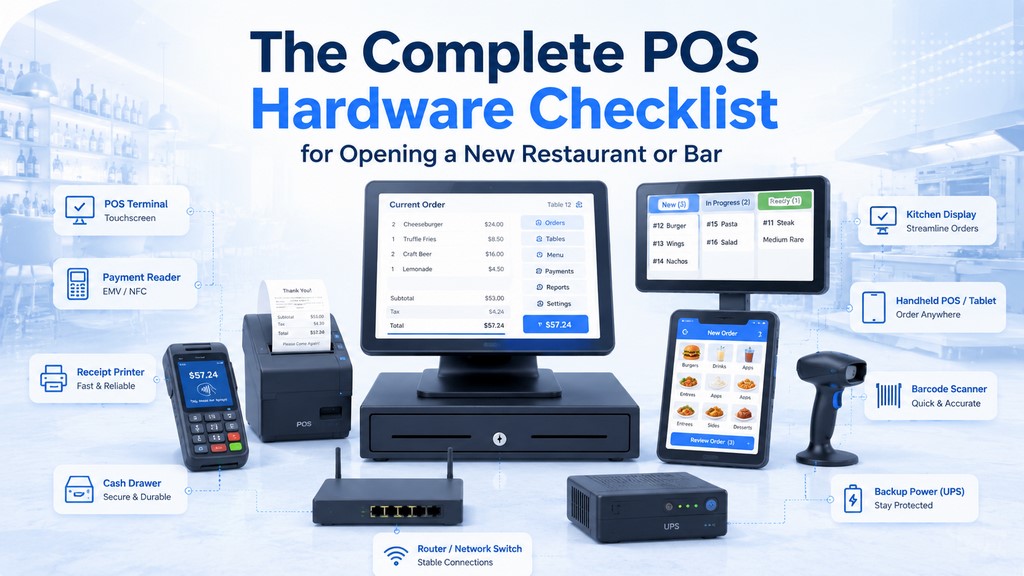
Quick POS Hardware Checklist for Your Restaurant
Opening a new restaurant — or upgrading an existing one — starts with one question: what equipment do you actually need? Not what a vendor wants to sell you. What your operation requires to run without friction on a Friday night at 7pm.
The required mix depends on whether you accept cash, print receipts, route orders to a kitchen, or use mobile service. Treat the priority column as a starting point and verify it against your workflow.
| Hardware Component | Primary Function | Priority |
|---|---|---|
| POS Terminal (Touchscreen) | Order entry, payment processing, front-of-house management | Essential |
| Credit Card / Payment Reader | EMV chip, swipe, NFC/contactless acceptance | Essential |
| Receipt Printer (Thermal) | Customer receipts, end-of-shift reports | Format-dependent |
| Cash Drawer | Secure cash storage, auto-open on transaction close | Essential if accepting cash |
| Kitchen Display System (KDS) | Real-time order display for back-of-house | Recommended for many kitchens |
| Networking Equipment (Router + Switch) | Stable connectivity for all POS devices | Essential; switch as needed |
| Kitchen Printer (Impact) | Backup order output for kitchen | Recommended |
| Handheld POS / Tablets | Tableside ordering and payment | Recommended |
| Barcode Scanner | Inventory management, retail item entry | Optional / retail-dependent |
| Customer-Facing Display | Order confirmation, upsell prompts | Recommended |
| Backup Power (UPS) | Continuity during power outages | Recommended |
| Self-Service Kiosk | Autonomous order entry for QSR/fast casual | Optional |
The right combination depends on your format. Each section below breaks down exactly what to buy, what specs matter, and where owners typically waste money.
Essential POS Terminals and Touchscreen Devices
The POS terminal is the operational center of your restaurant. Every order, every payment, every shift report flows through it. Get this wrong and you feel it in every service.
Modern terminals come in two architectures: all-in-one (screen, computer, and I/O in a single unit) and modular (separate components). All-in-one units dominate the restaurant market — faster to deploy, easier to service, less counter space. Modular setups make sense for custom configurations or legacy peripheral integration.
Fixed Touchscreen Terminals for Main Stations
Stationary touchscreen terminals sit at your counter stations and handle the bulk of order entry and payment processing. Specs matter more than brand names here.
Practical selection criteria for 2026:
- Screen: 13–15.6 inches is common for a fixed station; choose the size by menu complexity, counter space, and viewing distance
- Display: Use the resolution supported by the POS interface; Full HD is useful for dense menus but is not a universal requirement
- Performance: Choose current, vendor-supported hardware and test your real menu, modifiers, reporting, and integrations before rollout
- Environment: Near bars and beverage stations, prioritize sealed ports, easy-clean surfaces, and a published spill or ingress rating where available
- Ergonomics: Use an adjustable stand and set the height and angle for the actual operator, counter, and applicable accessibility requirements
An IP rating can be useful in wet or greasy areas, but it is not a universal restaurant POS requirement. Verify the rating for the exact terminal model instead of assuming that a restaurant-branded system is water-resistant.
| Model | Screen | Configuration | Price Range | Best For |
|---|---|---|---|---|
| SkyTab POS Terminal | 15.6″ | Integrated restaurant POS terminal | Contact for pricing | Full-service, bars, multi-location |
| Clover Station Solo | 14″ | All-in-one station with built-in receipt printer and cash drawer | Check current vendor or reseller quote | Independent restaurants, retail |
| Toast Flex | 14″ | Fixed restaurant POS terminal | Check current Toast package pricing | Full-service, QSR |
| Square Register | 13.25″ | Integrated dual-screen register | $899 before taxes and fees | Small independents, pop-ups |
Screen sizes and pricing checked against publicly available information from Clover, Toast, and Square in July 2026. Bundles, financing, software, processing, taxes, and reseller terms can change the total cost.
Handheld POS Devices for Tableside Ordering and Payments
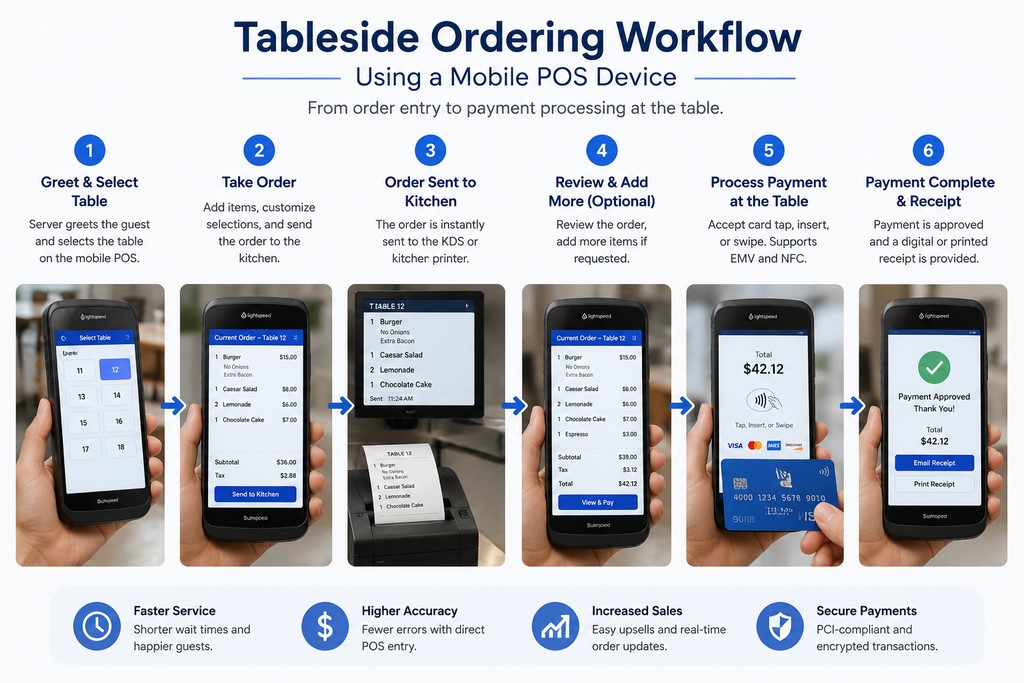
Handheld devices cut the round-trip between table and terminal. A server takes the order tableside, it fires directly to the KDS, and payment happens at the table — no paper, no back-and-forth. The efficiency gain is real, but the size of the impact depends on your floor layout and staff training.
What to look for:
- Battery: Enough runtime for your longest shift, plus a practical charging or device-swap plan
- Durability: A published drop rating, sealed enclosure, or protective case when the device will be used in a high-risk environment
- Payments: EMV chip and NFC/contactless support; confirm whether legacy magnetic-stripe acceptance requires a separate reader
- Connectivity: Reliable business Wi-Fi; add cellular failover when the device is used outdoors, off-site, or beyond dependable Wi-Fi coverage
| Feature | iPad (with POS app) | Specialized Handheld (e.g., SkyTab Mobile) |
|---|---|---|
| Upfront cost | Lower | Higher |
| Durability | Consumer-grade | Commercial-grade |
| Battery life | Depends on model, workload, and battery health | Depends on model; charging docks and swap programs may be available |
| Payment integration | Requires add-on reader | Built-in |
| Best for | Small independents, pop-ups | Full-service, bars, high-volume |
SkyTab Mobile is purpose-built for tableside use — servers can enter orders and accept supported payments on the same device. Confirm the exact software features, connectivity, and payment configuration included in your proposal.
Kitchen Display System (KDS) Hardware for Order Management
A Kitchen Display System (KDS) routes orders to a digital kitchen screen and can reduce dependence on paper tickets. Delivery speed and reliability depend on the POS software, local network, integrations, and device health.
| Parameter | KDS | Impact Kitchen Printer |
|---|---|---|
| Order display speed | Near real time on a healthy network; software-dependent | Depends on printer speed, connection, and job queue |
| Paper/consumable cost | No paper or ribbon; software and hardware costs may apply | Paper and ribbon costs vary with ticket volume |
| Noise level | Silent | Loud |
| Cooking time tracking | Often available; features vary by KDS software | Not automated on the printed ticket |
| Upfront cost | Vendor and package-dependent | Model and interface-dependent |
| Annual maintenance | Screen, touch layer, mount, and device support | Printhead, cutter or impact mechanism, paper, and ribbon |
KDS can improve routing, timing, and order visibility, but it is not automatically the best choice for every kitchen. Decide whether an impact printer, a second KDS device, or another documented offline workflow is the right fallback for your operation.
Practical KDS selection criteria:
- Compatibility: Use hardware explicitly supported by your POS and KDS software
- Visibility: Choose a screen size, brightness, and viewing angle that staff can read from the working position
- Environment: Check the published operating-temperature range and protection from grease, steam, moisture, and cleaning chemicals
- Interaction: Confirm whether your workflow requires a touchscreen, bump bar, or both
- Alerts: Verify audible and visual notification options instead of assuming built-in speakers are required
- Mounting: Use a secure VESA-compatible or vendor-approved mount with safe cable routing and adequate ventilation
Avoid selecting a display only by price. Start with the devices approved for your software, such as the vendor’s own KDS hardware or a supported commercial Elo display, and verify environmental limits before installation.
Secure Restaurant Payment Terminal and Card Reader Setup
For most restaurants, a current payment terminal should support EMV chip and NFC/contactless payments. Magnetic-stripe acceptance may be built in or may require a separate reader, depending on the platform and device.
Contactless support is now a practical baseline for accepting tap-enabled cards and mobile wallets. Confirm the exact payment methods supported by the terminal, processor, and merchant configuration before purchase.
EMV, NFC, and Contactless Payment Support
EMV chip is the baseline for current card-present acceptance. In certain counterfeit-card fraud cases, liability can shift to the party that did not support or use the more secure EMV technology. Confirm the applicable card-network and processor rules for your deployment instead of treating every fraud case the same.
NFC handles tap-to-pay through contactless cards and supported mobile wallets such as Apple Pay and Google Pay. Tap can reduce checkout friction, but total authorization time still depends on the terminal, network, processor, and issuing bank.
Verify these capabilities:
- EMV chip (contact)
- NFC/contactless (tap cards, Apple Pay, Google Pay, Samsung Pay)
- Magnetic-stripe support if your operation still needs it, including whether an external reader is required
- Processor certification, supported connection methods, and an offline-payment policy that clearly explains merchant risk
PCI DSS Compliance and Security Features
PCI DSS applies to the merchant’s cardholder data environment, people, processes, and technologies; it is not a stand-alone certification for a payment terminal. PCI DSS v4.0.1 was published in June 2024, and the future-dated requirements became effective on March 31, 2025. Merchants should validate their applicable PCI DSS responsibilities with their acquirer, processor, or Qualified Security Assessor. See the PCI Security Standards Council’s v4.0.1 announcement.
Payment hardware and deployment checks:
- Confirm that the exact device model and approval version appear on the PCI SSC Approved PTS Devices list and have not expired
- Confirm that the terminal is supported and correctly injected or provisioned for your processor and acquirer
- Maintain an inventory of payment devices and inspect them for substitution, unexpected attachments, damage, or signs of tampering
- Ask whether the implementation uses a PCI-listed point-to-point encryption solution and how encryption, tokenization, logging, and access control affect your PCI DSS scope
Do not approve a device only because the manufacturer has other listed products. PCI PTS approval is model- and version-specific, and the approved device still needs to be deployed in a supported payment solution.
POS Peripheral Hardware: Printers, Scanners, and Cash Drawers
Peripherals are easy to under-budget, then become a source of operational friction. A slow receipt printer or unreliable cash drawer can delay checkout and complicate reconciliation. For a full overview of POS hardware options, see our dedicated guide.
Receipt Printers: Thermal vs. Impact
| Parameter | Thermal Printer | Impact Printer |
|---|---|---|
| Print speed | Varies by model; generally faster for front-of-house receipts | Varies by model; generally slower but better suited to kitchen tickets |
| Noise level | Near-silent | Loud |
| Consumable cost | Thermal paper; cost depends on roll size and print volume | Paper plus ribbon; cost depends on ticket volume |
| Heat/moisture resistance | Low | High |
| Recommended location | Front of house | Kitchen (backup to KDS) |
One common configuration uses a thermal printer at the POS terminal for customer receipts and an impact printer in a hot kitchen area for order tickets or backup. Restaurants using digital receipts or a redundant KDS workflow may need fewer printers. Thermal paper is sensitive to heat, so verify placement before using it near a cooking line.
Look for printers with both USB and Ethernet ports. Ethernet lets multiple terminals share one printer, which matters in multi-station setups. Reliable brands: Epson TM series (thermal), Star Micronics TSP series (thermal), Epson TM-U220 (impact kitchen).
Barcode Scanners and Inventory Management
A barcode scanner is essential if you sell packaged retail items or run active inventory management. For pure food-service with no retail component, it’s optional.
- Wired (USB): No charging required and a direct connection to a fixed POS station. Confirm cable length, port availability, and driver support.
- Wireless (Bluetooth): Mobility for stockroom inventory counts and receiving. Requires a charging plan and verified wireless compatibility.
Support for both 1D and 2D (QR) codes matters if you use QR-based menus, loyalty programs, or receive supplier shipments with 2D labels. Recommended models: Zebra DS3678 (wireless, IP67-rated), Honeywell Voyager 1452g (wireless, budget-friendly). Verify compatibility with your POS software before ordering.
Restaurant Cash Drawers and Security
Practical selection criteria:
- Construction: Choose a commercial-duty drawer sized for your cash volume and counter layout
- Till layout: Match bill and coin compartments to the currencies and denominations you handle
- Connectivity: Confirm the exact printer-driven, serial, or USB interface supported by your POS
- Security: Use role-based drawer assignments, documented key control, and end-of-shift reconciliation
- Mounting: Use an under-counter bracket or another secure installation where the POS vendor supports it
| Model | Capacity | Price Range | Best For |
|---|---|---|---|
| APG Vasario 1616 | Multiple till configurations; verify the exact part number | Check current dealer price | Standard-duty restaurant or retail use |
| Star Micronics SMD2-1317 | 3 bills, 5 coins | Check current dealer price | Compact counters and lower cash volume |
| Star Micronics CD3-1616 | Available with 5-bill / 5-coin or 5-bill / 8-coin tills | Check current dealer price | Higher-volume restaurant or retail cash handling |
Mount the cash drawer below the terminal, not on the counter surface where it’s accessible to customers. Use different key sets per shift — it’s the simplest cash accountability control you can implement.
Restaurant POS Networking Equipment and Hardware Configuration
A bad network is the most common reason a good POS system performs like a bad one. I’ve walked into restaurants where the owner blamed the POS software for slowdowns caused entirely by a $40 consumer router overloaded with 15 devices. Fees eat margin — but so does downtime.
Your network is infrastructure. Treat it like plumbing — invisible when it works, catastrophic when it doesn’t.
Plan capacity around the actual deployment:
- Confirm the POS and payment provider’s published bandwidth, latency, firewall, and port requirements
- Count fixed terminals, KDS devices, printers, handhelds, office systems, cameras, online ordering, and guest traffic separately
- Use a business connection with enough headroom for peak periods and monitor latency, packet loss, and Wi-Fi coverage — not download speed alone
- Add a tested secondary WAN or cellular failover when an internet outage would stop critical operations
Wired vs. Wireless Connectivity: Best Practices
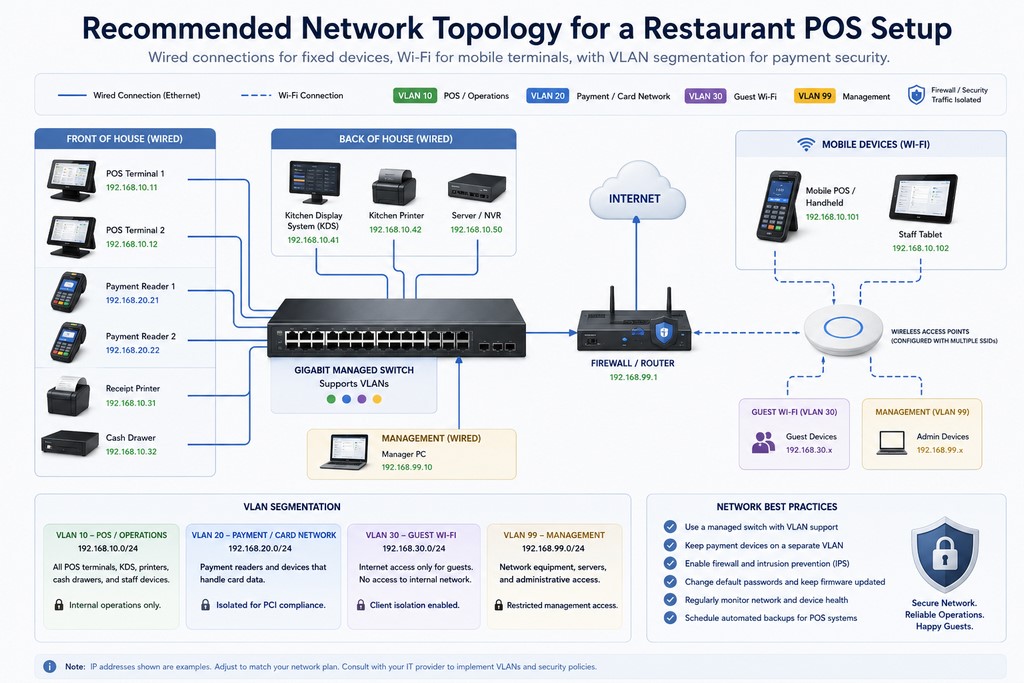
The rule is simple: fixed POS terminals get Ethernet, mobile devices get Wi-Fi.
Use wired Ethernet for fixed POS, KDS, and printer endpoints when the vendor supports it and cabling is practical. Cat6 is a sensible choice for new runs, but the final design should follow cable-length, electrical, fire-code, and manufacturer requirements.
Wi-Fi handles handheld tablets and mobile payment terminals. Wi-Fi 6 can improve capacity in device-dense locations, but coverage, channel planning, interference, roaming, and access-point placement matter more than the label alone.
Recommended: isolate POS and payment devices from guest Wi-Fi and unmanaged personal devices. Proper segmentation can reduce risk and PCI DSS scope, but a separate VLAN is not itself a universal PCI DSS requirement. The design must control traffic between segments and be validated for the specific cardholder data environment. See the PCI SSC segmentation guidance.
Router and Switch Selection for Restaurant POS
Avoid choosing a router only by consumer Wi-Fi speed. The network stack should support the security policies, monitoring, failover, and vendor configuration required by your deployment.
Gateway and access-point requirements: business firewall and VLAN support where segmentation is used, secure remote administration, logging, vendor updates, and enough wireless coverage for the floor plan. Examples of complete stacks include a UniFi Dream Machine Pro gateway with separate UniFi access points, or a Cisco Meraki MX security appliance with MR access points. The UDM Pro and Meraki MR devices are not interchangeable “Wi-Fi routers”: the first is a gateway and the second is an access-point family.
Switch requirements: Size the managed switch from the number of wired devices plus reasonable spare capacity. Add PoE only for the access points, cameras, phones, or other devices that require it; a 24-port switch is not a universal minimum.
Connect the gateway, switch, and other critical network devices to a correctly sized UPS. A UPS can bridge short power interruptions and allow an orderly shutdown, but it does not prevent ISP, configuration, software, or hardware failures. Test runtime and battery health on a schedule.
Step-by-Step Restaurant POS System Installation Guide
Installation time varies from a few hours for a simple replacement to several days for a multi-station restaurant with new cabling, KDS devices, integrations, menu migration, and staff testing. Set the timeline only after a site survey and written scope.
Phase 1: Pre-Installation Planning
Before a single box gets opened, map your space. Determine exact placement for every device. Confirm electrical outlets at each location. Confirm Ethernet drops or plan conduit runs. Create a network diagram with IP addresses pre-assigned to each device.
Pre-Installation Checklist:
Phase 2: Hardware Setup and Network Configuration
Unbox everything and verify against your purchase order before mounting. Check serial numbers against warranty documentation. Mount devices per your plan, run Ethernet cables before mounting terminals, then connect all wired devices to the switch.
Power on the gateway first and wait for it to complete its startup sequence, then complete the initial configuration:
- Change the default admin password immediately
- Create and document the required network segments and firewall rules; VLAN numbers are site-specific
- Configure access points, channels, security, and roaming for the actual coverage plan
- Set DHCP reservations or static addresses only where the POS vendor or network design requires them
Verify each device receives its assigned IP. Test internet connectivity from each terminal. Run a speed test — confirm you’re hitting your contracted bandwidth.
Phase 3: POS Software, Peripherals, and Testing
Install or provision the POS software using the vendor’s deployment process, then set the region, taxes, locations, users, and role-based permissions. Menu migration can take from a short session to multiple working days depending on item count, modifiers, pricing rules, integrations, and data quality; test a representative set before go-live.
Connect each required peripheral and test it through the POS. Then run approved end-to-end test transactions covering order entry, kitchen routing, each supported payment method, receipts, refunds or voids, cash-drawer behavior, offline or failover procedures, and reconciliation. Document and resolve failures before go-live.
Phase 4: Staff Training and Go-Live
Train every staff member on their specific workflows. Post laminated quick-reference cards at each terminal. Designate one person as your POS administrator — the staff member who handles first-line troubleshooting and knows the admin login.
Run a full mock service with real orders and real payments before opening to the public.
How Much POS Hardware Do You Need and What Should You Budget?
Device counts should follow the number of orders and payments handled at the same time, not seat count alone. The ranges below are planning starting points, not mandatory standards.
| Format | Fixed or Mobile POS | Handhelds | Kitchen Output | Network and Backup |
|---|---|---|---|---|
| Small café | 1–2 checkout stations | Usually 0–1 | One printer or KDS endpoint if orders route to a production area | One business gateway; switch, access point, UPS, and failover as the design requires |
| QSR / fast casual | 2–4 stations based on peak counter concurrency | Optional; kiosks may replace some counter demand | 1–3 KDS screens or printers based on kitchen stations | Gateway, managed switch sized to ports, surveyed Wi-Fi coverage, UPS, and a tested fallback |
| Full-service restaurant | 1–3 fixed stations plus mobile devices as needed | Enough for the servers who need to order or take payment at the same time | One endpoint per production station or routing zone | Gateway, managed switch, access points sized by survey, UPS, and secondary connectivity where required |
| Bar or nightclub | Enough stations for active service wells and peak payment concurrency | Optional for floor and patio service | Optional unless food orders route to a kitchen | Business network stack, strong bar-area coverage, spill-aware placement, UPS, and a tested backup connection |
| Food truck / pop-up | 1–2 mobile payment stations | Usually built into the primary mobile setup | Optional compact printer or kitchen screen | Primary cellular connection, charged backup device or power source, and documented offline-payment limits |
Hardware advertised at a low or zero upfront price can still carry software, processing, financing, contract, and replacement costs. Ask every vendor for both an itemized upfront quote and a 36-month total-cost estimate.
Use this budget formula:
Compare the same scope across vendors. If one quote excludes KDS devices, cash drawers, cellular service, installation, or onsite support, it is not cheaper — it is incomplete.
POS Hardware Requirements by Restaurant Format
Different operations have different hardware needs. What works for a QSR counter will slow down a fine dining floor. What survives a bar shift will be overkill for a food truck. Here’s how to match the equipment to the environment.
Quick Service (QSR) and Fast Casual: Speed and Durability
QSR operations run on throughput. Choose a screen size that lets cashiers navigate the real menu and modifier flow quickly. Self-service kiosks may reduce queues and shift some order entry to guests, but labor and ticket-size results depend on adoption, menu design, and operating model. Add enough counter stations for peak concurrency, and use hardware with a published environmental rating only where the installation risk justifies it.
Fine Dining and Table Service: Aesthetics and Mobility
Handheld devices can help servers enter orders and accept payment tableside, but they are not mandatory for every dining room. Compare handheld workflow, charging, Wi-Fi coverage, and guest experience against well-placed fixed stations. Choose KDS, printers, or a hybrid workflow based on the kitchen’s routing and fallback needs.
Bars and Nightclubs: Spill Resistance and Fast Checkout
Bars expose equipment to spills, repeated cleaning, vibration, and heavy use. Prefer sealed, easy-clean hardware and verify the exact manufacturer’s ingress and operating-environment specifications. Do not describe a terminal as IP65 unless the vendor publishes that rating for the exact model.
NFC/contactless support is strongly recommended for high-volume bars because it can reduce checkout friction. Actual throughput still depends on the POS workflow, network, processor, tab handling, and staffing. SkyTab is one option to evaluate for restaurant and bar workflows.
Food Trucks and Pop-Ups: Portability and Offline Capabilities
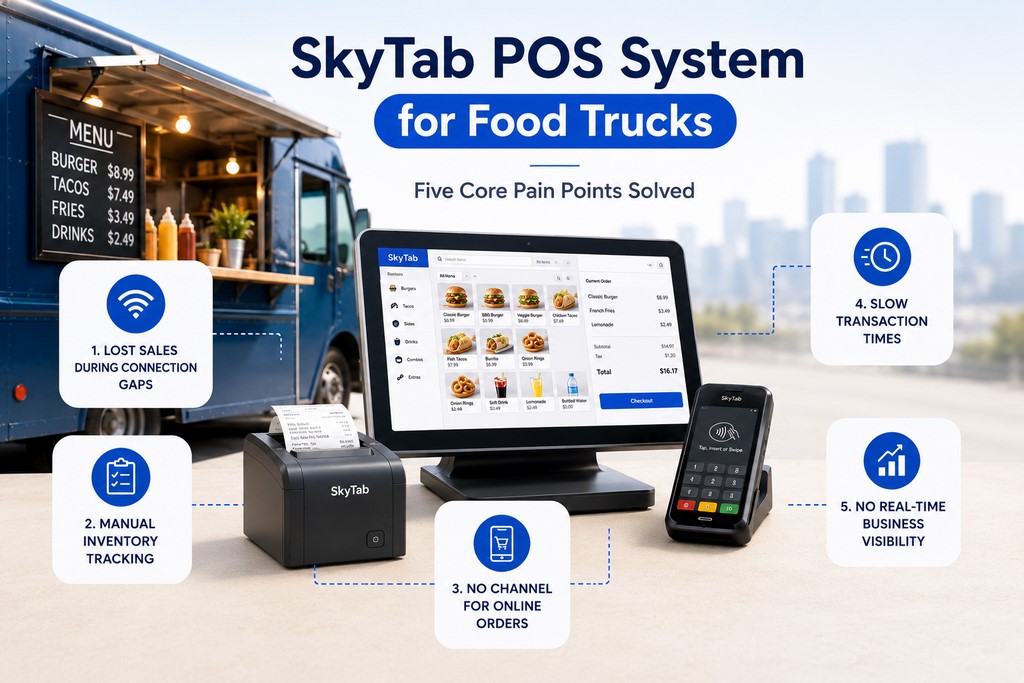
Food trucks need hardware that can tolerate inconsistent connectivity. Use a mobile POS such as Square Terminal, SkyTab Mobile, or a current Toast handheld only after verifying battery runtime, supported payment methods, cellular options, and offline behavior for the exact plan.
Offline payments carry merchant risk because stored transactions can be declined later. Confirm limits, eligible card types, reconnection deadlines, and who bears the loss. A tested cellular connection is safer than relying only on venue Wi-Fi.
| Parameter | QSR | Fine Dining | Bar | Food Truck |
|---|---|---|---|---|
| Speed priority | Critical | Moderate | Critical | Critical |
| Mobility requirement | Low | High | Moderate | High |
| Moisture/spill protection | Choose by counter exposure | Choose by station location | High priority; verify published rating | Choose for outdoor and cleaning exposure |
| Primary payment type | Card + contactless | Card + tableside | Contactless + tab | Card + mobile |
| KDS | Often useful | Workflow-dependent | Optional | Optional |
| Handheld devices | Optional | Often useful | Useful | Often useful |
| Recommended POS | SkyTab, Toast | SkyTab, Lightspeed | SkyTab, Revel | Square, SkyTab Mobile |
Common POS Hardware Mistakes and How to Avoid Them
Most hardware mistakes happen before anyone plugs anything in. They’re planning failures, not technical ones. I’ve made a few of these myself — or watched clients make them and had to help clean up the mess.
Mistake 1: Buying on price, not total cost of ownership.
The lowest hardware price can become expensive when warranty coverage, support, accessories, replacements, processing terms, and downtime are included. Compare the full contract and expected operating cost, not a made-up lifespan for a cheap versus expensive terminal.
Mistake 2: Ignoring network infrastructure.
The POS hardware gets the budget while the gateway, switch, Wi-Fi survey, cabling, and failover get whatever is left. Price and test the network scope with the POS hardware, not after installation.
Mistake 3: Under-training staff before opening.
Untrained staff make errors that look like hardware problems. A server who doesn’t know how to void a transaction creates a cash reconciliation nightmare that takes an hour to untangle.
Mistake 4: No backup plan.
If your primary terminal fails on a Friday night, what’s the plan? The right fallback may be a second terminal, a charged handheld, offline mode, a backup connection, or a documented manual procedure. Price it in the quote instead of assuming a universal replacement cost.
Mistake 5: Skipping PCI DSS verification.
PCI DSS v4.0.1 is the active standard, and its future-dated requirements became effective on March 31, 2025. The merchant validates the applicable PCI DSS controls for the full cardholder data environment; the terminal itself is checked separately for active PCI PTS approval, processor support, and correct deployment.
Before rollout, record each payment-device model, hardware and firmware version, PCI PTS listing status, processor approval, location, and replacement procedure. This prevents unsupported or expired hardware from slipping into a multi-location deployment.
Vendor-Locked vs. Open, Compatible POS Hardware Ecosystems
| Parameter | Vendor-controlled ecosystem (Square, Clover, SkyTab) | Open or third-party-compatible ecosystem |
|---|---|---|
| Upfront cost | Often bundled or financed; contract terms matter | Varies by components, licenses, and integration work |
| Compatibility | Hardware is validated within the vendor’s supported stack | More choice, but every device and driver must be verified |
| Support | Single-vendor or reseller support; hours and SLA vary | May be split among the POS vendor, integrator, and hardware manufacturers |
| Learning curve | Low | High |
| Best for | Most restaurants | Tech-savvy operators, custom builds |
Many restaurants benefit from a vendor-controlled hardware stack because compatibility and escalation are simpler. An open ecosystem can make sense when processor choice, specialized peripherals, or custom integrations matter more. This is a hardware-compatibility decision, not a claim that the POS software itself is open source.
Future-Proofing: Scalability for Multi-Location Growth
If a second location is anywhere in your 3-year plan, your hardware decisions today affect how painful that expansion will be.
Use cloud-based POS software — not a locally-hosted server. Choose hardware standardized across locations: when every location runs the same terminal model, printer, and router configuration, replacement and troubleshooting become routine. Document every configuration: IP addresses, VLAN settings, software version, peripheral serial numbers. When you open location 3, you replicate the document — not rebuild from memory.
Get a Custom Quote for Your Restaurant POS Hardware Setup
The right starting point is a hardware audit: what you actually need, in what quantities, at what specification level — before you buy anything.
Final Checklist Before Purchase:
Next Steps: Scheduling Your Demo and Site Survey
A demo lets you test terminal speed, KDS workflow, and handheld ordering experience before you’ve signed anything. The time required for a site survey depends on the venue, device count, existing cabling, integrations, and number of service areas. The deliverable should be a specific hardware list, network plan, and installation estimate for your actual space.
Contact Smart Payment Solutions to schedule both. We’ll walk your space, review your current setup if you’re upgrading, and give you a written recommendation with pricing — no obligation, no sales pressure.
Prepared by Max Artemenko, Founder & Chief Payment Systems Architect at Smart Payment Solutions, based on 12+ years of POS integration experience across 23 U.S. states and 50+ restaurant deployments. PCI DSS references reflect PCI DSS v4.0.1, published by the PCI Security Standards Council in June 2024, with future-dated requirements effective March 31, 2025. This guide provides general information and does not replace consultation with a Qualified Security Assessor for PCI compliance or a licensed IT professional for network infrastructure design.

What do our customers think about us
Other Articles
SkyTab POS for Food Trucks: Essential Features and Setup Guide

Best Credit Card Machines for Small Business in 2026
What Does “SEC Violation” Mean on Your Credit Card Terminal?
