

Clover Customer Service: Troubleshooting Common Issues and Getting Quick Support

Most Clover problems fall into four buckets: hardware, payments, software, and connectivity. In my experience working with restaurants and retail across 23 states, roughly 70–80% of issues resolve before you ever need to call support.
I've seen restaurant owners lose $800 in sales during a Saturday dinner rush because their Clover went offline and nobody knew the fix. It's a two-minute problem — if you know what to do. Most don't. That's why I put this guide together.

Contact Clover Customer Service: Support Phone Number and Help Desk
Clover customer service runs 24/7. Main line: 1-888-576-3279. That number connects you to technical support for merchants — activation, configuration, payment errors, hardware failures.
Before you call, pull three things: your Device ID (Settings → About Device), a one-sentence description of what’s wrong, and the last action you took before the error appeared. Calls with that info resolve in half the time.
For non-urgent questions, live chat in the Dashboard or a Help Center ticket works fine. For anything that’s stopping you from taking payments — call.
| Channel | Contact | Response Time | Best For |
|---|---|---|---|
| Phone | 1-888-576-3279 | 5–15 min | Urgent / critical issues |
| Live Chat | Dashboard → ? | 2–5 min | Quick questions |
| Help Center Ticket | docs.clover.com | 4–8 hrs | Complex / documented issues |
| Help Center (self-service) | docs.clover.com | Instant | Self-troubleshooting |
| System Status | status.clover.com | Real-time | Network-wide incident check |
Self-service tip: Use specific search terms in docs.clover.com — “payment failed,” “offline mode,” “factory reset Flex.” Filter by device type. Check “Related Articles” at the bottom of each page.
Troubleshooting Common Clover Issues: Step-by-Step Fixes
Most Clover problems fall into four buckets: hardware, payments, software, and connectivity. In my experience working with restaurants and retail across 23 states, roughly 70–80% of issues resolve before you ever need to call support.
One thing I see consistently over 12 years in this industry: the businesses that recover fastest from a POS issue aren’t the ones with the best luck — they’re the ones who already know the fix before the problem happens.
Universal diagnostic flow — start here:
- Read the error. Write down the exact message or code on screen.
- Soft restart. Hold Power 10 seconds, full shutdown, power back on. Clears ~40% of software errors.
- Check internet. Confirm Wi-Fi or Ethernet is active. Check status.clover.com for active incidents.
- Check for updates. Settings → About Device → Check for Updates.
- Clear cache. Settings → Apps → Clover → Storage → Clear Cache.
- Still failing? Call 1-888-576-3279 with the error code, device model, and steps already tried.
Hardware & Device Problems
Clover Device Offline or Not Connecting to Internet
Your Clover shows “Offline” because it lost contact with Clover’s cloud servers — local network dropped, router needs a restart, or there’s an active incident on Clover’s end.
Applies to: Station | Flex | Mini
Fix in order (under 5 minutes):
- Check the physical connection. Station: confirm Ethernet cable is seated in the rear port. Flex/Mini: confirm Wi-Fi toggle is on.
- Restart your router. Unplug, wait 30 seconds, plug back in. Wait for all indicator lights to stabilize.
- Reconnect the device: Settings → Network → Wi-Fi (or Ethernet) → Forget network → Reconnect with password.
- Check status.clover.com. Red or orange incident = wait, don’t reboot.
- Soft restart: hold Power 10 seconds, power back on. Boot takes 2–3 minutes.
If still offline, enable Offline Mode (see below) to keep processing sales.
Peak-hour scenario: If this hits mid-service, do steps 4 and 5 first — they’re fastest. Enable Offline Mode immediately so staff can keep taking payments while you troubleshoot the router.
Clover Card Reader Not Working (Station, Flex, Mini)
“Device Disconnected” or cards not reading is almost always a physical connection issue, not a software failure.
Fix in order:
- Check the connection. Station: USB cable into rear port. Flex: reader snaps into bottom connector — confirm the click. Mini: built-in reader; check contacts aren’t dirty.
- Clean the contacts. Unplug, wipe with a dry lint-free cloth. Reconnect.
- Restart: Settings → System → Restart Device.
- Check for updates: Settings → About Device → Check for Updates.
- Re-pair: Settings → Payments → Card Readers → Add Reader.
If still disconnected after restart and re-pairing, hardware has likely failed. Call 1-888-576-3279 for replacement.
Clover Printer Not Printing or Jammed
Thermal printers don’t use ink — “low ink” is never the cause. Almost always paper or a loose connection.
Fix in order:
- Check paper. Open cover — roll should be seated with leading edge visible. Load new roll if empty.
- Clear a jam. Pull stuck paper out gently. Check for torn scraps inside. Close cover firmly.
- Restart the printer. Unplug 30 seconds, reconnect. Wait for initialization beep.
- Check connection. USB: verify cable to Clover. Bluetooth: Settings → Printers → reconnect.
- Test print: Settings → Printers → Test Print.
| Symptom | Likely Cause | Fix |
|---|---|---|
| Not printing at all | No paper / disconnected | Load paper / reconnect cable |
| Paper jam error | Paper stuck inside | Remove paper, clear debris |
| Slow printing | Overheating | Let printer cool 5 minutes |
| Partial print, then stops | Torn paper inside | Open cover, remove all scraps |
Clover Device Won’t Turn On
A black screen with no response is almost always a power issue.
Fix in order:
- Verify the outlet — plug something else in to confirm it’s live.
- Inspect the power cable for kinks or fraying. Disconnect and reconnect firmly.
- For Flex/Mini (battery devices): charge for 30 minutes before attempting power-on. A fully depleted battery needs 1–2 hours before the device responds.
- Force restart: hold Power 15 seconds even if screen shows nothing. Wait up to 3 minutes.
- Check LED indicators. LEDs blinking = device has power, problem is software. No LEDs = power supply issue.
⚠️ Do not attempt to open or disassemble the device. Self-repair voids the Clover warranty and can permanently damage internal components. If none of the above steps work, contact support at 1-888-576-3279.
This information is general in nature and does not replace consultation with a qualified specialist.
Payment, Refund & Transaction Errors
How to Fix “Clover Payment Failed” Errors
“Payment Failed” or “Declined” means the transaction was rejected — by the card’s issuing bank, Clover’s servers, or a connectivity problem. Most declines have nothing to do with your terminal.
From my work with restaurant groups and retail chains across the country: roughly 70% of declined transactions originate on the issuing bank’s side — card limits, fraud holds, expired cards. The Clover terminal is doing its job. The problem is upstream.
Step-by-step when a payment fails:
- Ask for a different card.
- Retry the transaction.
- If declined again, check internet connection.
- Check status.clover.com.
- If servers are operational and problem persists, switch to Offline Mode.
- Record the error message and call support if the issue repeats across multiple cards.
| Error Code / Message | Meaning | Action |
|---|---|---|
| Declined | Card rejected by issuing bank | Ask for different card |
| Insufficient Funds | No funds on card | Ask for different card |
| Expired Card | Card past expiry date | Ask for different card |
| Invalid CVV | Wrong security code | Re-enter CVV, retry |
| Network Error | No internet connection | Check connection, retry |
| Server Error 500 | Clover server issue | Retry in 1–2 minutes |
| Too Many Requests 429 | Rate limit hit | Wait 60–90 seconds, retry |
For a full reference on declined transactions, see our complete credit card decline codes directory.
Training your staff: Always offer the customer a second card option immediately. If two different cards decline, check your internet connection before assuming a terminal problem. Use Offline Mode as a bridge while you diagnose.
What to Do When a Clover Refund Is Not Showing
The refund processed in Clover — but the customer’s card doesn’t show it yet. This is almost always a bank processing delay.
Refund timeline (Fiserv documentation, 2024; Visa/Mastercard issuer guidelines, 2023–2024):
- Clover processes the refund: 1–2 minutes
- Funds sent to acquiring bank: 1–2 hours
- Bank processes and credits to card: 3–5 business days (up to 10 for some issuers)
Steps to verify:
- Clover → Orders → find the order. Status should show “Refunded” or “Partially Refunded.”
- “Pending” = wait. “Failed” = retry the refund.
- If 5 business days have passed and the customer still doesn’t see it, ask them to contact their bank directly.
- If the bank confirms no refund was received, contact Clover support with the transaction ID.
| Status | Meaning | Action |
|---|---|---|
| Pending | Processing in progress | Wait 1–2 minutes |
| Completed | Successfully processed | No action needed |
| Failed | Transaction rejected | Retry or use different card |
| Refunded | Refund processed | Funds appear in 3–5 business days |
| Refund Failed | Refund did not process | Retry or contact support |
Software, App & Login Issues
Can’t Log In to Clover?
Forgot password: Login page → “Forgot Password?” → Enter account email → Check inbox/spam → Click reset link → Create new password.
2FA not working: Confirm code is current in your authenticator app. Verify phone time is set to automatic (Settings → Date & Time → Automatic — desync breaks 2FA codes). If still failing: “Can’t access your authenticator?” → use backup codes. No backup codes: call support for identity verification and 2FA removal.
Account locked: Wait 30 minutes after multiple failed attempts. If still locked, call support.
Reset email not arriving: Check spam. Add support@clover.com to contacts. Request again. If nothing after 10 minutes, call support with your account email.
Clover App Is Frozen, Slow, or Unresponsive
Fixable in under 5 minutes without calling support.
Fix in order:
- Force-close the app. Swipe up from home screen, swipe Clover away.
- Clear cache: Settings → Apps → Clover → Storage → Clear Cache.
- Restart: hold Power 10 seconds, full shutdown, power back on.
- Check storage: Settings → Storage. Under 1 GB free = delete unused apps.
- Update: Play Store → search Clover → install available update.
- Check network: confirm Wi-Fi or Ethernet is active.
If none of that works: uninstall and reinstall from Play Store. Your data lives in the cloud — nothing is lost.
Offline Mode: How to Process Sales Without Internet
Offline Mode lets Clover process card payments locally when internet is down. Transactions store on the device and sync automatically when connection returns. Critical for any business that can’t afford a processing stoppage.
Enable it before you need it:
- Settings → Payments → Offline Mode.
- Toggle “Enable Offline Mode” on.
- Set a per-transaction limit ($500–$1,000 is reasonable for most restaurants and retail).
During an outage: Clover displays “Offline Mode Active.” Process payments normally. When internet restores, Clover syncs automatically — check Orders to confirm status shows “Completed” or “Synced.”
What Offline Mode can’t do:
- Can’t verify card balances (higher decline risk)
- Refunds unavailable while offline
- Transactions above your set limit are blocked
Support for Clover Devices: Station, Flex, and Mini
| Feature | Clover Station | Clover Flex | Clover Mini |
|---|---|---|---|
| Type | Countertop terminal | Portable handheld | Compact countertop |
| Connection | Ethernet or Wi-Fi | Wi-Fi or LTE | Wi-Fi |
| Battery | No (AC powered) | Yes, 8–12 hrs | No (AC powered) |
| Built-in printer | Yes | No | No |
| Best for | Full-service restaurants, retail | Tableside, delivery, mobile | Quick-service, small retail |
Clover Station: Desktop Terminal
Most Station problems trace back to the Ethernet cable or the printer.
| Problem | Fix |
|---|---|
| Won’t power on | Check power cable, try different outlet |
| Screen unresponsive | Restart device, wipe screen with dry cloth |
| Printer not printing | Check paper, reconnect USB cable |
| No internet | Reseat Ethernet cable or reconnect Wi-Fi |
Clover Flex: Portable Terminal
Battery and signal strength are the two most common failure points.
| Problem | Fix |
|---|---|
| Battery drains fast | Lower screen brightness, close unused apps |
| Won’t charge | Check cable, use original charger only |
| Weak Wi-Fi | Move closer to router, reconnect to network |
| Card reader not working | Clean contacts, re-pair in Settings → Payments |
Clover Mini: Compact Terminal
Connection issues and printer pairing are the typical pain points.
| Problem | Fix |
|---|---|
| No Wi-Fi | Confirm Wi-Fi is enabled, reconnect to network |
| External printer won’t connect | Confirm printer compatibility, re-pair via Settings |
| Freezes with high order volume | Clear cache, update software |
How to Contact Clover Customer Service
Clover Support Phone Number & Hours
Phone: 1-888-576-3279 | Hours: 24/7
What to have ready: Device ID (Settings → About Device), one-sentence problem description, steps already tried, order number if payment-related, account email.
Call for: device failures, payment errors on large transactions, hardware replacement, billing disputes.
Average wait: 5–15 minutes. Faster in off-peak hours (early morning, late night).
Using Clover Live Chat & Help Center
Live Chat: Dashboard → “?” → Chat with Support. Response 2–5 min during business hours, up to 30 min after hours. Good for quick questions and anything where you want a written record of the exchange.
Help Center tickets: Via docs.clover.com. Response 4–8 hours. Best for complex issues requiring screenshots or documentation.
Self-service at docs.clover.com: Use specific search terms — “payment failed,” “offline mode,” “factory reset Flex.” Filter by device type. Check “Related Articles” at the bottom of each page. Most common issues have step-by-step guides already written.
| Channel | Response Time | Best For | Access |
|---|---|---|---|
| Phone 1-888-576-3279 | 5–15 min | Urgent / critical issues | Call directly |
| Live Chat | 2–5 min | Quick questions | Dashboard → ? |
| Help Center Ticket | 4–8 hrs | Complex / documented issues | docs.clover.com |
| Help Center (self-service) | Instant | Self-troubleshooting | docs.clover.com |
Advanced Recovery: Factory Reset Guide
Factory Reset wipes the device and restores factory defaults. Use only when soft restarts, cache clearing, and app reinstallation haven’t worked.
Before you start: confirm all data is synced. Check Orders, Inventory, and Customers in the Dashboard. Everything cloud-synced restores automatically after login.
Step-by-Step Factory Reset for Clover Mini, Clover Flex, and Clover Station
All three models use the same sequence.
- Prepare: Station/Mini: confirm device is connected to power. Flex: battery must be at least 50% charged. Verify cloud sync in Dashboard.
- Enter recovery menu: Power off completely. Hold Power + Volume Up simultaneously. Wait for recovery menu (~10 seconds).
- Execute reset: Navigate to “Wipe Data / Factory Reset” with Volume buttons. Press Power to select. Choose “Yes.” Wait 10–15 minutes.
- Initial setup: Device reboots and prompts for Clover account login. Enter credentials and follow on-screen steps.
How to Restore Your Data After a Reset
Per Clover’s official documentation (Clover Station Pro User Guide, 2023) and developer API docs (v2024.1): orders, inventory, and customer records sync from the cloud at login with a recovery rate above 99% when internet is available. Sync takes 5–15 minutes depending on data volume.
What doesn’t restore:
- Offline transactions never synced to the cloud before the reset
- App caches
- Device-specific settings (screen brightness, language preferences)
Check Orders, Inventory, and Customers after sync completes. If anything looks off, run a soft restart before calling support — sometimes the sync just needs a nudge.
Expert Tips: Preventing Future Clover Issues
Daily & Weekly Device Maintenance
Daily:
- Wipe screen with a dry, lint-free cloth (no alcohol-based cleaners)
- Clear debris from the card reader slot
- Check printer for paper jams before opening
Weekly:
- Check for software updates: Settings → About Device → Check for Updates
- Run a test print
- Confirm all devices show online in the Dashboard
- For Flex/Mini: confirm battery above 50% after each shift
Recommended Network Settings for Peak Performance
Network instability is the single biggest cause of intermittent Clover issues in restaurants and retail. Fix the network, and half your POS problems disappear.
Wi-Fi:
- Use 5 GHz band — more stable, less interference in busy commercial environments
- Keep router within 30 feet of the device
- Use WPA2 or WPA3 encryption
Ethernet (Station):
- Use Cat5e cable or higher, connected directly to the router
Bandwidth:
- Minimum 5 Mbps dedicated to POS. Recommended: 10+ Mbps. Check at speedtest.net.
Backup connection:
- Clover Flex has built-in LTE on supported plans — configure it as a fallback before you need it
- For Station, a mobile hotspot as backup costs almost nothing and has saved more than a few dinner services
Manager Troubleshooting Checklist
Weekly:
- All devices powered on and connected to internet
- All devices synced — no “Pending” status in Orders
- No payment errors in the last 7 days (check Reports)
- All printers functional — run test print
- All card readers functional — run test transaction
- No pending software updates
- Flex/Mini battery above 50%
Monthly:
- Verify warranty status on all devices
- Inspect devices for physical damage
- Run network speed test — confirm above 5 Mbps
- Review declined transaction rate — flag anything above 3%
- Confirm Offline Mode is enabled with appropriate limits set
Clover Support Resources and Contact Information
Official Clover Help Center and Phone Support
| Resource | URL / Contact | Best For |
|---|---|---|
| Phone | 1-888-576-3279 (24/7) | Urgent issues, hardware failures |
| Help Center | docs.clover.com | Self-service, how-to guides |
| Live Chat | Dashboard → ? | Quick questions |
| Tickets | docs.clover.com | Complex issues, written record |
| System Status | status.clover.com | Network-wide incident check |
When to Contact Your Merchant Service Provider (MSP)
Some issues sit outside Clover’s scope and require your MSP — the company managing your merchant account, rates, and contracts.
| Issue | Clover | MSP |
|---|---|---|
| Device hardware support | ✓ | — |
| Clover software / app issues | ✓ | — |
| Payment processing errors | ✓ | ✓ |
| Processing rates and fees | — | ✓ |
| Contract and billing questions | — | ✓ |
| Chargeback management | — | ✓ |
| Device replacement | ✓ | ✓ |
| Third-party software integration | — | ✓ |
Not sure who to call? Start with Clover at 1-888-576-3279. If the issue is outside their scope, they’ll redirect you.
If you’re running Clover and want a second set of eyes on your payment setup — processing costs, device configuration, or chargeback exposure — that’s exactly what we do at Smart Payment Solutions. We’ve helped restaurants and retail operations across 23 states cut processing fees by 29–47% and reduce POS downtime to near zero. Reach out if you want a no-cost audit.
“Max has been a godsend to me as a small business owner. He is experienced in all facets of merchant processing. As always, Max, thanks for your support.” — Client, Smart Payment Solutions

What do our customers think about us
Other Articles
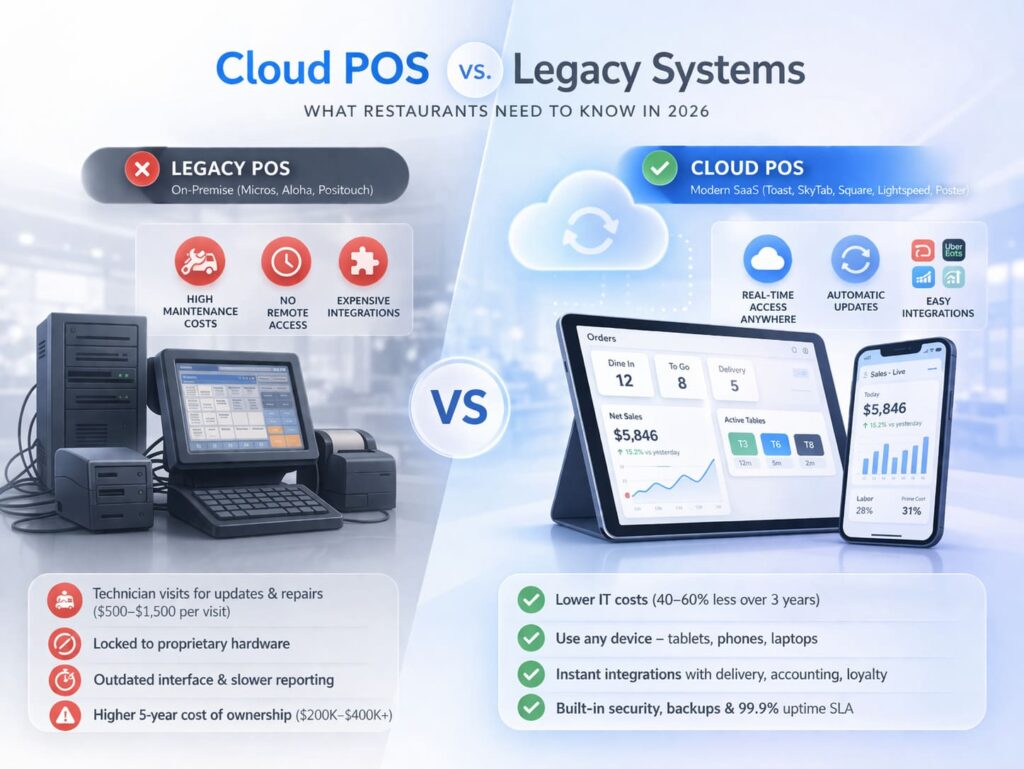
Cloud POS vs. Legacy Systems (Micros/Aloha): What to Choose for a New Restaurant?
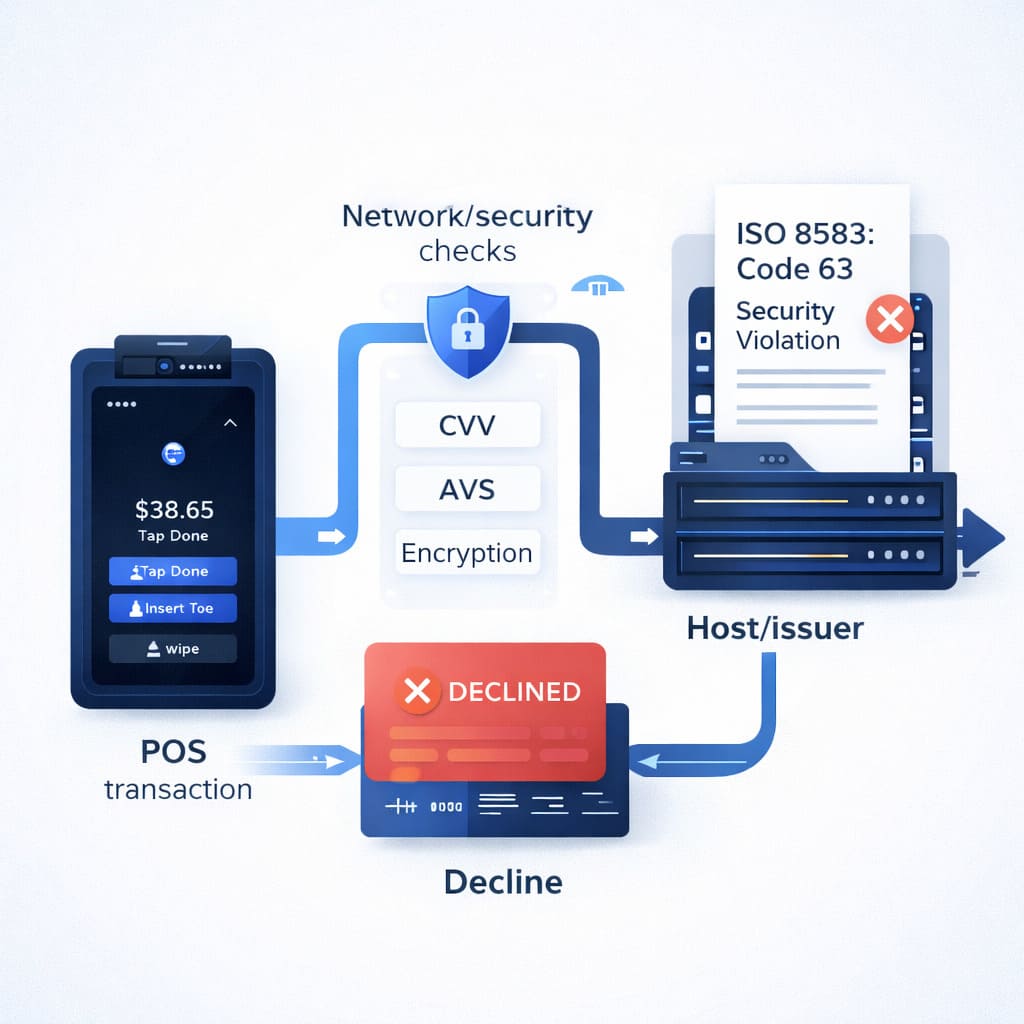
How to Handle Decline Code 51 (Insufficient Funds) at Your Restaurant

Clover Flex vs Mini for Restaurants: Which POS Fits Your Service Model?
