

Merchant Override Decline: What It Means and How to Fix It
Merchant Override Decline hits when your processor or acquirer blocks a transaction you're trying to force through—even though the customer's bank already said yes. It's not a "soft" decline you can just retry. It's a hard stop from your payment system saying, "No. Not happening."
"Information provided here is general in nature and does not replace professional consultation. Payment processor policies vary by agreement and jurisdiction. Consult your specific processor documentation and legal counsel for guidance applicable to your business."
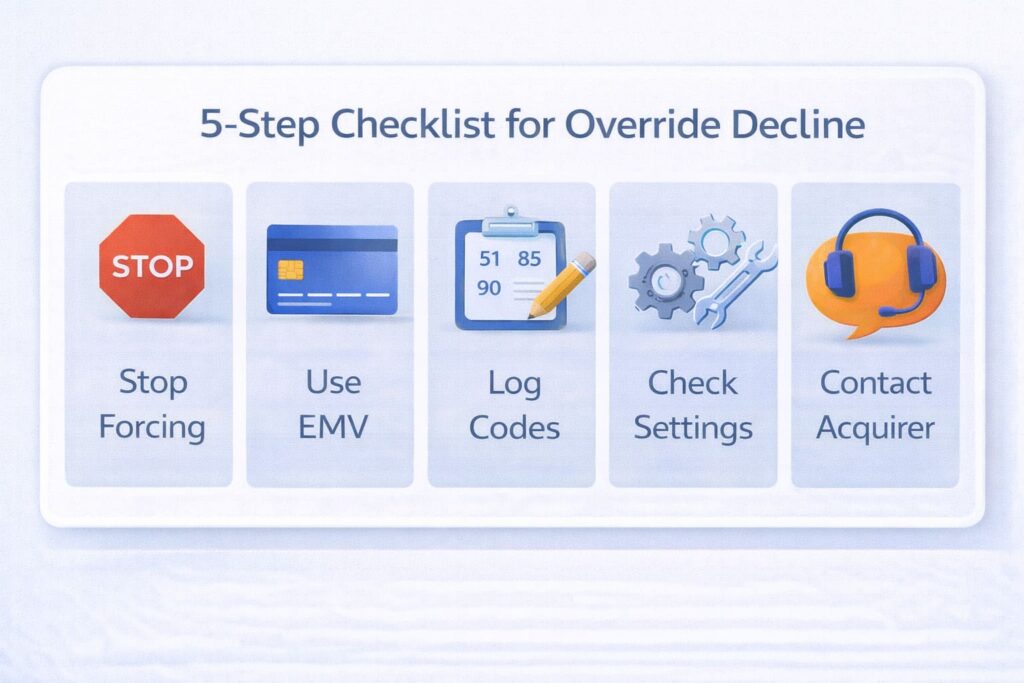
The Fast Answer: What to Do Right Now
Here’s what you do immediately:
- Stop trying to force it. Every retry makes it worse—fraud flags pile up, and the processor watches you more closely.
- Go back to standard EMV. Insert the chip. Let it read. Don’t jump to manual entry or voice codes unless you’ve got written approval from your processor.
- Write down the code and time. Note the Reference Number, MID/TID, response code, and exact timestamp. You’ll need this.
- Check your settings, not your customer’s card. Verify your MCC, transaction limits, and manual entry policy with your processor.
- Call your processor or acquirer. Bring the codes. Ask: Is override even allowed for my business type? Many processors block it entirely now—and that’s by design.
The risk: Overriding too much = chargebacks spike. Your processor sees it, your account gets reviewed, and in the worst case, you lose the ability to process at all. Not worth it.
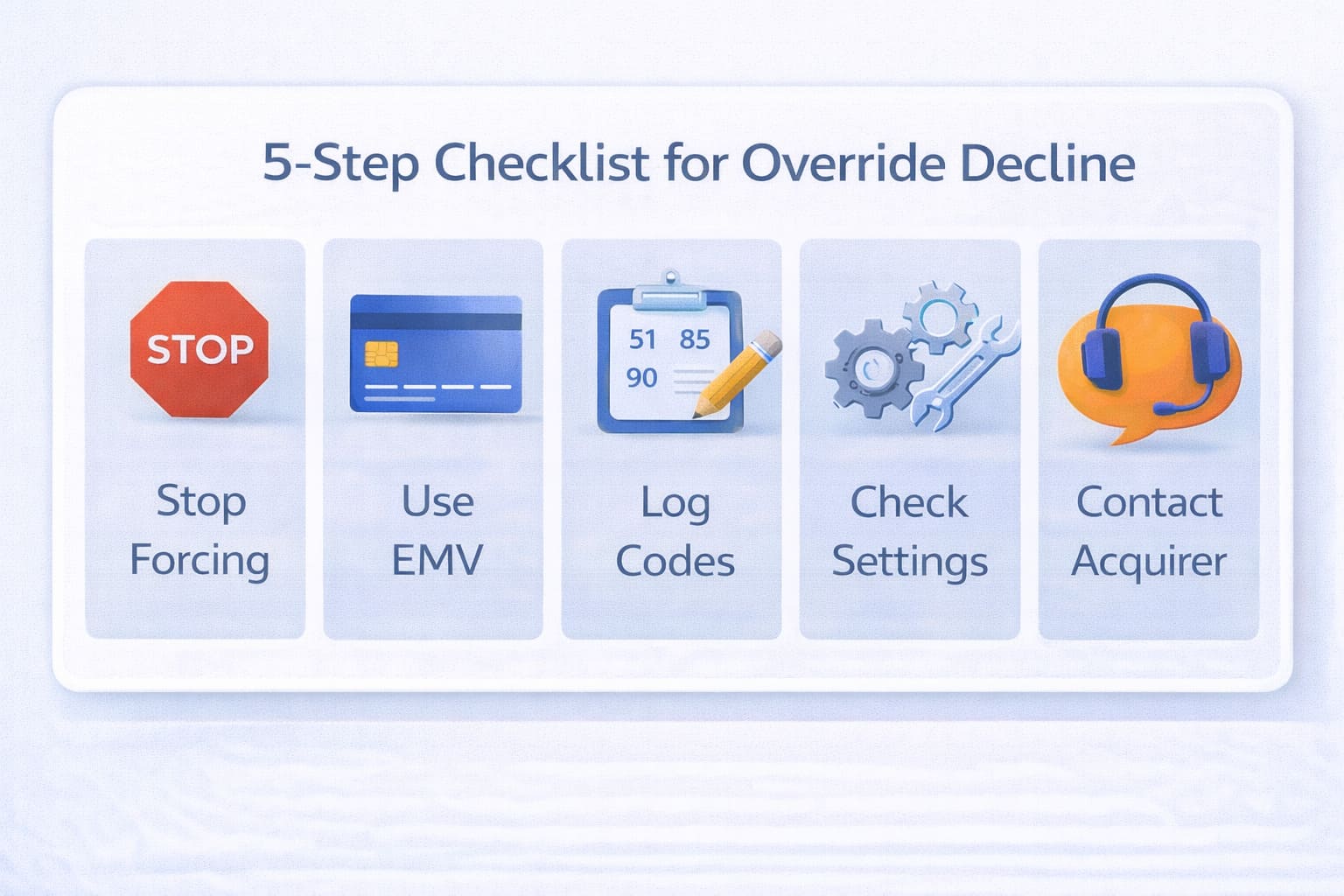
What Is Merchant Override? (The Real Definition)
Override isn’t some magic button. It’s a last resort when your normal payment method fails—usually offline, voice-authorized, or when you’re trying to recover a declined transaction.
Here’s who’s involved:
- The customer’s bank (issuer): Typically approves the transaction or doesn’t.
- Your processor/acquirer: Sits in the middle, watching for fraud. They can block even approved transactions.
- Your terminal/software: Has its own rules about what it will and won’t process.
When Override Is Supposed to Happen
- Store goes offline; you call the bank’s voice line; they give you a 6-digit auth code; you manually punch it into the terminal.
- Transaction falls under your floor limit (say, $25 for a coffee shop); terminal approves it offline automatically.
- Processor flags it as risky (AVS/CVV mismatch) but lets you override if you’re willing to take the fraud liability.
When It’s NOT Supposed to Happen
- Your processor says “no manual entry for your MCC” and you try anyway. Decline.
- Your processor blocks override because you process too many chargebacks. Hard no.
- The customer’s card issuer actually rejected it (not a processor block). You can’t override that—only the customer or their bank can fix it.
The risk: Every manual confirmation shifts fraud liability to you. If the transaction turns into a chargeback, you eat it—not the processor, not the issuer. That’s the trade-off.
How Voice Authorization and Code Entry Work
Voice authorization is what happens when your terminal can’t reach the network and you need approval now.
The Process
- You initiate the call. Dial the voice authorization number (printed on your terminal or in your processor docs). Have the card, transaction amount, and your merchant info ready.
- Operator verifies. You provide: card number, expiration, amount, your MID/TID. Operator checks with the issuer in real-time.
- Code issued. If approved, operator gives you a 6-digit authorization code. Write it down. You’ve got 1–2 minutes to enter it before it expires.
- Manual entry on terminal. Punch the code into your POS. Terminal logs it locally, marks the transaction as “voice authorized.”
- Settlement. When you’re back online, terminal batches the transaction. Processor settles it like any other sale—but with higher scrutiny.
Where Failures Happen
- Wrong code entered. Operator gave “482901”; you typed “482109.” Decline.
- Code expires. You got distracted, took 3 minutes. Code’s dead. Start over.
- Amount mismatch. Asked for $50 auth, charged $55. System flags it. Decline.
- Missing signature. Customer didn’t sign within the required timeframe (usually 1 minute per standard terminal specs). Auto-cancels.
- Terminal reconnects mid-process. Store comes back online while you’re still entering the manual code. Terminal wants fresh authorization instead. Decline.
Key point: Voice auth is not the same as override. It’s a fallback for when you’re offline. Override is when you’re online and trying to push past a decline. Different beast entirely.
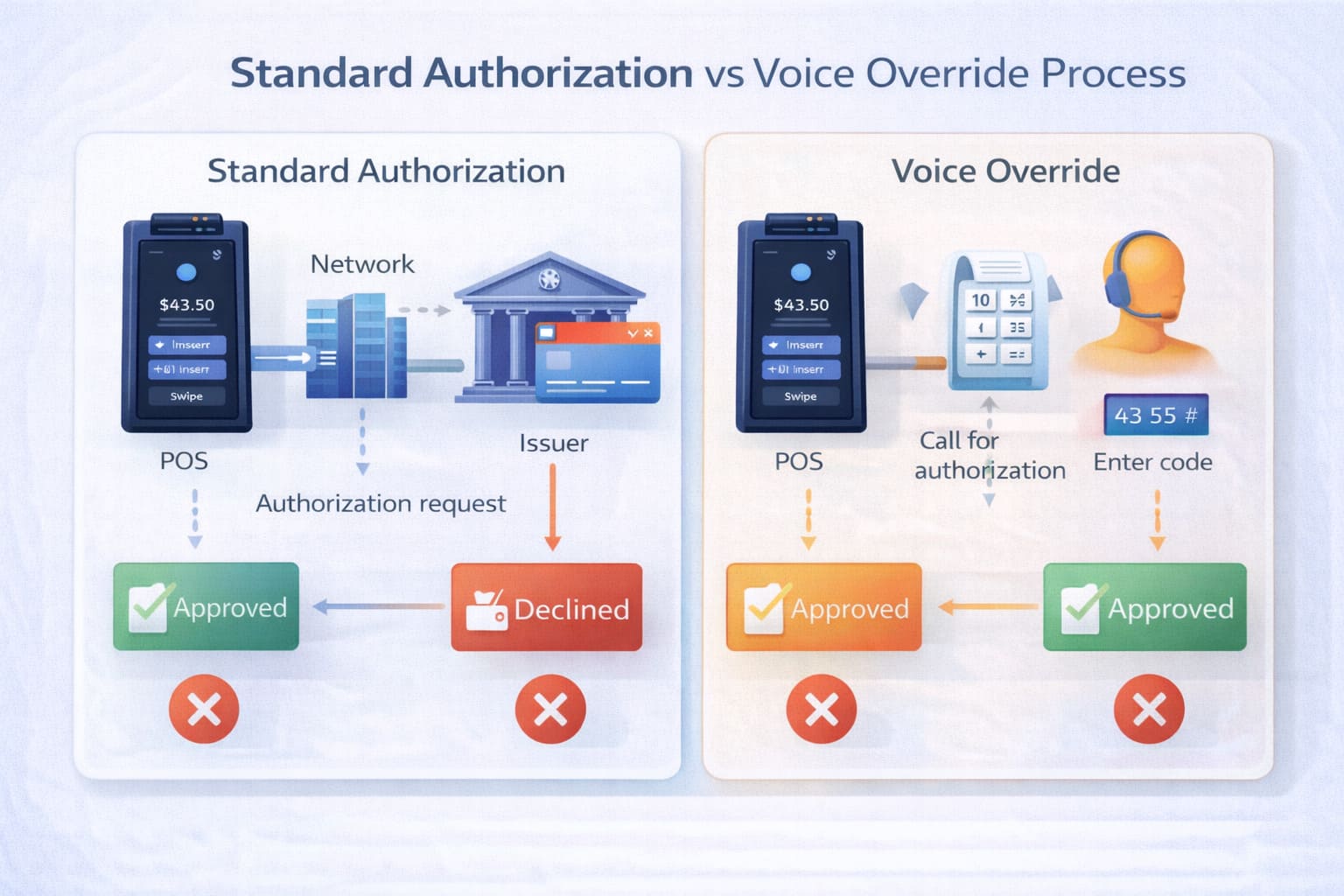
Decoding the “Override Decline” Error
Merchant Override Decline means your attempt to force-approve a transaction was rejected—not by the customer’s bank, but by your own payment infrastructure. The processor, acquirer, or terminal settings said: “You can’t do this.”
It’s often tied to:
- Manual entry restrictions. Your processor doesn’t allow keyed transactions for your MCC.
- Terminal parameter mismatch. Settings don’t support override mode or EMV fallback.
- Invalid voice code. Code expired, wrong digits, or amount doesn’t match.
- Anti-fraud rules. Your risk filters flagged the transaction as suspicious.
- MCC limitations. High-risk categories (travel, adult entertainment, certain retail) face stricter override policies.
The distinction: This isn’t the customer’s bank saying “insufficient funds” or “card expired.” That’s an issuer decline. Override decline is your processor or terminal blocking your attempt to bypass standard authorization.
“Terminal Parameter Override Error” vs “Merchant Override Decline”
These sound similar. They’re not.
| Aspect | Terminal Parameter Override Error | Merchant Override Decline |
|---|---|---|
| Source | Your POS device or gateway—the hardware/software itself | Your payment processor or acquirer—the network |
| What it means | Terminal can’t execute override because the configuration is broken or incompatible | Network can execute override, but won’t—policy says no |
| Example | Terminal firmware is outdated; can’t read EMV fallback settings | Processor sees CVV mismatch; manual entry flagged as risky |
| Who blocks it | Your POS device | Your payment processor |
| How to fix it | Update firmware, check terminal parameters (MID/TID), restart the device | Contact processor; review account settings; get written approval for override |
| Typical codes | 340, 325, “Invalid Parameter” | LT, LM, “Restricted Service” (62) |
The key: Parameter error = your machine is broken. Override decline = the network won’t let you do it.
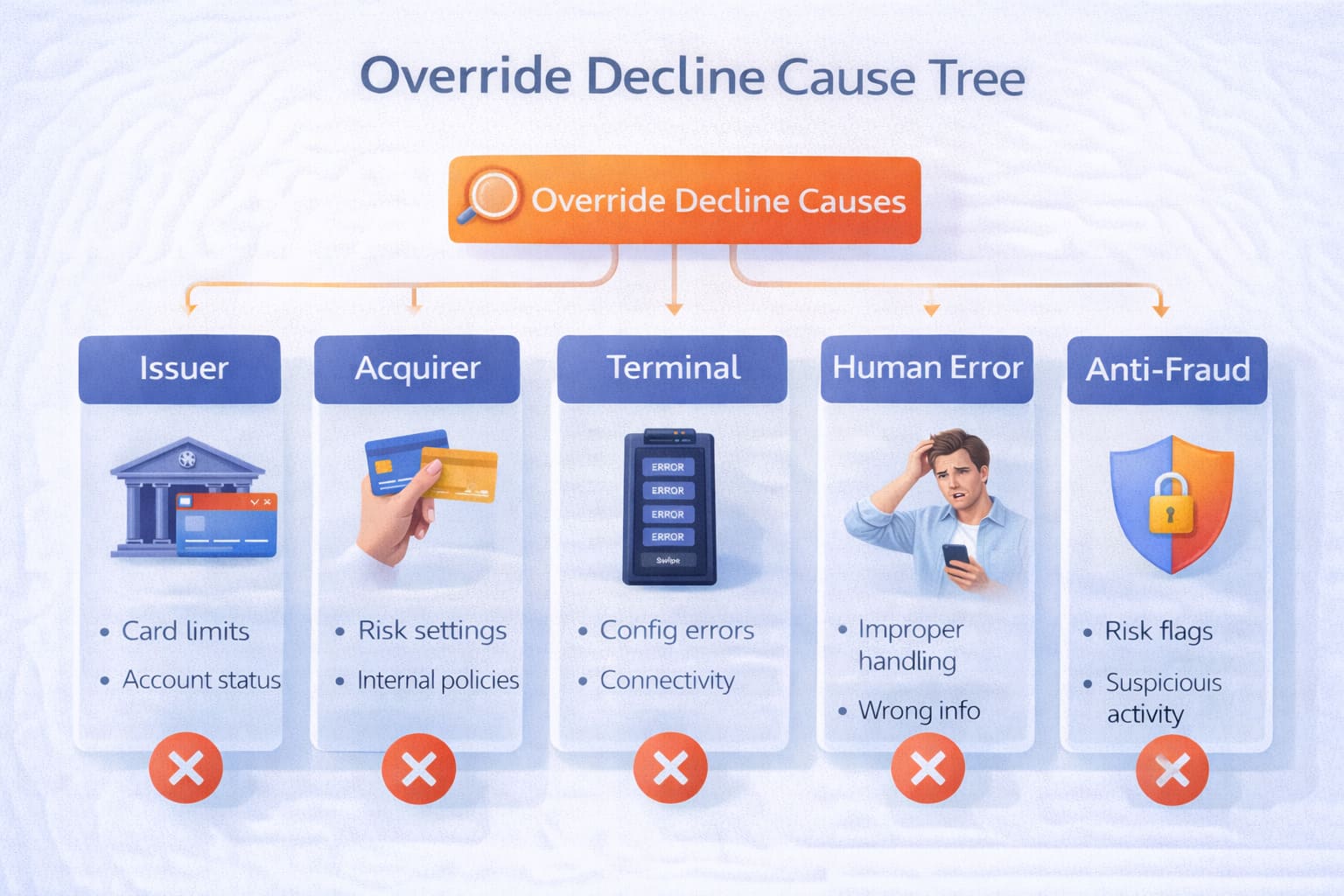
Why You’re Getting “Merchant Override Decline”: The Five Main Categories
Every time you see this error, one of five things is happening. Let me walk through them.
1. The Card Issuer Actually Rejected It (But You Didn’t Realize)
Sometimes the customer’s bank says “no” outright. You read it as “soft decline” and think you can override.
Common reasons:
- Insufficient funds. Customer’s account is empty.
- Expired card. Past the expiration date.
- Card stolen or blocked. Customer reported it; bank won’t approve anything.
- Velocity check failed. Customer just made 5 transactions in 10 minutes.
- 3DS challenge failed or timed out. Online transaction; customer didn’t complete authentication.
Your move: Tell the customer. Suggest a different card, digital wallet, or BNPL option. Don’t keep trying the same card.
2. Your Processor’s Security Settings Blocked It (Even Though Funds Are There)
Your acquirer has rules. Sometimes those rules block legitimate transactions.
Common triggers:
- CVV mismatch. Entered CVV doesn’t match issuer records.
- AVS failure. Billing address on file doesn’t match.
- MCC restriction. Your business category is classified as higher-risk.
- Transaction limit exceeded (LT/LM codes). You’ve already hit your daily processing limit.
- Fraud flags. IP address mismatch, multiple devices, unusual pattern.
3. Your POS Terminal or Gateway Doesn’t Support Override (Bad Config)
Terminal settings say “override not allowed.” Could be:
- EMV fallback disabled. Chip failed to read; terminal won’t fall back to mag stripe or manual entry.
- Manual entry policy set to “decline”. Your admin blocked manual key entry system-wide.
- Outdated firmware. Terminal software is 3 years old; doesn’t recognize override commands.
- Unsupported processor code. Older POS; processor added new override rules your system doesn’t understand.
4. Human Error: Wrong Data, Wrong Mode (You or Your Cashier)
Manual entry mistakes kill transactions.
Common slip-ups:
- Wrong CVV. Cashier mis-read the back of the card.
- Wrong amount. Entered $150 when customer said $115.
- Card-Not-Present mode selected on a card-present transaction.
- Expired or outdated auth code. Got a voice code 3 minutes ago; it’s no longer valid.
- Billing address missing. Required field; cashier skipped it.
5. Your Own Anti-Fraud Rules Blocked It
Some POS systems and payment gateways let you set custom fraud rules.
Common rules that trigger override decline:
- Block all CNP (card-not-present) transactions.
- Block all manual key entry.
- Require manager approval for transactions over a certain amount.
- Flag and decline high-risk countries.
Diagnosing the Problem: The Step-by-Step Playbook
When override decline hits, here’s how to figure out what went wrong.
Step 1: Collect the Evidence
- Exact time of transaction (to the minute)
- Reference number (also called auth code or approval code)
- MID (merchant ID) and TID (terminal ID)
- Response code (e.g., “05,” “LT,” “62”)
- Amount and currency
- Customer’s card type (Visa, Mastercard, Amex)
- Entry method (chip, swipe, manual, contactless)
Step 2: Decode the Response Code
Response codes tell you where the decline came from:
| Code | Meaning | Source | Override Possible? |
|---|---|---|---|
| 05 | Do not honor | Issuer | No (issuer decision) |
| 51 | Insufficient funds | Issuer | No (customer’s fault) |
| 54 | Expired card | Issuer | No (hard decline) |
| 62 | Restricted service (MCC or velocity) | Acquirer/Processor | Maybe (check with processor) |
| LT | Transaction limit exceeded | Processor | No (must request limit increase) |
| LM | Monthly limit exceeded | Processor | No (must request limit increase) |
| 97 | Invalid CVV | Processor | Yes (if funds available) |
Step 3: Check Your Terminal Settings
Pull up terminal config (Settings > Merchant Settings or similar):
- Is manual entry enabled or disabled?
- Is EMV fallback enabled?
- What’s your floor limit (offline approval threshold)?
- What’s your MCC (merchant category code)?
- Are AVS and CVV checks active?
Step 4: Cross-Check with Your Acquirer
Call your processor. Ask:
- “Is override even allowed for my business type (MCC)?”
- “Do I have any per-transaction or monthly limits? What are they?”
- “Is manual entry enabled on my account?”
- “Can I increase my daily processing limit?”
- “What’s your current fraud policy? Any new rules I should know about?”
Quick Diagnostic Checklist
- ☐ Response code logged? (Is it 05, 51, 54, 62, LT, LM, 97, etc.?)
- ☐ MID/TID confirmed in terminal settings?
- ☐ Manual entry enabled on this terminal?
- ☐ EMV fallback active?
- ☐ Terminal firmware current (updated within 6 months)?
- ☐ MCC matches your business type?
- ☐ Daily transaction limit checked (not exceeded)?
- ☐ Card expiration valid?
- ☐ CVV entered correctly?
- ☐ Billing address on file (if required)?
How to Fix It: Step-by-Step Instructions
Alright. You’ve diagnosed the problem. Now, here’s what to actually do.
Scenario 1: Issuer Declined (Customer’s Bank Said No)
You cannot override this. The customer’s bank rejected it. Only they can fix it.
Your steps:
- Tell the customer: “Your bank declined this transaction. Not a merchant issue.”
- Suggest: Different card, digital wallet (Apple Pay, Google Pay), Buy-Now-Pay-Later (Affirm, Klarna), debit card instead of credit card
- If the customer insists it’s a mistake, have them call their bank while you wait.
- Do NOT retry the same card repeatedly—it triggers fraud flags.
Scenario 2: Processor Blocked It (CVV/AVS Mismatch, Funds OK)
You can try an override if your processor allows it. But it’s risky.
Your steps:
- Contact your processor’s support line. Say: “I have a transaction declined for CVV/AVS mismatch. Customer is trusted. Can I override?”
- Processor may send you a link or code to force approval. Use it.
- Document it. Write down: time, amount, reason (CVV mismatch), customer name, processor approval.
- Accept the risk: If this transaction turns into a chargeback, you eat it—not the processor.
Scenario 3: Terminal Configuration Issue
Your terminal is misconfigured. Needs a fix, not an override.
Your steps:
- Check firmware: Settings > About Device. If it’s more than 6 months old, update it.
- Check manual entry policy: Is it enabled? If disabled, enable it (if you want manual entry).
- Check MCC: Make sure it matches your business. (Reach out to processor to verify.)
- Restart the terminal (shut down, wait 30 seconds, power back on).
- Retry the transaction.
Scenario 4: Human Error (Wrong Data Entered)
Fix the data. Retry.
Your steps:
- Ask the customer for their card again (or pull it from file).
- Re-enter the data carefully: Full card number (no typos), Expiration date (MM/YY format), CVV (3 or 4 digits on back), Billing ZIP code
- Use chip read (EMV) if possible. Manual entry is error-prone.
- Retry.
Scenario 5: Your Own Anti-Fraud Rules Are Too Strict
Loosen them. You’re blocking your own sales.
Your steps:
- Log into your POS dashboard or gateway.
- Find the “Rules” or “Security Settings” section.
- Review: Manual entry (Is it blocked? Allow it if you need it), Transaction limits (Too low? Increase them), Geographic blocks (Blocking the US? Remove), Velocity checks (Blocking legitimate repeat customers? Adjust)
- Save changes.
- Retry transaction.
Response Codes: The Reference Guide
When you see these codes, here’s what they mean and what to do:
| Code | Full Name | Who Says It | Why It Happens | Can Merchant Override? | Customer Action |
|---|---|---|---|---|---|
| 01 | Refer to Issuer | Issuer | Contact bank required | No | Call their bank |
| 02 | Refer to Issuer’s Special Conditions | Issuer | Special issue with account | No | Call their bank |
| 04 | Pick Up Card (No Fraud) | Issuer/Acquirer | Card restricted/stolen | No | Contact bank; may need new card |
| 05 | Do Not Honor | Issuer | General refusal (no reason given) | No | Try different card |
| 51 | Insufficient Funds | Issuer | Balance too low | No | Use different card or withdraw cash |
| 54 | Expired Card | Issuer | Card past expiration | No | Use new card |
| 62 | Restricted Service | Acquirer | MCC/velocity restriction | Maybe | Contact merchant’s processor |
| 97 | Invalid CVV | Processor | CVV doesn’t match | Yes* | Retry with correct CVV or override if funds OK |
| LT | Transaction Limit Exceeded | Processor | Merchant daily limit hit | No | Request higher limit (2–3 days) |
| LM | Monthly Limit Exceeded | Processor | Merchant monthly limit hit | No | Request higher limit (2–3 days) |
*Only if merchant accepts fraud liability.
Platform-Specific Guidance
Here’s what to do on the major POS systems and processors:
Shift4
Shift4 doesn’t offer a simple “override” button on most terminals. Instead:
- If decline is processor-side (LT/LM codes), contact Shift4 support to request limit increase.
- If decline is issuer-side, have customer use different card.
- For CVV/AVS mismatches, Shift4 may allow override via web dashboard. Log in, find the transaction, click “Force Approval” if available. This assumes fraud liability on the merchant.
Shift4 support: 1-844-SHIFT4U or online portal. Response time typically 24 hours for limit increases.
Harbortouch
Harbortouch’s system:
- Manual override available in Settings > Security > Manual Entry Policy. Enable or disable here.
- If override decline occurs, restart the terminal and retry.
- If issue persists, update Harbortouch software: System > Update Software. (Requires internet connection.)
Harbortouch Support: 1-844-HARBOR1 or live chat on Harbortouch.com.
Verifone/Ingenico (EMV Parameters, Fallback)
For Verifone and Ingenico terminals:
- Check CAPK (Certification Authority Public Keys). Outdated keys = EMV failures. Update via your processor’s parameter download.
- Verify EMV application settings. Settings > EMV Config. Ensure fallback to mag stripe is enabled if your processor allows it.
- Firmware version. Verifone VX520/VX680 and Ingenico iCT/iPP series need updates every 6–12 months.
- Parameter mismatch. If terminal shows “Invalid Parameter” or “Override Error,” re-download parameters from your processor.
Square/Clover
Square: Square strongly restricts manual entry and overrides due to fraud risk.
- Manual card entry: Requires explicit setup in Point of Sale app > Settings > Checkout > Payment Methods.
- Override: Not available in standard Square setup. If transaction declined, Square Risk Manager blocked it for fraud reasons. You can’t bypass it.
- Workaround: Add customer to “Allow List” in risk manager; Square may approve future transactions from them.
Square support: 1-855-700-6000 or online chat.
Clover:
- Manual entry: Available but flagged as higher-risk (card-not-present).
- Override: Not a standard feature. Declined transactions are final unless the card data was entered incorrectly.
- For fraud-flagged declines: Contact Clover Support to whitelist customer (if legitimate).
Clover support: In-app support or 1-877-235-6837.
| Provider | Manual Override Available | Key Settings Location | Support Contact |
|---|---|---|---|
| Shift4 | Via web dashboard (fraud liability on merchant) | Online portal > Transaction > Force Approval | 1-844-SHIFT4U |
| Harbortouch | Yes, in settings | Settings > Security > Manual Entry Policy | 1-844-HARBOR1 |
| Verifone/Ingenico | Depends on processor config | Settings > EMV Config | Processor technical team |
| Square | No (strongly restricted) | Settings > Checkout > Payment Methods | 1-855-700-6000 |
| Clover | No (not standard feature) | N/A | 1-877-235-6837 |
Merchant Override Decline vs Issuer Decline: Key Differences
Let me be crystal clear about the difference because a lot of people get this wrong.
| Aspect | Merchant Override Decline | Issuer Decline |
|---|---|---|
| Who blocks it | Your processor/acquirer | Customer’s bank (issuer) |
| When it happens | You try to force approval past processor security | Issuer rejects without merchant trying override |
| Response code | 62, 97, LT, LM (processor codes) | 05, 51, 54 (issuer codes) |
| Can merchant override? | Maybe (risky; check with processor) | NO (only customer/bank can fix) |
| Cause | CVV/AVS mismatch, limits, MCC rules, fraud flags | Insufficient funds, stolen card, expired, fraud suspicion |
| Recovery | Contact processor; adjust settings; retry | Customer calls bank or uses different card |
| Chargeback risk | HIGH if you override (you assume liability) | LOW (not your fault) |
| Frequency | Less common (5–10% of declines) | More common (40–60% of declines) |
The bottom line: Issuer decline = customer’s problem. Merchant override decline = your problem (if you try to force it).
The Real Cost: Why Frequent Override Declines Hurt Your Business
If you override too much, it comes back to haunt you.
1. Chargebacks Spike
When you override a declined transaction, you’re betting the customer is legitimate. Often, you’re right. But sometimes, you’re wrong.
A customer disputes the charge → goes to their bank → bank initiates a chargeback → you lose the money plus a $15–$25 chargeback fee.
The damage: Every chargeback counts against your “chargeback ratio.” Hit 1% or higher, and your processor starts asking questions. Hit 2–3%, and they may close your account.
2. Your Processor Puts You Under Review
Processor sees: “This merchant is overriding a lot of declines. Why?”
They investigate. They pull your transaction history. If it looks suspicious, they may:
- Freeze your funds (hold payouts for 30–90 days)
- Increase your processing rates
- Require additional documentation
- Eventually, terminate your account
3. You Lose the Sale and Pay Fees
Override decline means you didn’t get paid and the transaction still hit your POS system. You may be charged:
- Processor fee for the failed transaction
- Chargeback fee (if it comes back as a chargeback)
- Account review fee (if processor investigates)
4. Operational Drag
Every override requires manual intervention: calling the processor, documenting the override, waiting for approval, handling customer complaints if it still fails. Time = money. For a restaurant, that’s 5–10 minutes per declined transaction. Multiply that by 20 declines a day, and you’ve lost hours.
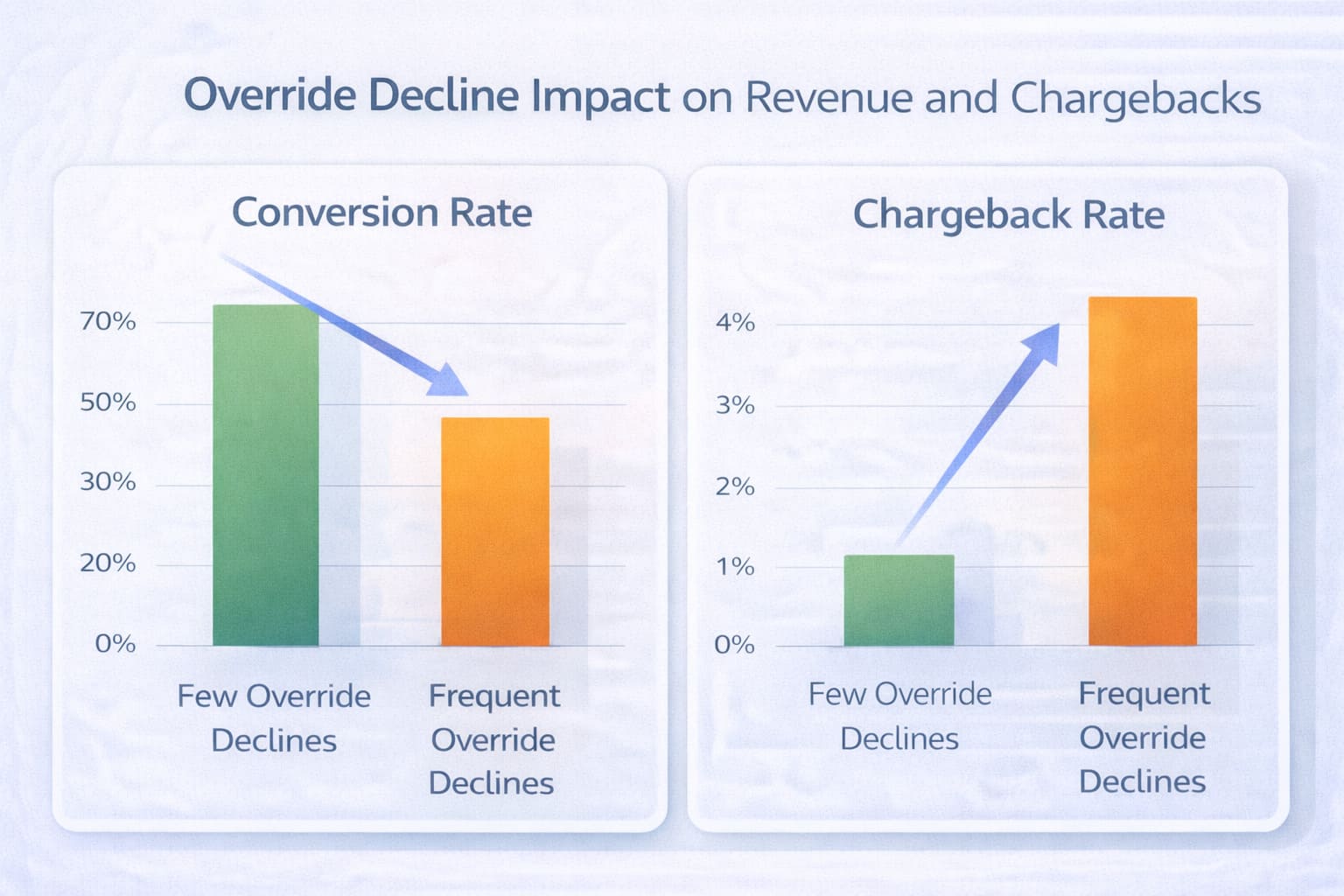
How to Prevent Override Decline (And Keep Your Sanity)
Here’s the good news: most override declines are preventable. You just need systems and discipline.
Risks Associated with Manual Entry (Chargebacks)
Manual entry is the single biggest driver of override-related chargebacks. Here’s why:
- No chip-level encryption. When you key in a card number, you’re bypassing EMV security. No cryptogram, no dynamic authentication.
- Higher fraud rates. Card-not-present transactions average 0.6–1% chargeback rates. Card-present (chip) transactions average 0.5%.
- Liability shift. EMV transactions put fraud liability on the issuer. Manual entry puts it on you.
- Processor scrutiny. Exceed 5% manual entry ratio, and your processor flags your account.
How to Reduce Manual Entry
- Train staff: “Chip first. Always.”
- Disable manual entry in terminal settings unless absolutely necessary.
- Use digital wallets (Apple Pay, Google Pay) for contactless—same security as chip, faster checkout.
- For e-commerce: require 3DS (3D Secure) authentication.
Target metric: Keep manual entry under 5% of total transactions. For restaurants and retail, 2–3% is ideal.
Equipment Setup Recommendations
- Update firmware every 6 months. Outdated terminals = compatibility issues, security vulnerabilities, higher decline rates.
- Enable EMV fallback. If chip fails, terminal should fall back to mag stripe (if processor allows). But log it—repeated fallbacks = worn chip or fraud attempt.
- Set floor limits appropriately. Too high = fraud risk. Too low = unnecessary auth requests.
- Disable override unless explicitly needed. If your business doesn’t require voice auth or offline mode, turn it off.
- Test your terminal monthly. Run a test transaction. Verify EMV reads correctly.
Staff Training Recommendations
- Chip first, always. If chip fails, retry. If it fails twice, swipe (if allowed). Manual entry is last resort.
- No repeated retries. One decline = move to alternative payment. Don’t hammer the same card 4 times.
- Verify CVV and billing address. For manual entry, every field matters. One wrong digit = decline.
- Know when to escalate. If a transaction declines and the customer insists it should work, don’t override—call the processor.
- Document everything. If you do a voice auth, write down: time, code, amount, customer name, reason.
Training frequency: Onboard new hires with a 30-minute POS session. Refresh existing staff quarterly. Run mock scenarios (declined transaction, voice auth, chargeback dispute).
10 Rules to Prevent Override Decline
- ☐ Use EMV chip insertion as default for all card-present transactions
- ☐ Update terminal firmware every 6 months
- ☐ Keep manual entry ratio below 5% of total transactions
- ☐ Never retry a declined card more than twice
- ☐ Document all voice authorizations with timestamp and codes
- ☐ Train staff quarterly on decline handling procedures
- ☐ Review anti-fraud settings monthly for overly strict rules
- ☐ Verify MCC matches your actual business type
- ☐ Test terminal with sample transactions monthly
- ☐ Contact processor immediately if decline rate exceeds 5%
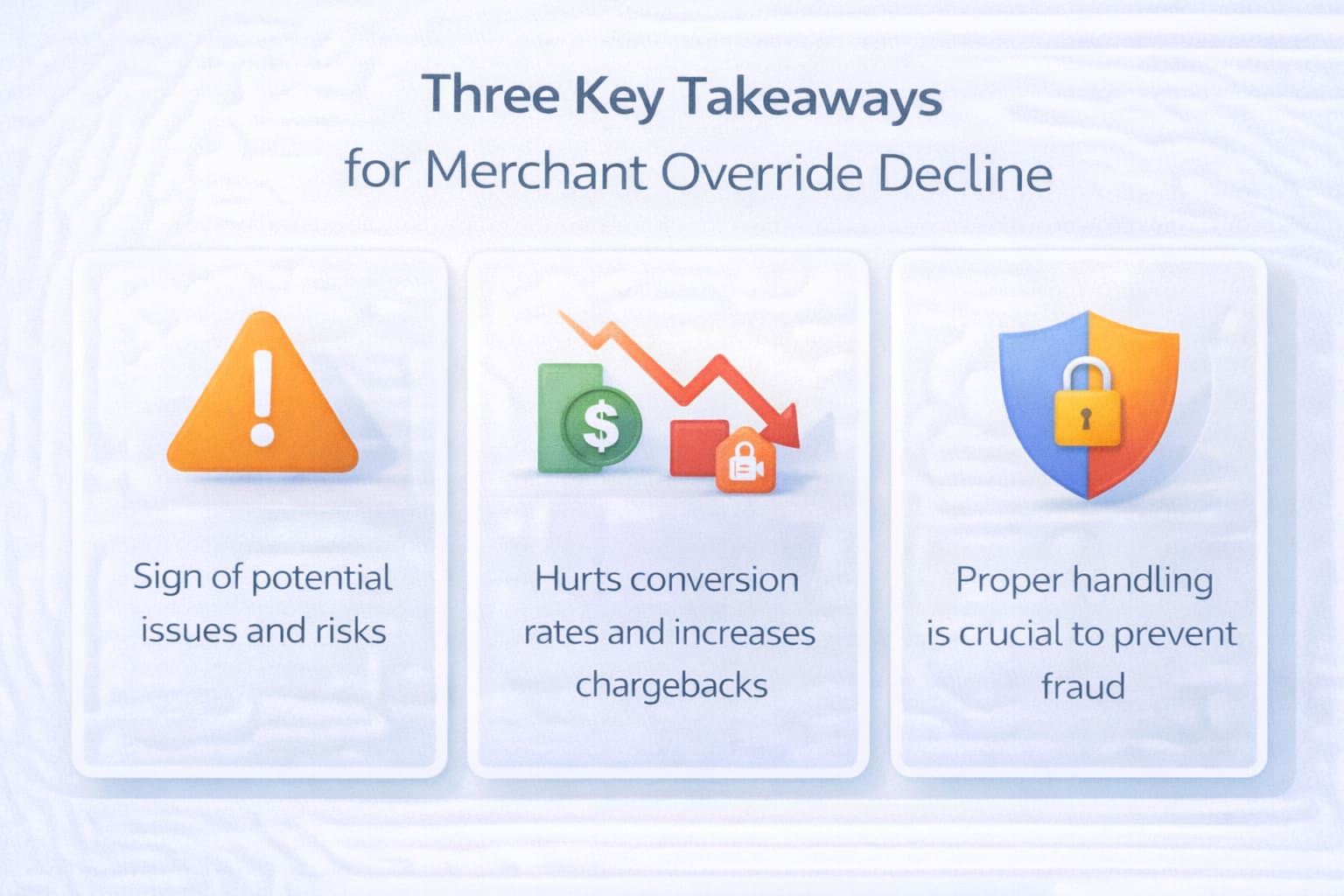
Key Takeaways
Override Is a Last Resort
When it declines, return to standard EMV authorization. Don’t force it.
Main Sources of Override Decline
Processor policy, terminal config, anti-fraud rules. Rarely the customer’s bank.
Diagnosis = Codes + Parameters + Escalation
Collect response codes, check terminal settings, contact your processor.
Prevention = EMV + Training + Settings
Use chip whenever possible. Train staff to avoid manual entry. Review your fraud rules quarterly.
Override is an exception, not a strategy. Use it sparingly, document it thoroughly, and accept the liability when you do.
— Smart Payment Solutions
Questions About Payment Declines?
Reach out to your processor or a payments consultant. Smart Payment Solutions helps restaurants, retail, and service businesses optimize their payment infrastructure to cut costs and reduce chargebacks.
Related Resources
- Payment Processing Fundamentals — Learn how card authorization works end-to-end.
- Chargebacks and Fraud Prevention — Documentation and defense strategies.
- POS Terminal Selection — Terminals with better voice auth and error messaging.
- Mobile Credit Card Payment Processing — Contactless and mobile wallet alternatives.
- Contactless Payment Solutions — Apple Pay, Google Pay, and NFC payments.

What do our customers think about us
Frequently Asked Questions

Other Articles
Code 05 “Do Not Honor”: What It Means and What Merchants and Customers Should Do
The Ultimate Directory of Credit Card Decline Codes for Merchants
How to Handle Decline Code 51 (Insufficient Funds) at Your Restaurant
