

How to Clean and Maintain Your Credit Card Terminals and Touchscreens
Fix POS connection errors in minutes. Step-by-step troubleshooting for power, network, and software issues.
"I've watched restaurants bleed $400–$800 per night because a terminal went dark and nobody knew the fix. The reality? Most 'Terminal Not Found' errors resolve in under 5 minutes if you know where to look. Hardware failure is rare—connection glitches, config drift, or a power hiccup are the usual culprits."
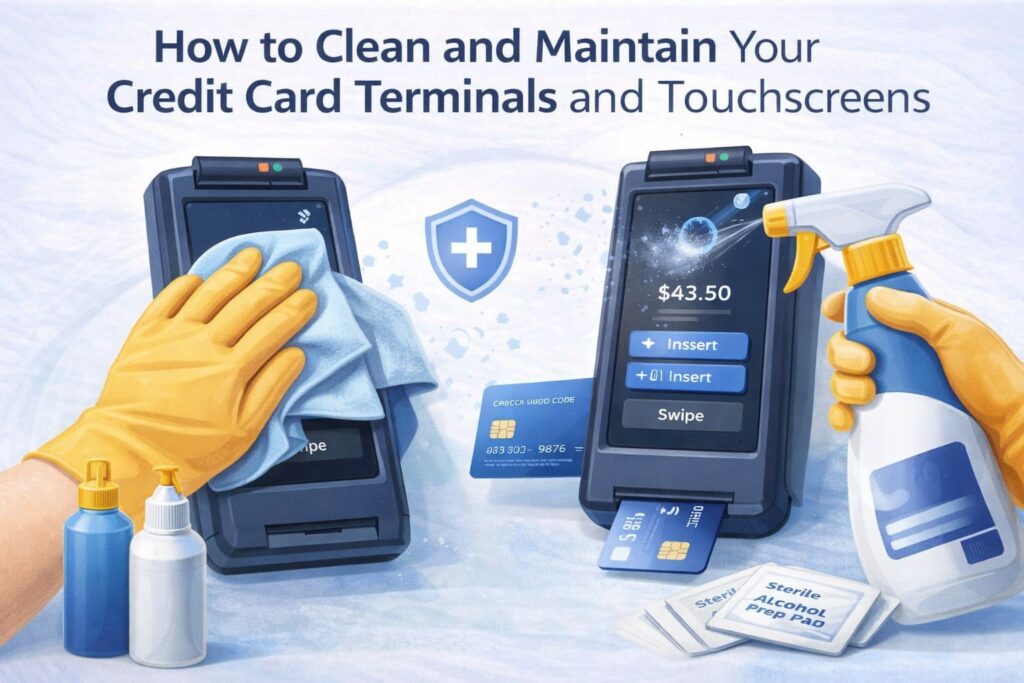
Quick Summary (TL;DR)
2. Wipe the body and keypad with a damp microfiber cloth and 70% isopropyl alcohol or mild soap.
3. Clean the touchscreen gently with the same solution applied to cloth (never spray directly).
4. Use a card reader cleaning card to remove oxidation from magnetic stripe and EMV slots (minimum 3 times daily in restaurants).
5. Sanitize all high-touch zones with alcohol-based disinfectant wipes; allow 30–60 seconds of wet contact time.
6. Test before service — confirm touchscreen response, card reads, printer function, and network connectivity.Key rule: Apply cleaning solution to cloth first, never directly to the terminal. Allow complete air-drying (10–15 minutes) before powering back on.
How to Clean Your Credit Card Terminal: A Step-by-Step Guide
I’ve spent over a decade watching restaurant owners and retail managers struggle with payment terminals that either break down because of poor maintenance or stay spotless but locked away—treated like museum pieces instead of revenue-generating tools.
Here’s the hard truth: a clean terminal isn’t just about hygiene; it’s about keeping your equipment functional and your transaction success rate above 99%.
The stakes are real. One failing card reader costs you transactions. One sticky touchscreen slows your checkout. One moisture-damaged keypad puts you in reactive repair mode instead of staying ahead.
Let me walk you through the exact process to keep your equipment working like it should.
Step 1: Power Down and Disconnect
Before you even think about touching a cleaning cloth to your terminal, shut down and disconnect all power sources.
Here’s why this matters: terminals operate on sensitive electronics. Static electricity, accidental liquid contact with powered ports, or a stray surge can trigger tamper alerts that lock your device until a technician remotely resets it—and that costs time and money.
The procedure:
- Power off the terminal completely via the shutdown menu (not just sleep mode).
- Unplug the AC power adapter from the wall outlet.
- Disconnect the Ethernet cable, USB cables, and any wireless dock or battery base.
- Remove paper from the receipt printer if present.
- Wait 30 seconds before proceeding. This ensures residual power drains completely.
This step isn’t optional—it’s a foundational safety requirement documented in cleaning guidance from major manufacturers. Skip it, and you risk voiding your warranty or triggering a $300–$500 service call.
Step 2: Wiping the Terminal Body and Keypad
Now that power is completely cut, it’s time to clean the housing and buttons—the surfaces that accumulate grease, dust, and fingerprints.
What you need:
- Lint-free microfiber cloth (not paper towels—they leave fibers and scratch surfaces)
- 70% isopropyl alcohol (IPA) OR water with a few drops of pH-neutral dish soap
- Cotton swabs for tight crevices
The process:
- Dampen the microfiber cloth with your chosen solution (apply to the cloth, never spray directly onto the terminal).
- Gently wipe the terminal body, paying special attention to:
- The keypad buttons (these collect grease and food residue in restaurants)
- Seams between the housing and screen
- The printer access panel
- Cable connectors on the back
- Use a cotton swab for narrow gaps where the cloth can’t reach—but avoid forcing it into openings.
- Do not allow liquid to pool or drip near ports, the card reader slot, or the speaker holes.
- Dry the entire unit thoroughly with a clean, dry microfiber cloth before moving to the next step.
Why 70% IPA? At this concentration, it kills bacteria and evaporates quickly without leaving residue or damaging plastic components. Higher concentrations (90%+) evaporate too fast and can cause streaking; lower concentrations are less effective at disinfection.
Step 3: How to Clean a POS Touchscreen
This is where most restaurant owners make expensive mistakes.
POS touchscreens have protective coatings—anti-glare, anti-fingerprint, or tempered glass—and the wrong cleaner destroys them.
I’ve seen terminals with screens so damaged from ammonia-based window cleaner that the coating looked like someone had rubbed it with sandpaper. The device still worked, but the display quality tanked, and staff complained about glare and visibility in the dining room.
What NOT to use:
- Window cleaners (Windex, Glass Plus) — contain ammonia that dissolves coatings
- Abrasive wipes or paper towels — scratch the protective layer
- 90%+ isopropyl alcohol — too harsh; can cause discoloration
- Acetone, benzene, or ketone solvents — will melt protective coatings
The correct method:
- Use the same lint-free microfiber cloth and 70% IPA solution from Step 2 (or a manufacturer-approved touchscreen cleaner; check your terminal’s manual for approved brands).
- Apply the solution to the cloth, not the screen itself.
- Gently wipe in small circular motions, lifting oils and fingerprints without pressing hard.
- If the screen has stubborn residue (dried syrup, food splatter), let the damp cloth sit on the spot for 5–10 seconds to soften it, then wipe gently.
- Dry immediately with a clean, dry cloth to prevent water spots.
- Allow 2–3 minutes of air-drying before powering back on.
Pro tip from our restaurant clients: Clean the touchscreen at the end of each shift, before the lunch or dinner rush. A sticky screen costs 15–20 seconds per transaction—multiply that across 200+ daily transactions, and you’re losing serious throughput.
Step 4: Cleaning the Card Reader Slot
The card reader is where magnetic stripe cards and EMV chip cards pass through—it’s also where oxide buildup, dust, and card debris accumulate.
A dirty reader causes read failures, forcing customers to re-swipe or retry, which frustrates guests and can trigger chargebacks if transactions are processed twice.
For magnetic stripe and EMV readers:
Specialized cleaning cards are designed with raised waffle-pattern surfaces that scrub contact points more effectively than manual wiping. Here’s why they matter: they reach inside the slot where a cloth can’t go, and they’re formulated to lift oxidation without damaging the magnetic head.
The procedure:
- Turn the terminal off (still disconnected from power).
- Insert the specialized cleaning card into the reader slot.
- Push it in fully, then pull it out slowly—do this 5–10 times to dislodge debris.
- Follow the card manufacturer’s instructions (most cleaning cards come with a small instruction label).
- Visually inspect the slot with a flashlight. If you see residue or discoloration, repeat the process.
- Do not use metal tools, paper towels, or improvised objects—they scratch the contact surfaces and void warranty coverage.
For contactless (NFC) readers:
- Gently wipe the NFC antenna area (usually a small circular or rectangular zone on the screen surround) with your damp microfiber cloth.
- Do not insert anything into the NFC area.
Step 5: How to Safely Sanitize Your Payment Device
Once the visible dirt is removed, sanitization—killing bacteria and viruses—is the final step.
This is especially critical in food service, where cross-contamination from gloved hands that touched raw meat, produce, or other surfaces is a real hygiene risk.
High-touch zones to disinfect:
- Touchscreen (entire display surface)
- Keypad (all buttons)
- Card reader entry point
- The sides and back where staff grip the terminal
The sanitization process:
- Prepare an approved disinfectant wipe or dampen a microfiber cloth with 70% isopropyl alcohol solution or an EPA-registered disinfectant (like Sani-Cloth or Clorox Disinfecting Wipes, if your terminal’s manual approves them).
- Wipe all high-touch areas systematically, ensuring no dry spots.
- Allow the disinfectant to air-dry completely—do not wipe it off immediately. Most disinfectants require 30 seconds to several minutes of wet contact time to be effective.
- Check your terminal’s manual for contact time recommendations; some disinfectants kill 99.9% of pathogens in 60 seconds, others need 10 minutes.
- Once dry, reconnect all cables (power, Ethernet, dock) in the reverse order of disconnection.
- Power on the terminal and perform a test transaction before allowing staff to use it.
What to Use (and What to Avoid): Safe Cleaning Supplies for Your POS Terminal
I’ve heard every cleaning mistake in the book. An owner used Lysol spray directly on a touchscreen. Another tried bleach to “really disinfect” the keypad. One manager dunked a card reader cleaning card in rubbing alcohol for 10 minutes before inserting it.
All of these resulted in $400–$800 repairs or equipment replacement.
Choose safe cleaning supplies and follow best practices to clean your POS terminal and screen safely. With proper cleaning of a POS touchscreen and awareness of what to avoid, you protect coatings and electronics, extend equipment lifespan, and maintain warranty coverage.
Recommended (Safe)
| Item | Best For | How to Use | Why It Works |
|---|---|---|---|
| 70% Isopropyl Alcohol | Body, keypad, screen, reader entry | Dampen cloth; apply to surface; allow to air-dry | Effective disinfectant; evaporates quickly; doesn’t leave residue |
| Alcohol-Based Disinfectant Wipes | Body, keypad, touchscreen | Wipe entire surface; allow 30–60 sec wet contact time | Pre-measured dose; convenient for shift-end sanitation |
| Lint-Free Microfiber Cloth | All surfaces (primary tool) | Dampen lightly; wipe gently; use dry for final polish | Removes oils and fingerprints without scratching; reusable |
| pH-Neutral Dish Soap (few drops in water) | Body, exterior housing | Mix drops with distilled water; dampen cloth; wipe | Safe for plastic; gentle on coatings; removes grease effectively |
| Specialized Cleaning Cards | Magnetic stripe and EMV readers only | Insert and withdraw 5–10 times per card instructions | Reaches internal contacts; removes oxidation; manufacturer-approved |
| Cotton Swabs | Tight crevices, ports, seams | Use dry or slightly damp with IPA; never force | Reaches areas cloth can’t; safe when used gently |
| Compressed Air (short bursts) | Printer vents, cable ports, fan openings | Hold can upright; use 1–2 second bursts; keep 6 inches away | Removes dust without moisture; prevents internal buildup |
Application rule: Always apply cleaning solution to the cloth first—never spray or pour directly onto the terminal. Direct liquid contact risks seeping into ports, the card reader, or the screen connector and causing internal damage.
Prohibited (Avoid)
| Chemical/Method | Risk/Damage | Why It’s Banned |
|---|---|---|
| Bleach (sodium hypochlorite) | Discolors plastic, dissolves rubber, triggers tamper alerts | Oxidative damage to housing and seals |
| Ammonia (Windex, Glass Plus) | Strips protective coatings from touchscreen | Destroys anti-glare and anti-fingerprint layers; causes permanent screen damage |
| Acetone, Ketone Solvents | Melts plastic components, dissolves adhesives | Damages casing integrity; voids warranty |
| Isopropyl Alcohol >90% | Causes streaking, discoloration, too-rapid evaporation | Harsh on coatings; can trigger false tamper alerts |
| Hydrogen Peroxide | Corrodes electrical contacts, triggers tamper sensors | Oxidizes components; often paired with bleach in dual-disinfectants |
| Abrasive Powders (Comet, Bar Keeper’s Friend) | Scratches touchscreen and housing | Removes protective coatings; irreversible surface damage |
| Paper Towels or Rough Fabrics | Scratches, leaves fibers on screen | Damage coatings and leave visible residue |
| Metal Tools or Sharp Objects | Scratches and dents surfaces; breaks internal components if forced into slots | Can puncture seals and compromise electronics |
| Direct Spraying Liquids | Liquid seeps into ports, card reader, or screen connector | Causes short circuits, data loss, warranty voidance |
| Vigorous Scrubbing | Damages buttons and seals; triggers tamper alerts | Excessive pressure breaks mechanical connections |
Source insight: According to PCI Security Standards Council guidance, using vendor-specified cleaners applied indirectly via cloth—not direct sprays—is the standard for maintaining both cleanliness and security compliance. Direct liquid application has caused multiple terminal failures in high-volume environments, reinforcing this requirement in updated guidance.
Why Regular Cleaning of Your Payment Terminal is Crucial for Hygiene and Lifespan
Here’s a business truth most owners don’t think about: every week your terminal isn’t cleaned, you’re accumulating bacteria, shortening its functional life, and increasing the likelihood of read errors that cost transactions.
I worked with a 15-unit restaurant franchise last year. They’d gone 8 months without any structured terminal cleaning—just occasional wipes when staff remembered. They called me because they were experiencing card read failures on Fridays and Saturdays (peak hours).
The issue wasn’t the terminals themselves; it was buildup.
After implementing a daily cleaning protocol, read failures dropped significantly within two weeks. They also reported that terminals they thought were ready for replacement actually had 2+ more years of life in them.
The Health Factor
Restaurant POS terminals are high-touch surfaces. Employees move between food prep, cash handling, and the register without gloves. Customers with wet or greasy hands touch the screen. In a busy Friday service, a single payment terminal could be touched 300+ times.
Research on contamination in food service environments shows that payment terminals rank among the top high-touch surfaces for bacterial and viral transmission—comparable to door handles and cash registers. Regular disinfection (daily minimum, 3+ times daily in high-volume venues) is part of the food safety playbook.
From a hygiene standpoint, cleaning is non-negotiable in food service. It’s not just best practice; it’s a component of health code compliance in most jurisdictions.
The Durability and Lifespan Factor
POS terminals are engineered to last 5–7 years under normal use. With regular maintenance—cleaning, software updates, and firmware upgrades—many units exceed 8–10 years of productive life.
Without maintenance, the decline is steep:
- Grease buildup on the screen degrades display clarity and responsiveness.
- Dust and debris in the card reader cause read failures, which spike after 12–18 months of no cleaning.
- Moisture accumulation (from inadequate drying after cleaning or environmental humidity) corrodes contacts and triggers intermittent errors.
- Debris in the printer mechanism causes paper jams and poor print quality.
POS devices maintained with quarterly professional cleaning, display tests, and software updates extend their viable life to 8–10 years, whereas unmaintained terminals decline to 2–5 years.
Translation to your bottom line: A $1,200 terminal replaced at 3 years costs you $400/year. The same terminal, maintained and lasting 7 years, costs you $170/year. Over 10 units, that’s $23,000 in avoided replacement costs.
The Transaction Success Factor
Every failed card read is a failed transaction. Customers re-swipe. Staff investigate. Sometimes a second charge posts, triggering a chargeback. Even if it resolves, you’ve lost 30–60 seconds of checkout time—and in a busy service, that’s multiplied across every transaction.
A terminal with a clean card reader slot maintains high read success on first swipe. A neglected terminal with oxidized contacts drops significantly, forcing retries. In a restaurant processing 500 transactions daily, that’s a measurable impact on customer experience and transaction throughput.
POS Terminal Maintenance Tips and Best Practices for a Daily Routine
Cleaning isn’t a one-time event; it’s a habit.
Build a structured routine—daily, weekly, monthly—and you’ll see results within weeks: fewer calls to support, faster transactions, and terminals that last longer.
Daily Routine (End of Shift)
- Quick wipe-down: Use an alcohol-based disinfectant wipe or damp microfiber cloth to clean the touchscreen, keypad, and card reader entry. This takes 2–3 minutes.
- Visual inspection: Check for damage, loose cables, or liquid near the device.
- Remove paper: Empty the receipt paper and check for jams or mechanical issues.
- Power-down cleanly: Shut down properly (not forced shutdown); ensure cables are secure.
Weekly Routine (e.g., Sunday evening or quietest shift)
- Deep keyboard and housing clean: Full wipe-down of the terminal with mild soap and water or 70% IPA, including seams and cable areas.
- Card reader cleaning card: Run 5–10 passes with a specialized cleaning card to remove accumulated debris from the magnetic stripe and EMV reader.
- Compressed air for vents: Use short bursts of compressed air to clear dust from the printer mechanism, cable connectors, and any visible vents.
- Power cycle test: Restart the terminal and run a test transaction to confirm all functions (card read, touchscreen, printer, network) are working.
Monthly Routine
- Firmware and software check: Log into the terminal’s management system (or contact your POS provider) to check for pending software updates or firmware patches. Install them during a low-traffic time (late night or early morning).
- Network and connectivity verification: Ensure Ethernet or WiFi connection is stable. Check signal strength if wireless.
- Full diagnostic report: Many POS systems generate health reports (transaction success rate, error logs, failed transactions). Review this report to spot trends (e.g., increasing card read failures) that signal deeper maintenance needs.
- PCI compliance documentation: Document your cleaning and maintenance activities in a log. This proves compliance with PCI DSS requirements during audits.
Device Care Best Practices
- Location matters: Position your terminal away from direct heat sources (kitchen grills), steam vents, or areas prone to spills. A protective cover or stand can shield it from accidental impacts.
- Cable management: Keep cables organized and off the floor where they can be tripped over or damaged. Use velcro straps or cable clips.
- Environmental control: Maintain moderate humidity (40–60%) and temperature (68–77°F if possible). Humidity extremes accelerate corrosion; heat stresses components.
- Protect from spills: Use a waterproof mat or drip tray beneath the terminal. Train staff to immediately alert management if liquid is spilled near it.
System Upkeep and Documentation
- Maintenance log: Keep a simple log (digital or paper) recording date, task performed, staff member, and any issues observed. This is essential for PCI DSS audits and warranty claims.
- Assign a responsible person: Designate one person per shift to own terminal maintenance. This ensures consistency and accountability.
- Staff training: During onboarding, train all cashiers and managers on proper terminal usage (gentle on buttons, no eating/drinking near it, never spraying cleaners) and when to alert a supervisor.
Why documentation matters: If your terminal fails and the warranty company investigates, your maintenance log proves you followed manufacturer guidelines. Without it, you forfeit warranty coverage.
Special Cleaning Considerations for Restaurant POS Hardware
Restaurant environments are harsh on payment terminals.
Unlike retail or office settings, restaurant terminals face:
- Grease and oil from cooking processes and food handling
- Sticky sugars and syrups from beverages and desserts
- High humidity and steam from dishwashing and kitchen prep
- Frequent moisture exposure (spills, splashes from handwashing)
- High transaction volume (200–600+ daily transactions in busy establishments)
Standard cleaning protocols need adaptation for these conditions.
Pre-Cleaning Degreasing
Before applying any wet cleaner, use a dry microfiber cloth to wipe away grease and surface residue. Grease repels water-based cleaners and can trap moisture if not removed first.
- Use short, gentle strokes with a dry cloth to lift grease.
- Pay special attention to the touchscreen (where greasy fingerprints accumulate) and the keypad (where sticky residue hardens).
- Once surface grease is removed, proceed with your damp cloth and cleaning solution.
This two-step approach—dry first, then damp—is far more effective than jumping straight to a wet cloth on a greasy surface.
Increased Disinfection Cadence
In restaurants, increase disinfection frequency to minimum 3 times daily: before service (setup), mid-shift (after lunch rush or before dinner), and end of shift. High-volume venues might benefit from 4–5 times daily.
Why? Because the risk of cross-contamination is high. A single employee switching between raw meat prep and the register can transfer pathogens to the terminal. With high hand-traffic, the terminal becomes a vector for bacterial spread among staff.
Strategic Positioning
Position the terminal away from grills, fryers, and steam lines. Heat and humidity accelerate component degradation and promote bacterial growth in vents.
If your layout forces a terminal near a heat source, invest in a protective splash guard or mounting arm that angles the terminal away from direct heat while keeping it accessible.
Water and Humidity Management
After cleaning, dry the terminal thoroughly with a clean microfiber cloth. In humid kitchen environments, allow an extra 3–5 minutes of air-drying before powering back on. Residual moisture on the screen or in cable connectors can cause intermittent errors.
Pro tip: Schedule heavy cleaning (deep wipes with 70% IPA) during slower hours—mid-afternoon for lunch services—so the terminal has time to air-dry before the dinner rush.
Specific Tasks for Restaurants
- Nightly sanitization: End of shift, use an EPA-registered disinfectant wipe (like Sani-Cloth or Clorox) to clean touchscreen, keypad, and card reader entry. Target bacteria that thrive after long service hours.
- Weekly reader maintenance: Run specialized cleaning cards through magnetic stripe and EMV readers 5–10 times. Grease and food dust are more prevalent in restaurants and clog readers faster.
- Monthly thermal printer head cleaning: If your terminal has an integrated receipt printer, monthly professional cleaning of the thermal head prevents grease from hardening on the heating element, which degrades print quality.
According to industry guidance for restaurant POS systems, turning off the device, dampening a lint-free cloth with water or approved alcohol, and cleaning without direct liquid spray is the gold standard for food service environments.
Extend Your POS Hardware Lifespan with Proper Maintenance
The math is simple: a well-maintained terminal lasts 8–10 years; a neglected one lasts 2–5 years.
That’s a 2–3x difference in usable lifespan, translating directly to cost savings.
Proper maintenance isn’t complicated. It’s consistency. Here’s how to extend the life of your payment terminal and reduce total cost of ownership.
Foundational Practices
- Keep it clean. Daily wipes remove grease, dust, and bacteria before they accumulate. A terminal kept clean from day one never reaches the state where restoration is difficult.
- Keep it dry. Moisture is the silent killer of electronics. A single water droplet inside a connector can sit undetected for weeks before causing corrosion and intermittent failures.
- Use approved cleaners. Generic disinfectants or household cleaners degrade plastic, dissolve adhesives, and trigger tamper alerts. Stick to manufacturer-approved solutions.
- Avoid physical stress. Don’t bang terminals around, press the touchscreen with excessive force, or let cables get pinched. Mechanical damage is irreversible.
Update and Test Regularly
- Software and firmware updates: These patches fix security vulnerabilities, improve transaction processing, and often include bug fixes for hardware issues. Check monthly; install during off-hours.
- Test transactions: Weekly test transactions (using a test card or your processor’s test mode) confirm that the card reader, touchscreen, and printer are functioning correctly.
- Monitor error logs: Most POS systems log transaction failures. Review these quarterly. A spike in card read errors signals that your reader is dirtier than expected or hardware is beginning to fail.
Durability and Environmental Factors
- Temperature control: Avoid storing or operating terminals in temperatures below 50°F or above 95°F. Extreme cold reduces battery efficiency; extreme heat stresses components.
- Cable care: Don’t coil cables tightly around the terminal or let them dangle where they can be tripped over. Use clips or velcro straps to keep them organized and reduce mechanical stress on connectors.
- Surge protection: Plug terminals into a surge protector, not directly into a wall outlet. Power surges from other high-draw appliances (fryers, dishwashers) can spike into your terminal and damage the power supply.
When Professional Service is Worth It
At 6 months, 12 months, and every 12 months thereafter, consider a professional service inspection:
- Technician cleans internal components (fans, vents, connectors) that you can’t access.
- Diagnostic tests confirm all hardware functions.
- Firmware is updated to the latest stable version.
- Battery health is checked (if applicable).
Cost: typically $150–$300 per terminal. ROI: avoiding a $600–$800 emergency replacement or 2+ days of downtime. For a busy restaurant processing $5,000–$10,000 daily, two days of downtime costs you $10,000–$20,000 in lost sales.
Safety, Compliance, and Warranty: Do's & Don'ts
Cleaning your terminal isn’t just about appearance or sanitation—it’s about maintaining warranty coverage, meeting PCI DSS compliance, and protecting your data security.
Do's
- Power down and disconnect before any cleaning.
- Use 70% isopropyl alcohol or manufacturer-approved cleaners on a damp cloth.
- Apply cleaner to the cloth, not the device.
- Allow air-drying before powering back on.
- Document cleaning and maintenance in a log for PCI DSS audits.
- Use specialized cleaning cards for card readers (magnetic stripe and EMV).
- Follow the terminal’s user manual for brand-specific guidance (Verifone, Ingenico, PAX).
- Wipe gently with circular motions—no excessive pressure.
- Clean regularly (daily wipe-down, weekly deep clean, monthly diagnostics).
- Train staff on proper terminal handling and basic cleaning.
Don'ts
- ✗ Never spray liquid directly onto the terminal. Liquid seeps into ports and causes short circuits.
- ✗ Never use bleach, ammonia, acetone, or ketone solvents. They dissolve protective coatings and trigger tamper alerts.
- ✗ Never use abrasive materials (paper towels, steel wool, scrub brushes). They scratch touchscreens and housings.
- ✗ Never clean while powered on or plugged in. Risk of electrical shock and accidental firmware corruption.
- ✗ Never submerge any part of the terminal in liquid.
- ✗ Never use metal tools to scrape or force clean internal slots.
- ✗ Never allow moisture to pool around cable connectors or the card reader slot.
- ✗ Never apply excessive pressure to the touchscreen. Gentle wiping only.
- ✗ Never ignore spills. If liquid contacts the terminal, power down immediately, unplug, and allow 24+ hours of drying before powering back on. Contact your provider if the device malfunctions.
| Action | Risk | Correct Alternative | Impact |
|---|---|---|---|
| Spray disinfectant directly on screen | Liquid seeps into connector; shorts circuit; voids warranty | Apply to cloth first; wipe surface | Prevents $500–$800 repair cost |
| Use Windex or Glass Plus | Dissolves anti-glare coating; permanent screen damage | Use 70% IPA or manufacturer-approved cleaner | Preserves display clarity for 7+ years |
| Scrub with paper towels | Leaves fibers; scratches touchscreen surface | Use lint-free microfiber cloth only | Avoids surface damage and warranty claim |
| Allow standing water on terminal | Corrodes contacts; triggers intermittent errors; data loss | Dry immediately with cloth; allow air-drying | Prevents internal corrosion and device failure |
| Clean while powered on | Accidental shutdown mid-transaction; data corruption; tamper alert | Power down and unplug completely first | Avoids transaction failures and PCI compliance issues |
PCI DSS Compliance Connection
PCI DSS Requirement 9 (Physical Security) mandates physical security and tamper detection of payment devices. Regular, documented cleaning and maintenance is part of this requirement because:
- Tamper detection: Frequent inspection during cleaning allows you to spot physical tampering (skimmers, overlay devices, seal breaks) early.
- Security documentation: Maintenance logs prove to auditors that you’re following security protocols and handling sensitive payment equipment with care.
- Incident prevention: Clean terminals are less likely to fail or malfunction, reducing security incidents from equipment failure.
Regular inspections of POS terminals for tampering or unauthorized replacement help minimize potential impacts from fraudulent devices and are foundational to PCI DSS physical security requirements.
Warranty Protection
All major POS terminal manufacturers (Verifone, Ingenico, PAX, Dejavoo) provide 3–5 year limited warranties. Coverage is conditional on:
- Following the manufacturer’s cleaning guidelines (only approved cleaners)
- Maintaining the device properly (no physical damage or liquid exposure)
- Not disassembling or attempting self-repair
- Using authorized repair technicians for any service
Using unapproved cleaning agents voids warranty immediately. Even if the damage occurs months later, the manufacturer can refuse coverage if they discover bleach or acetone residue during inspection.
Common Mistakes When Cleaning That Can Damage Your Terminal
I’ve seen enough damaged terminals to write a cautionary tale. Here are the mistakes I encounter most often—and how they damage equipment.
1. Using Harsh Chemicals (Bleach, Ammonia, Acetone)
What happens: An owner sprays Lysol or Clorox directly on a touchscreen. Within hours, the anti-glare coating starts peeling. By the next day, the display looks cloudy and is nearly unusable.
Why it damages: Bleach oxidizes plastic and rubber components; ammonia dissolves protective coatings; acetone melts plastic. These reactions are permanent. The terminal still functions, but the display quality is destroyed.
Cost: Replacement screen or device ($600–$1,200); downtime (0.5–2 days); lost transactions.
2. Direct Liquid Spray
What happens: A manager sprays 70% IPA directly onto the keypad, thinking “more is better.” Liquid seeps into the keyboard connector under the keys. Days later, random buttons stop responding.
Why it damages: Moisture inside electrical connectors causes oxidation and corrosion. Even if the liquid dries, mineral deposits or residue remain and interrupt electrical contact.
Cost: Keyboard replacement or full terminal replacement ($300–$800); 1–3 days downtime.
3. Excessive Pressure and Abrasive Scrubbing
What happens: A frustrated cashier scrubs sticky syrup residue on the touchscreen with a paper towel, pressing hard. The protective coating scratches, and the screen develops dead pixels and unresponsive zones.
Why it damages: Mechanical pressure on a touchscreen’s protective layer (usually tempered glass or a polymer coating) causes micro-fractures and separation from the underlying LCD panel.
Cost: Screen replacement ($200–$600); downtime (0.5–1 day).
4. Metal Tools or Sharp Objects in Card Reader Slot
What happens: A technician tries to scrape oxidized contacts inside the card reader with a small screwdriver. He scratches the magnetic read head and the EMV chip contact area.
Why it damages: The read head is precision-engineered with a tolerance of microns. Any scratch disrupts the magnetic field reading or electrical contact, causing permanent read failures.
Cost: Card reader replacement or full terminal ($400–$900); 2–5 days downtime for parts arrival and installation.
5. Submerging or Soaking Parts
What happens: Someone thinks a “good soak” will clean the card reader deeply and dunks the entire reader assembly in cleaning solution.
Why it damages: Water and solvents penetrate every crevice, corroding contacts and depositing mineral residue (if using tap water) that blocks electrical connections.
Cost: Full terminal replacement ($1,200–$2,000); 3–5 days downtime.
6. Inadequate Drying Before Powering On
What happens: A terminal is cleaned, and staff power it back on 2–3 minutes later before it’s fully dry.
Why it damages: Residual moisture in connectors or the screen cable causes intermittent electrical shorts, often leading to random shutdowns, screen flickering, or corrupted transaction data.
Cost: Service call ($150–$300); possible data recovery ($200+); 0.5–2 days downtime; risk of lost transactions.
7. Ignoring Manufacturer Brand-Specific Guidelines
What happens: An owner cleans an Ingenico terminal with the same 70% IPA routine that works fine for Verifone. Ingenico’s specific firmware configuration is sensitive to certain alcohol concentrations and flagged a false tamper alert.
Why it damages: Different manufacturers use different materials, coatings, and security configurations. What’s safe for one brand may trigger warnings on another.
Cost: Service call and technician reset ($200–$400); potential warranty investigation.
OEM-Specific Cleaning Guidelines and Special Considerations
Different manufacturers engineer terminals with different materials and safety systems. What’s safe for one brand might trigger warnings or cause damage on another.
Verifone (VX/Engage Series)
Approved cleaners: 70–90% isopropyl alcohol applied to a microfiber cloth; Verifone-approved disinfectant wipes.
Special precautions: Verifone terminals are sensitive to excessive moisture. Never spray directly. Apply cleaner to cloth only. The Engage line uses a sealed touchscreen; avoid aggressive wiping.
Card reader: Use only manufacturer-approved cleaning cards. Do not use metal tools or improvised solutions.
Thermal printer: Clean the printer head gently with a soft dry cloth. No wet cleaning of thermal elements without specific manufacturer approval.
Official guidance: Verifone provides detailed cleaning bulletins for each model. Consult their support portal or contact your reseller for brand-specific documentation.
Ingenico (Move, Lane, iWL Series)
Approved cleaners: Soft lint-free cloth dampened with water and mild dish soap. 70% isopropyl alcohol is acceptable but not the primary recommendation. Sani-Cloth or EPA-registered disinfectants may be used per Ingenico’s approval lists.
Special precautions: Ingenico advises against aggressive scrubbing. The terminals are durable but can flag false tamper alerts if moisture contacts certain internal seals. Dry thoroughly after cleaning.
Card reader: Do not clean smart card readers internally. Cleaning the magstripe reader with approved cards is acceptable, but EMV/chip readers should not be manually cleaned due to risk of contact damage.
Thermal printer: Clean the printer head gently with a soft dry cloth. No wet cleaning of thermal elements.
Official guidance: Ingenico publishes cleaning and disinfection guides specific to each terminal series. Request model-specific cleaning guides when you onboard terminals.
PAX (A-series, S-series)
Approved cleaners: 60%+ alcohol-based sanitizer (pre-use hand sanitizer like Purell), Clorox Disinfecting Wipes, or 70% isopropyl alcohol wipes on a microfiber cloth.
Special precautions: PAX terminals are engineered for durability and can tolerate a wider range of cleaners than some competitors. However, avoid direct spraying; always apply to cloth first.
Card reader: Specialized card reader cleaning cards (magstripe) can be swiped through the reader slot. Use new wipe for each slot. Do not reuse cards or wipes.
Steps (from PAX’s official guide): (1) Wash hands or apply sanitizer, (2) wipe touchscreen thoroughly, (3) wipe entire terminal body and keypad, (4) clean magstripe reader with new cleaning card, (5) clean IC card slot with new wipe.
Disinfection frequency: PAX recommends daily terminal cleaning and sanitization. In high-volume or high-risk environments, 3+ times daily.
Official guidance: PAX publishes a comprehensive “Sanitization Guide for PAX Terminals” available as a free resource. Contact their support for direct links.
Dejavoo (Z Series, VX Resale)
Approved cleaners: Gentle wiping with soft cloths and water; 70% isopropyl alcohol on request (confirm with Dejavoo support first). Dejavoo resells Verifone and other terminals, so guidance varies by underlying hardware.
Special precautions: Dejavoo emphasizes gentle handling. Contact their support team before using any commercial disinfectant to confirm compatibility.
Card reader: Follow Verifone or underlying OEM guidance for the specific terminal model.
Official guidance: Dejavoo’s support documentation typically defers to the underlying manufacturer (Verifone, PAX). Request model-specific cleaning guides when you onboard terminals.
Thermal Printer Cleaning (Integrated into Terminal)
If your terminal has a built-in thermal receipt printer, follow these steps monthly:
- Power down and unplug the terminal.
- Open the printer cover (usually a hinged or sliding panel on the terminal’s side or back).
- Allow the thermal head to cool for 5–10 minutes if the terminal was recently in use.
- Wipe the thermal head gently with a soft, dry cloth or a cotton swab barely dampened with 70% IPA. Never apply excessive pressure or liquid.
- Lift the platen roller (the black rubber roller that feeds paper). Check for hardened grease, lint, or paper fragments.
- Clean the platen gently with a soft brush or cloth. If heavily soiled, a barely damp cloth with 70% IPA can be used, followed by a dry cloth.
- Inspect for debris in the paper path. Use compressed air (short bursts) if needed to dislodge dust.
- Close the printer cover and power on. Run a test print to confirm print quality.
Why this matters: Grease and food residue harden on the thermal head, reducing print quality and eventually causing print failures. Regular cleaning extends the printer’s lifespan significantly.
| Manufacturer | Preferred Cleaner | Key Avoidances | Card Reader Care | Special Notes |
|---|---|---|---|---|
| Verifone | 70–90% IPA via cloth; Verifone-approved wipes | No direct spray; no high alcohol conc. | Approved cards only; no metal tools | Sealed touchscreen; avoid aggressive wiping |
| Ingenico | Water + mild soap (primary); 70% IPA (secondary) | Avoid false tamper alerts; dry thoroughly | Magstripe cards OK; EMV readers—avoid manual cleaning | Check terminal series for specifics |
| PAX | 60%+ alcohol sanitizer; Clorox wipes; 70% IPA | Direct spray less critical than others | Cleaning cards for magstripe; new wipe per slot | Most forgiving; daily 3x disinfection recommended |
| Dejavoo | Soft cloth + water; check OEM for alcohol | Depends on underlying terminal | Verifone/PAX-based; defer to OEM | Contact support for commercial disinfectants |
Post-Cleaning Diagnostic Checklist
After you’ve cleaned a terminal, don’t just plug it back in and assume it works. Run diagnostics to confirm everything is functioning before staff use it during service.
Step-by-Step Verification
- Touchscreen Responsiveness
Power on the terminal and wait 30 seconds for full boot. Tap each corner of the touchscreen and the center. The cursor should follow your input immediately and smoothly. If any zone is unresponsive or delayed, the screen may not have dried completely. Wait another 5 minutes and retry. If responsiveness doesn’t improve, contact your POS provider’s support. - Keypad Testing
Access the terminal’s diagnostic menu (usually via a Service or Settings button; see your manual). Press each numeric button, letter key (if applicable), and function buttons (Enter, Cancel, Clear). Confirm each keystroke registers on the display without ghosting or double-input. If any key is stuck or unresponsive, it may have residual moisture. Power down and dry for another 10 minutes, then retry. - Card Reader Testing (Magnetic Stripe)
Run a test transaction using a valid test card (most processors provide a test card number in their documentation). Swipe the card through the reader slot in one smooth motion. The terminal should recognize the card and prompt for a PIN or signature. If the swipe fails or shows “card not read,” the reader may need another pass with a cleaning card, or moisture may remain inside. - Card Reader Testing (EMV Chip)
Insert a chip-enabled test card into the EMV slot and hold it there. The terminal should read the chip and either request a PIN or prompt for signature. If the chip read fails, the contacts inside may not have dried properly. Wait 5 minutes and retry. - Contactless/NFC Testing (if applicable)
Hold a contactless-enabled card or mobile wallet near the NFC antenna (usually on or near the screen). The terminal should detect the card/device within 1–2 inches. If NFC doesn’t register, ensure the antenna area is not obstructed by any stickers or debris. - Receipt Printer Test
Send a test print via the terminal’s menu. The printer should eject a receipt within 3 seconds. Check receipt clarity: text should be sharp and readable. If print is faint or patchy, the thermal head may need another cleaning or drying period. If the printer jams or doesn’t eject paper, ensure no lint or fragments are in the paper path. - Cable and Connection Check
Visually inspect all cables (power, Ethernet, USB) for kinks or damage. Gently tug each cable to confirm it’s firmly seated. If any cable is loose or damaged, reseat it or replace it before use. - Error Log Review
Access the terminal’s System Settings or Diagnostics menu. Check for any error messages, warning lights, or failed transactions in the log. If you see repeated “Card Read Failed” errors, the reader may need additional cleaning. If you see “Tamper Detected” warnings, contact your POS provider immediately; this may indicate moisture in a security sensor. - Temperature Check
Feel the terminal casing (back and sides). It should be at normal room temperature or slightly warm, not hot. If it’s hot to the touch, a component may be overheating (e.g., power supply). Shut down and contact support. - Network Connectivity Test
Open the network settings or run a network diagnostic. Confirm Ethernet connection (if wired) is active and showing a stable speed. If wireless, confirm WiFi signal strength is adequate. If network is disconnected, ensure cables are seated properly or WiFi credentials are correct.
If Something Fails
| Issue | Likely Cause | Immediate Action | If Unresolved |
|---|---|---|---|
| Touchscreen unresponsive or lagging | Residual moisture in screen connector | Power down; wait 10+ min; retry. Do not force presses | Contact POS provider; may need professional drying |
| Keypad buttons stuck or unregistering | Moisture under keys or connector moisture | Power down; wait 15+ min; press each key gently; retry | Do not force keys; contact support immediately |
| Card reader not reading (magstripe or EMV) | Residual moisture in reader connector; cleaning card needed | Run cleaning card 5–10 times; retry test card; wait 5 min and retry | If still failing, reader may have internal water damage; schedule technician |
| Printer not printing or printing faintly | Thermal head not fully dry or needs cleaning | Wait 10 min; run another test print. If faint, perform thermal head cleaning | Contact support for printer replacement estimate |
| “Tamper Detected” warning | Moisture in security sensor; triggering false alarm | Power down immediately; do not attempt further diagnostics | Contact processor or POS provider; device may need to be reset remotely |
| Error messages or repeated transaction failures | Firmware conflict or internal moisture affecting circuits | Power down; unplug; wait 30 min; plug in and power on | Contact support with error codes; may need firmware update or service |
Staff Training and Maintenance Scheduling Best Practices
Cleaning is a team sport. Without training and accountability, your daily routine will lapse, and within weeks, you’ll be back to the same problems: sticky screens, failed reads, and preventable repairs.
Building a Training Program
During onboarding (for new hires):
- Show new staff where the terminal is, how to power it down safely, and what NOT to do (no sprays, no aggressive wiping, no metal tools).
- Demonstrate the proper wiping technique using a damp microfiber cloth.
- Explain why cleaning matters: faster checkouts, fewer customer frustrations, longer equipment life.
- Provide a one-page quick-reference guide (print and laminate it; post near the terminal).
During daily service (ongoing):
- Designate one person per shift as the “terminal owner” for that day. Their responsibility: end-of-shift cleaning and any mid-shift spot cleans.
- Make cleaning part of the closing checklist (like counting the register or cleaning the kitchen). It’s not optional.
During monthly team meetings:
- Review the maintenance log together. Celebrate zero downtime weeks; identify patterns of issues.
- Share photos or stories of terminals that were damaged due to improper cleaning (anonymized if needed) to reinforce why protocols matter.
- Ask staff for feedback: “Is the current schedule working? Do we have the right supplies?”
Sample Schedule (Customizable by Venue)
Daily (End of Shift):
- 2–3 minute wipe-down: touchscreen, keypad, card reader entry.
- Visual inspection: any liquid, damage, loose cables?
- Emptying receipt paper.
- Staff initial: _______ (name)
Weekly (Sunday evening or quietest shift):
- Full body and housing cleaning (mild soap + water or 70% IPA).
- Card reader cleaning cards (5–10 passes).
- Compressed air for printer vents.
- Test transaction (confirm all functions).
- Signature: _______ (manager)
Monthly (1st of the month or designated date):
- Firmware/software update check.
- Error log review and documentation.
- Thermal printer head cleaning (if applicable).
- Network diagnostic test.
- Photo of log and sign-off: _______ (owner/manager)
Quarterly (or twice yearly if high-volume venue):
- Professional service technician visit for deep inspection and internal cleaning.
- Cost: $150–$300.
- Documentation: attach technician’s report to your maintenance log.
Assigning Roles and Accountability
- Daily owner (cashier/register operator): Performs end-of-shift clean. Owns the log entry.
- Weekly deep cleaner (shift manager or dedicated staff): Performs weekly tasks; signs off.
- Monthly reviewer (restaurant owner or operation manager): Reviews log for compliance and trends; arranges professional service if needed.
- Quarterly scheduler (owner/operation manager): Coordinates professional service; budgets for routine maintenance.
KPI to Track
Monitor these metrics to confirm your routine is working:
- Terminal downtime: Hours per month when terminal is offline due to failure or maintenance. Target: <2 hours/month.
- Card read success rate: % of transactions that succeed on first swipe. Target: >99%.
- Error log entries: Count of failed transactions or errors logged. Target: <5 per month.
- Customer complaints about checkout: Feedback related to slow or failed payments. Target: <1 complaint per month (regardless of terminal).
- Maintenance costs: Total repair/service costs per quarter. Target: <$200/quarter with preventive maintenance; can spike to $500–$1,000 if neglected.
If any of these metrics slip, increase cleaning frequency or contact your POS provider for a diagnostic.
Related Topics and Resources
To support this guide, explore these companion resources from Smart Payment Solutions:
- “Payment Processing for Restaurants” — Links terminal maintenance to secure payment infrastructure
- “EMV Chip Card Readers: Selection and Care” — Deep dive into EMV equipment selection and maintenance
- “Contactless (NFC) Payment Solutions” — Understand NFC terminals and cleaning considerations
- “Credit Card Readers: Choosing and Maintaining Hardware” — Equipment selection guide with maintenance tips
- “Complete POS Systems Overview” — Comprehensive resource on POS hardware, software, and support
- “Restaurant POS Systems: Features, Selection, and Setup” — Industry-specific guidance for food service payment infrastructure
Key Takeaway from Max Artemenko
Here’s the bottom line: A terminal that works is a terminal that makes you money. A terminal that breaks down costs you transactions, frustrates customers, and ties up your capital in emergency repairs.
I’ve watched restaurant owners who invested 5 minutes a day in terminal maintenance operate for 8+ years without a single hardware failure. I’ve also watched owners ignore cleaning, hit a critical failure at the worst time (peak service), and suddenly lose $2,000–$5,000 in revenue while waiting for a replacement.
The math is simple. Daily cleaning takes 2–3 minutes and costs a few dollars a month in supplies. Preventive maintenance is the best ROI you’ll get in your entire POS infrastructure.
Start today. Assign one person to end-of-shift cleaning. Stock one microfiber cloth and one bottle of 70% isopropyl alcohol next to the register. Document your first week of maintenance. Once the habit is set, it runs on autopilot—and your terminals will reward you with years of reliable, fast, zero-hassle service.
That’s what Smart Payment Solutions helps restaurant owners achieve: not just payment processing, but confidence that your entire payment infrastructure—terminals, readers, screens, and all—is working flawlessly when your customers are ready to pay.
Questions about POS terminal care, maintenance schedules, or payment system selection? Reach out to Smart Payment Solutions. We’ve optimized payment infrastructure for 200+ restaurants and retail locations. Let’s make sure your terminals stay clean, fast, and profitable.

What do our customers think about us
Frequently Asked Questions

Other Articles
What to Do if Your Credit Card Machine Says “Terminal Not Found”
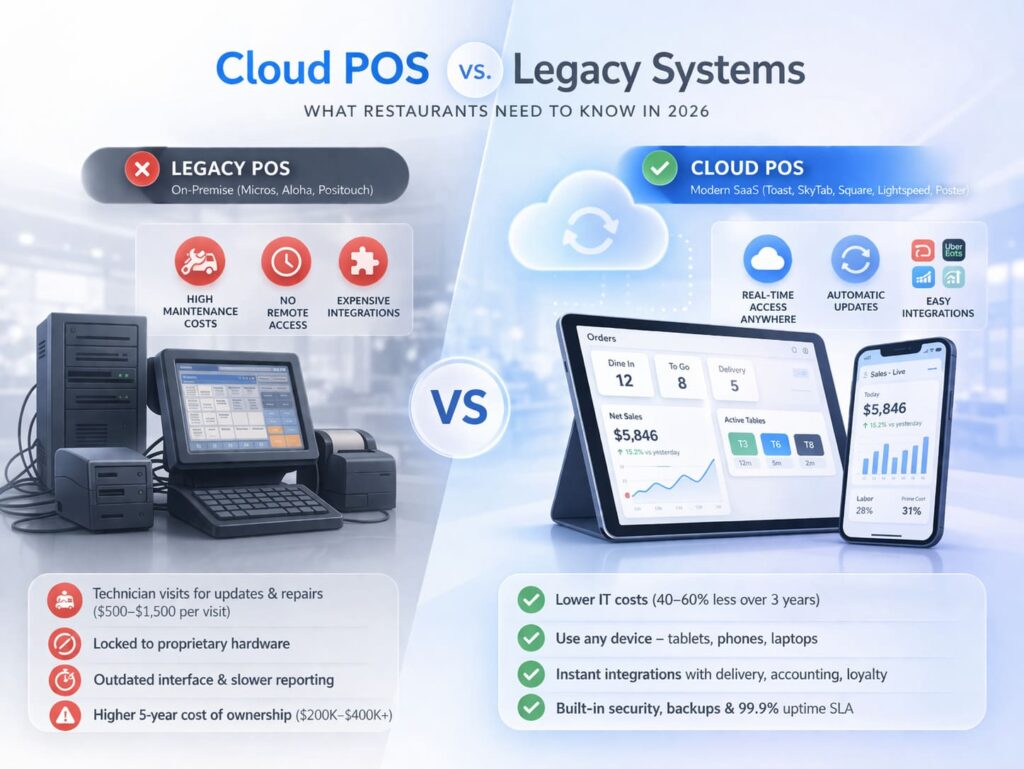
Cloud POS vs. Legacy Systems (Micros/Aloha): What to Choose for a New Restaurant?
KDS vs. Paper Tickets: The Complete Guide to Choosing Your Restaurant Kitchen System
