

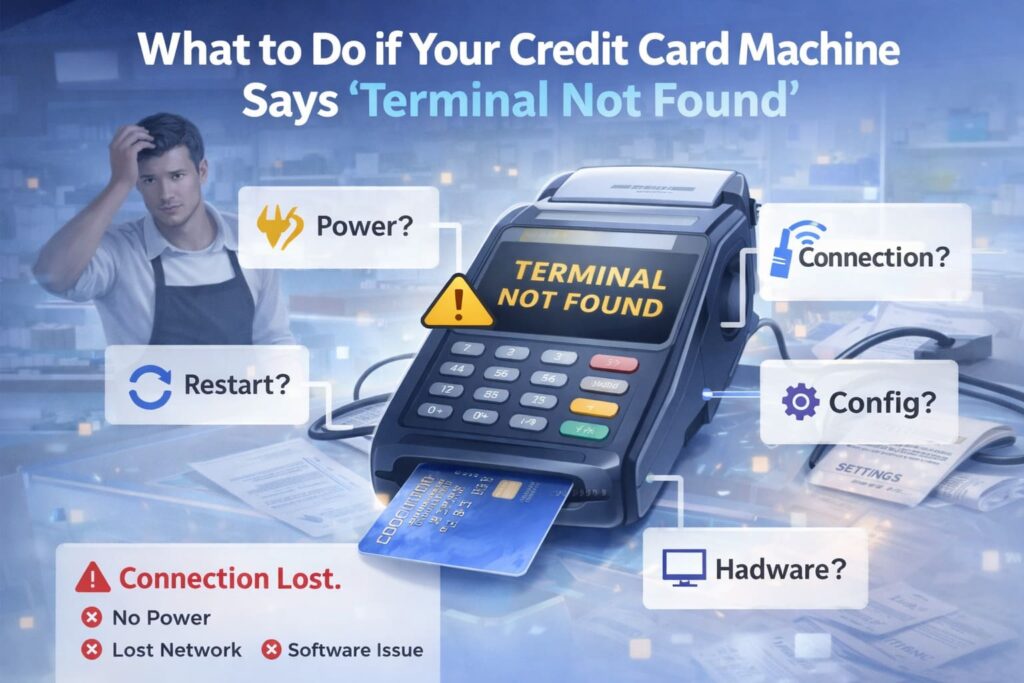
What to Do if Your Credit Card Machine Says “Terminal Not Found”
Fix POS connection errors in minutes. Step-by-step troubleshooting for power, network, and software issues.
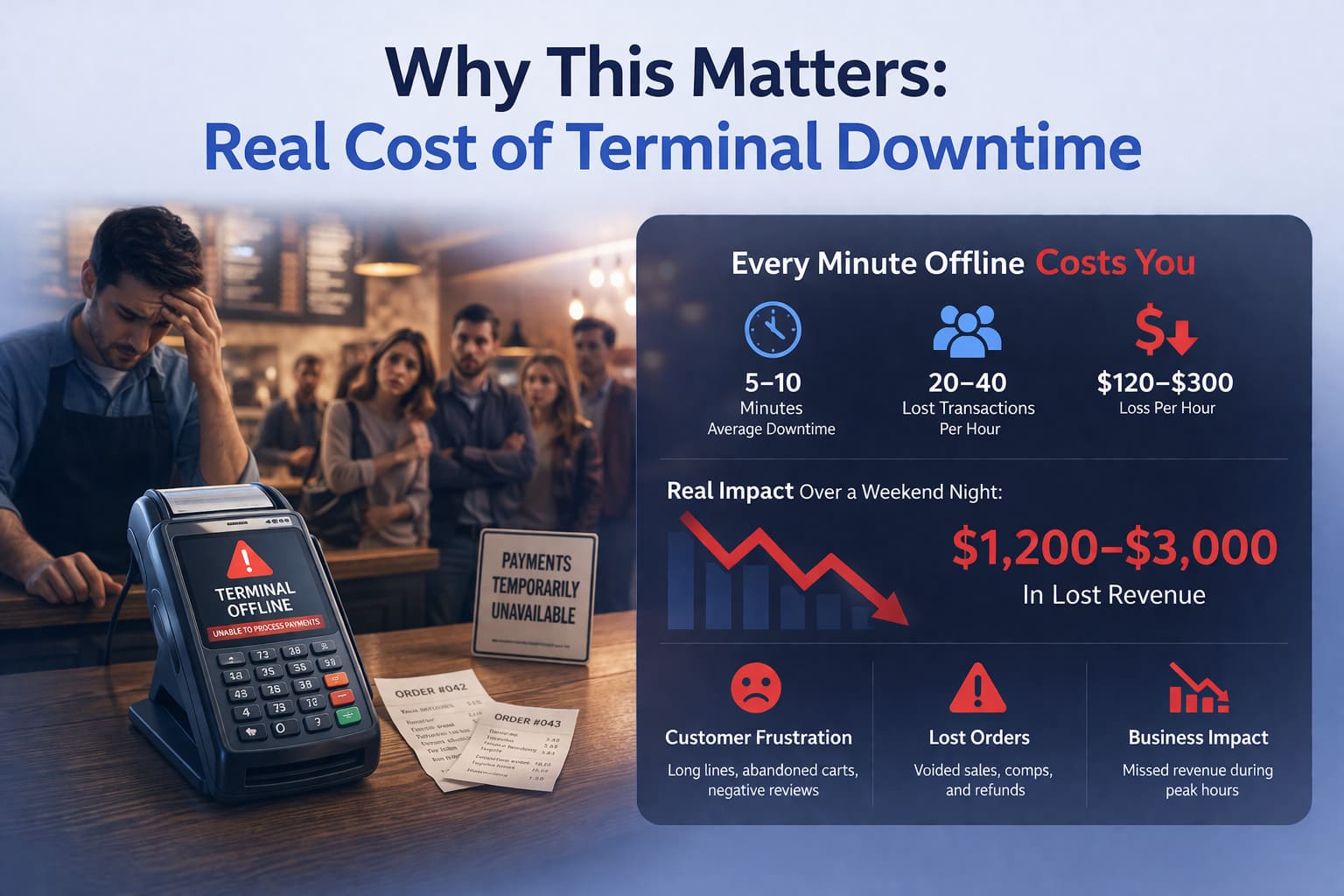
"I've watched restaurants bleed $400–$800 per night because a terminal went dark and nobody knew the fix. The reality? Most 'Terminal Not Found' errors resolve in under 5 minutes if you know where to look. Hardware failure is rare—connection glitches, config drift, or a power hiccup are the usual culprits."
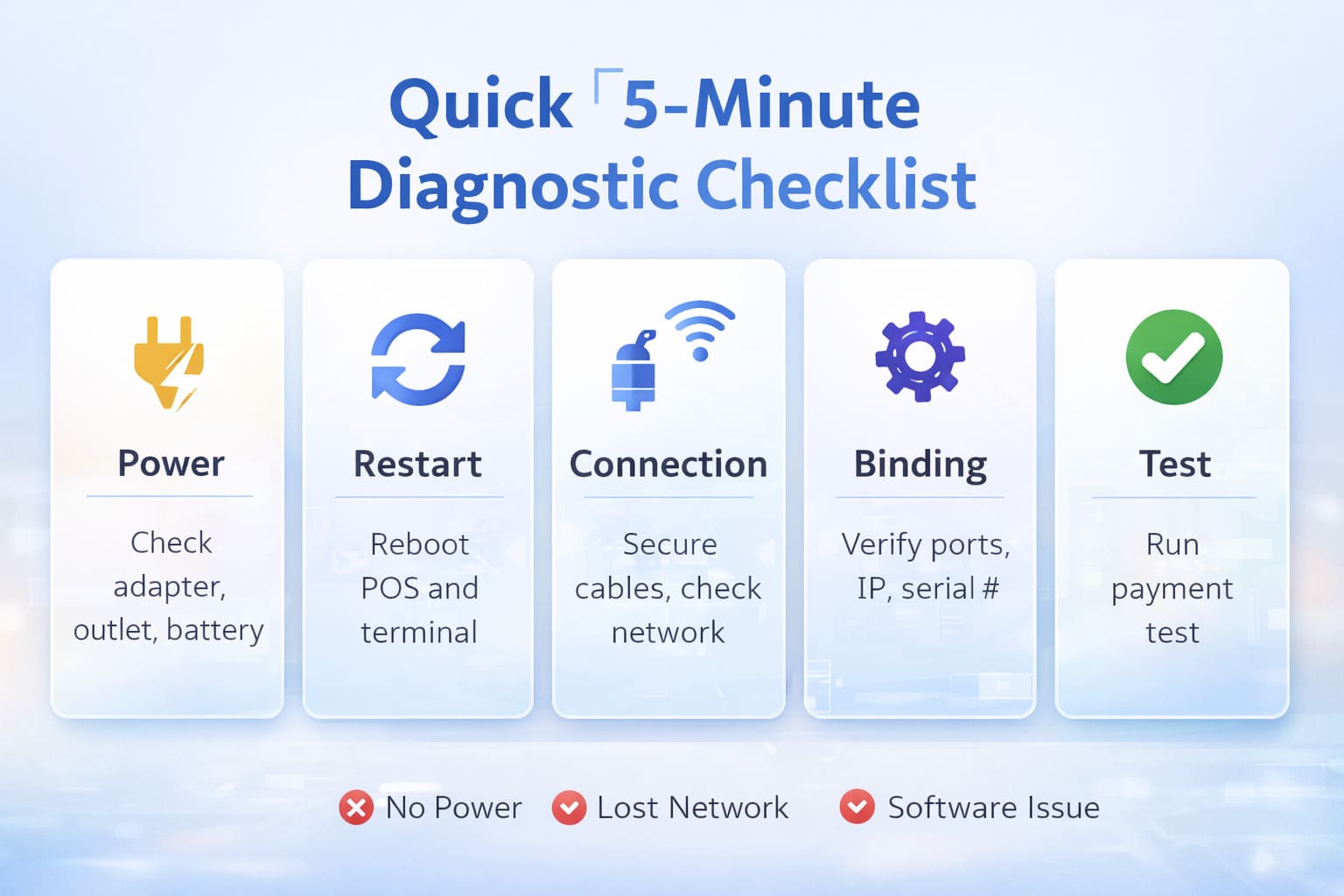
Quick 5-Minute Diagnostic Checklist
Your terminal isn’t talking to your register. Here’s the sequence that fixes 80% of cases.
- Step 1: Power — Check the adapter. Plugged in? Outlet live? (Test with your phone charger.) Battery terminals—charge level above 20%? Power switch actually flipped on? Try a hard power cycle: off for 10 seconds, then back on.
- Step 2: Restart (The Double Reboot) — Restart your POS software first. Wait 30 seconds. Then restart the payment terminal. Order matters—your POS reloads its drivers before the terminal tries to reconnect.
- Step 3: Connection — Cable secure? For wireless: same Wi‑Fi network as your register? For USB: try a different port. For Ethernet: check the jack—green light means link, no light means dead cable or port.
- Step 4: Binding — Open POS settings. Verify the terminal is assigned to the correct port (COM/USB/Ethernet), IP address, or Bluetooth slot. If the listed serial number doesn’t match your device—rebind manually.
- Step 5: Test Connection — Run a test transaction or hit the terminal’s diagnostics menu (usually Settings → Network Test). Success? You’re live.
Pro tip: Most “Terminal Not Found” errors resolve in under 5 minutes if you know where to look. Hardware failure is rare—connection glitches, config drift, or a power hiccup are the usual culprits.
What "Terminal Not Found" Actually Means
Your POS is trying to talk to the payment terminal and getting silence. The terminal either isn’t powered, isn’t connected, isn’t recognized by the software, or can’t reach the network.
This isn’t a hardware death sentence. Most of the time, it’s a handshake problem: hardware (cables, power), network (Wi‑Fi, Ethernet, routing), or software (drivers, port config, POS-terminal binding). One weak link kills the chain.
The Three Root Causes Behind "Terminal Not Found"
Hardware & Power Issues
Power loss is the silent killer. Loose adapter, unplugged outlet, dead battery, tripped breaker—all render the terminal invisible.
Damaged or loose cables rank second. USB cables fray. Ethernet jacks corrode. Bluetooth gets interference. A half-seated connector looks fine until you wiggle it.
Physical damage to the terminal’s port—bent pins, moisture, impact—stops recognition cold.
The fix: Check power first. Swap cables. Test ports on another device. If the terminal still won’t power on or show lights, you’ve got hardware failure—time for a replacement or service call.
Network & Connectivity Problems
Wi‑Fi drops or weak signals prevent cloud-connected terminals from reaching your payment processor. A terminal 30 feet from the router on a congested 2.4 GHz channel loses signal under load.
Ethernet cable failure, switch port issues, or routing misconfiguration block hardwired terminals. Some setups misconfigure static IPs, causing DHCP conflicts or gateway mismatches.
DNS resolution failures stop the terminal from finding your processor’s server, even if the internet looks fine.
Firewall or ACL rules blocking outbound connections to payment processor ports (typically 443 for HTTPS, sometimes 8888 or 4100 for specific acquirers).
The fix: Test Wi‑Fi signal strength. Verify Ethernet cable and port lights. Ping the gateway and processor. Confirm outbound ports aren’t blocked.
Software, Drivers & Configuration Errors
Outdated or missing drivers for USB or serial terminals mean Windows/Linux doesn’t recognize the device, even if it’s physically connected.
POS software misconfiguration—wrong port, wrong terminal model, serial number mismatch, IP address mismatch—causes the software to search for a device that isn’t where it thinks.
Incompatible POS-terminal firmware versions occasionally cause detection failure, especially after a POS update or terminal software push.
Binding errors in your restaurant POS (iiko, R‑Keeper, Square, Toast, SkyTab) where the terminal isn’t registered as an active payment device for that register.
The fix: Update drivers. Verify terminal settings in your POS match the device’s actual IP, port, and model. Re‑bind if necessary. Confirm firmware versions are current.
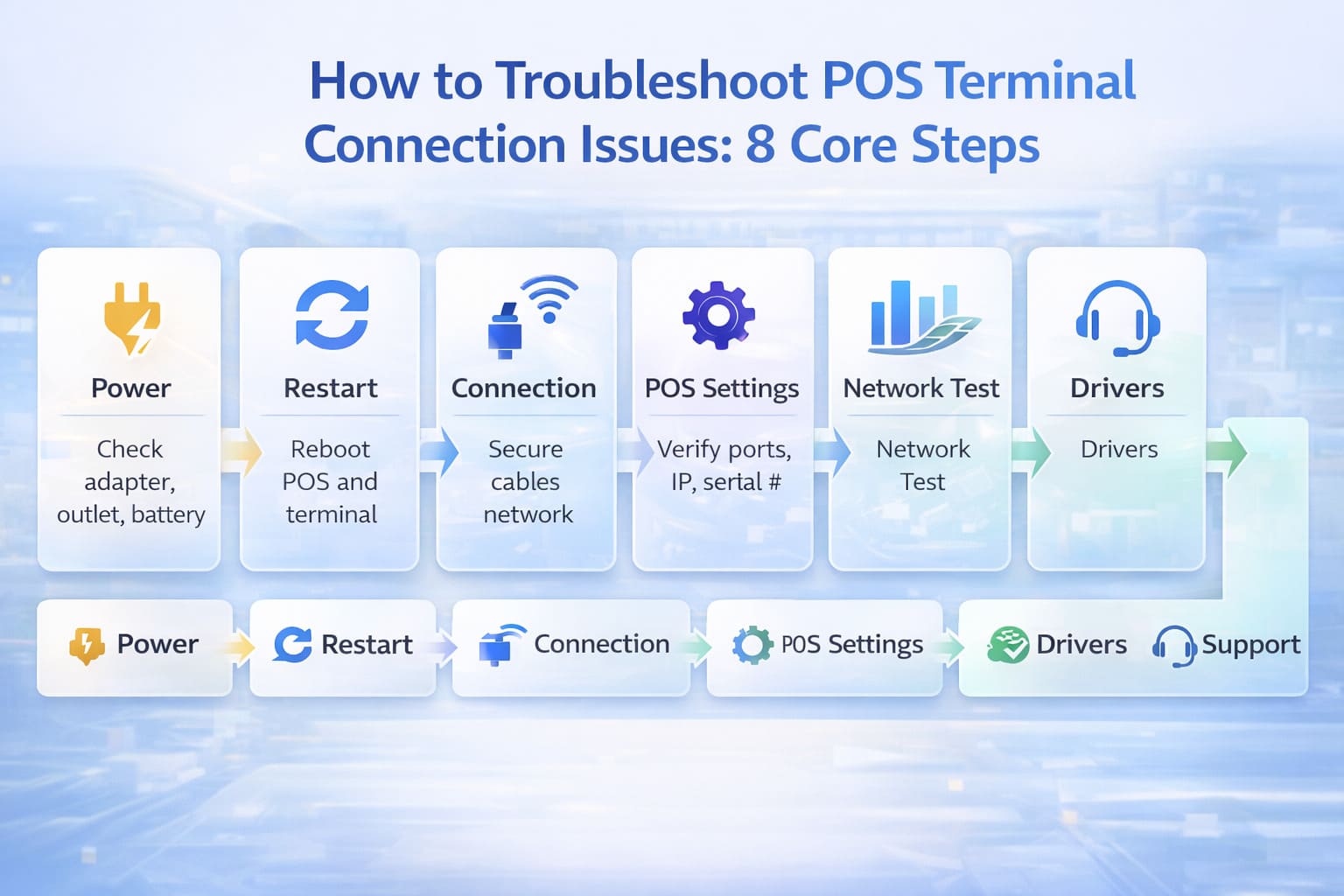
How to Troubleshoot POS Terminal Connection Issues: 8 Core Steps
Follow this sequence. Most issues resolve by step 3.
- 1) Power & Physical Check (1 min) — Terminal powered on? (Check LED lights, screen status.) Power adapter plugged into a working outlet? Battery-powered devices: Charge for 5 minutes, then restart. Ethernet: Check cable and port lights on the switch/router.
- 2) The Double Restart (3 min) — Shut down your POS application completely. Power off the terminal (hold power 5–10 seconds). Power on the terminal; wait for startup (30–60 seconds). Start your POS application. Test a payment. If this works—you’re done.
- 3) Check Network & Cable Integrity (2 min) — Wi‑Fi: Terminal connected to the same SSID as your register? Check network settings. Signal strength aim for −65 dBm or better. Forget and re‑join the network if needed. Ethernet: Unplug cable from terminal, wait 5 seconds, replug. Check for port lights on switch. Try a different patch cord. USB: Unplug from POS, wait 5 seconds, replug. Try a different USB port (preferably rear port, not a hub).
- 4) Verify Terminal Visibility in POS Settings (2 min) — Open your POS’s terminal/payment device settings. Confirm the terminal is listed and assigned to the active register. Check that the port (COM, USB, IP address) matches the physical connection type. If the terminal model or serial number is wrong—correct it.
- 5) Access Terminal Diagnostics (2 min) — On the terminal, press Menu or Settings. Look for “Network,” “Connection Test,” or “Diagnostics.” Run the network test. It should report: connected to router/network, IP assigned, gateway reachable, processor reachable. If the test fails—note the specific error (e.g., “No Wi‑Fi,” “Timeout on gateway”).
- 6) Isolate Network Issues (3 min) — If the terminal’s diagnostics show no network: Check your router. Restart it (power off 10 seconds, power on). Verify another device (phone, tablet) can reach the same Wi‑Fi or Ethernet. Wi‑Fi on 2.4 GHz: use channels 1, 6, or 11. For 5 GHz, try a less congested channel. Or test with wired Ethernet fallback. Ethernet fails: Test the same port with a laptop. If the port is dead, try another port on the switch.
- 7) Check POS-Terminal Binding & Drivers (2 min) — In your POS settings, confirm the payment device/terminal driver is installed. USB: Check Device Manager (Windows) for the terminal under “Ports” or “USB Devices.” Yellow warning—update drivers from the terminal manufacturer or your POS vendor. Networked (Ethernet/Wi‑Fi): Confirm IP and port in POS settings. Restart the POS service that controls payments (stop → wait 5 sec → start).
- 8) If Still Offline: Request Acquirer/Processor Status (5 min) — Log into your merchant portal. Check system status. Verify your terminal’s registration/activation on the processor’s backend. Processor outage? You’ll see it. Use a mobile backup (phone reader or virtual terminal) for now. Still stuck? Gather: terminal model, serial number, POS software version, current IP address, network test result, recent POS logs. Contact your processor or POS vendor support.
Critical: A 2-hour terminal outage in a busy restaurant can mean $1,200–$3,000 in lost revenue. Most outages solve in 5–15 minutes if you know the diagnostic sequence.
Troubleshooting by Connection Type
Wi‑Fi: Signal, Channels, Router, Security
Most restaurant terminals use Wi‑Fi because wiring every register is expensive. But Wi‑Fi is fragile when misconfigured.
Signal Strength — Aim for −65 dBm or better. At −75 dBm, you’re at the edge; drops happen under load. At −85 dBm or worse, the terminal disconnects. Check signal strength on the terminal’s network settings. Weak? Move the router closer or the terminal closer to the access point. Avoid placing routers in back offices surrounded by metal or in kitchen coolers.
Channel Selection — In 2.4 GHz, use channels 1, 6, or 11 only (non‑overlapping). 5 GHz offers more channels with less congestion—if your terminal supports it, use 5 GHz. Check your router settings. If multiple restaurants or nearby businesses are using channel 6, switch to 1 or 11.
Encryption & Handshake — Use WPA2‑PSK with AES, or WPA3 if supported. Avoid old WEP or no encryption. Ensure the terminal and router agree on the encryption type. Mismatch = “can’t connect” or “wrong password” even if credentials are correct.
AP Isolation (Guest Network Trap) — Some routers default to “AP isolation,” which blocks devices on the same network from talking to each other. If your register is on the guest network and the terminal is on the main network—they can’t communicate. Fix: Disable AP isolation on the router, or ensure register and terminal are on the same network (neither in a guest/isolated VLAN).
DHCP Reservation — Set a fixed DHCP lease for your terminal on the router. This prevents the terminal’s IP from changing mid‑shift (which breaks the POS binding). In your router settings: reserve the terminal’s MAC address to a fixed IP (e.g., 192.168.1.50).
Expert tip: Network segmentation (VLAN) in upscale restaurants: create a separate VLAN for payments. Guest Wi‑Fi (VLAN 10) and office Wi‑Fi (VLAN 20) stay isolated. Payment devices live on VLAN 30 with restricted routing rules.
Ethernet: Cable, Switch Port, PoE
Hardwired Ethernet is more reliable than Wi‑Fi when configured right. But a loose cable or misconfigured switch port stops everything.
- Cable Integrity: Inspect the Ethernet patch cord. Visibly damaged (bent, crushed, wet)? Replace it. Use Cat5e or Cat6 cables rated for network devices. Test the cable with a tester tool or by moving the terminal to a different port on the same switch.
- Switch Port Status: On the router or switch, check that the port the terminal uses shows a green light (connected) and is not in an “err-disabled” state. Port is red or orange: restart the switch port (disable → enable) or try the next port.
- ACL & Firewall Rules: If you have a managed switch or firewall: verify it doesn’t block outbound traffic on ports 443 (HTTPS), 8888, 4100, or 4101 (payment processor ports vary by acquirer). Ask your payment processor: “What outbound IP addresses and ports does our terminal need?”
- Power over Ethernet (PoE): Some terminals use PoE (power delivered through the Ethernet cable, no separate adapter). If your terminal uses PoE: Verify the switch port supports PoE or a PoE injector is installed. Check PoE power budget on the switch. If other PoE devices are consuming power, your terminal may starve.
Mobile (LTE/SIM): Coverage, APN, Roaming
Backup terminals running LTE add redundancy but introduce SIM management complexity.
- Signal & Coverage: LTE terminals depend on cellular coverage. Basement, cooler, or surrounded by metal? Signal weakens. Check the terminal’s signal bars. 3 bars minimum; 4+ is solid. Signal is 1–2 bars: move to a window, use an external antenna, or switch carriers.
- SIM Activation & Balance: Your M2M (machine-to-machine) SIM must be active with a carrier. Check: Balance on the account. Data allowance not exhausted. Auto-renewal enabled. If the SIM has no balance, insert a fresh one or contact the carrier.
- APN Configuration: The terminal connects via an “Access Point Name” (APN) provided by your carrier. Default APNs often work, but some carriers require manual entry. If your terminal can’t connect to LTE: Go to Settings > Network/Mobile. Confirm APN matches your carrier per official documentation. Try toggling “Data Roaming” on if you’re outside your home carrier’s network.
Bluetooth/USB: Pairing & Drivers
Wireless readers (Bluetooth card readers) and USB pinpads are convenient but require proper pairing and drivers.
- Bluetooth Re‑Pairing: If a Bluetooth reader worked yesterday but not today: On the terminal, go to Settings > Bluetooth. “Forget” the device (remove the old pairing). Put the reader in pairing mode (usually a button press or menu option). Scan for devices on the terminal. Select the reader and re-pair. Bluetooth pairs using a PIN (often 0000 or printed on the device).
- USB Drivers: USB pinpads and readers need Windows/Mac drivers. If you see “Unknown Device” or a yellow warning in Device Manager: Download the driver from the terminal manufacturer (Verifone, Ingenico, PAX). Uninstall the unknown device. Install the driver. Restart the POS application.
- USB Power Saving: Some Windows PCs enable “USB Selective Suspend,” which powers down USB devices after inactivity. For payment terminals, disable this: Settings > Power Options > Change Plan Settings > Change Advanced Settings. Scroll to USB Settings > USB Selective Suspend Setting. Set to “Disabled.”
Restaurant POS Terminal Integration: Specialty Considerations
In restaurants running iiko, R‑Keeper, Toast, SkyTab, or FrontPad, the terminal sits downstream of the POS ordering and fiscal logic. A print queue backlog or session lock on the register can delay payment device detection.
- Queue & Session Blocking: If your POS is slow to print or process kitchen orders, it might block the payment device call. The terminal sits idle, then times out. Solution: Monitor print queue. Clear stuck jobs. Ensure kitchen/fiscal receipt printing completes before calling the card payment. Set timeouts in the payment driver (usually 30–60 seconds).
- Separate VLAN for Stability: Put the POS terminal on a dedicated IP network, separate from the kitchen network. Kitchen bandwidth spikes shouldn’t steal terminal bandwidth.
- Driver Compatibility: Your POS system needs a payment integration driver matching your terminal brand. For example: iiko: “Ingenico iCT250” driver, configured with IP/port. R‑Keeper: “INPAS” or “Verifone” driver, configured with COM or USB port. If the driver doesn’t match your terminal—the POS can’t find it, even if the hardware is fine. Verify in your POS: Payment Devices > [Your Terminal] > Check that the driver is installed and the port/IP matches your terminal’s actual connection.
- Rebind After POS Update: Sometimes a POS update changes how devices are registered. After updating iiko, Toast, or SkyTab: Go to Payment Devices settings. Re‑add your terminal (or verify the binding is still active). Test a transaction.
Card Reader Connection Error: Physical & Electrical Issues
Card readers (chip-and-PIN slits) suffer wear. Thousands of cards per week = friction, dirt, oxidation.
- Visual & Physical Inspection: Look inside the reader slot. Debris, paper, dust? Use a dry, lint‑free cloth. Gently wipe the inside contacts. Check the slot spring. Does it move smoothly when you insert a card? If stiff or stuck, the contact pressure is poor. Inspect the shielded cable connecting the reader to the terminal. Kinked, crushed, or corroded at the connector?
- Contact Oxidation & Cleaning: Card reader contacts oxidize over months. Oxidized contacts = high resistance = intermittent “Card Read Error” or “Reader Not Found.
- “Safe cleaning: Dampen a lint‑free cloth with isopropyl alcohol (90%+). Gently wipe the reader’s visible contacts and the card’s magnetic stripe/chip surfaces. Allow to air dry (1 min). Avoid: Water (causes corrosion), paper towels (leave lint), acetone (damages plastic).
- Hardware Replacement: If cleaning doesn’t help, the reader module may have failed contacts or a broken shielded cable. Most modern terminals have replaceable reader modules. Contact your processor or a technician for a swap. Choosing the right EMV chip card readers ensures compatibility with your payment system and reduces reader-related failures.
Model‑Specific Quick Commands
Different payment terminals use different key combinations for hard reboot and diagnostics.
Verifone V200/V400/P400
- Hard Reboot: Hold “Green/OK” key for 10 seconds.
- Service Menu: Press “1” + “5” + “9” simultaneously. Password: 166831 or 1668321 (model‑dependent).
- Network Diagnostics: Service Menu > Network > TCP/IP > Ping > Enter processor or gateway IP.
- Update Method: TMS (Terminal Management System) via secure download, or USB firmware update.
Ingenico Desk/Move/Lane
- Hard Reboot: Hold “Func” key 5–10 seconds until restart.
- Service Menu: Press “Func” + power-off → hold both 10 sec → “Enter” (varies by model; check manual).
- Network Test: Service Menu > System > Communication > Test Connection.
- Update: Telium/TELIUM Manager software or USB firmware update.
PAX A920/S920/A80
- Reboot: Settings > About > Reboot.
- Service Menu: Long-press the power button (not available on all models; check manual).
- Network Test: Settings > Network > Diagnostics > Ping Gateway.
- Update: PaxStore mobile app or USB. Learn more about PAX A920 specifications and integration options for your system.
Dejavoo Z/Android Devices
- Reboot: Hold power button 3 seconds → Reboot.
- Settings: Settings > About > EMV App Version or similar.
- Network Test: Varies by device; check Dejavoo manual.
- Update: Google Play Store or manual APK.
Checking Firmware, Drivers & EMV Key Updates
Your terminal’s brain runs on firmware. Outdated firmware = unpatched bugs, incompatibility, security holes.
- Check Current Version: Go to Terminal Settings > About or System Info. You’ll see: Kernel version (operating system), Payment application version (card processing software), CAPK version (EMV certification authorities).
- Update Sources: OTA (Over-The-Air): Terminal connects to its manufacturer’s server, downloads latest firmware. Automatic or scheduled. Preferred method. USB: Plug a USB stick with firmware file into the terminal. Slow and manual. TMS (Terminal Management System): Your processor sends firmware to the terminal on-demand. Common in enterprise.
- CAPK (Certification Authority Public Key) Expiration: CAPK keys authenticate EMV cards. If CAPK expires, chip cards decline with “Issuer Authentication Error.” Check: Terminal Menu > Manage CAPK or similar. Look for expiration dates. If any expire within 30 days—update immediately.
- Risks of Outdated Firmware: Declined transactions from incompatible EMV or Contactless (NFC) specs. Security holes exploitable by fraudsters. Compatibility breaks after POS software updates. Slower processing on old terminals running bloated software.
Pro tip: Most processors recommend monthly firmware updates. Set a calendar reminder or enable auto-update if your terminal supports it. Monitor contactless payment updates as NFC adoption grows—outdated CAPK keys and kernel versions will cause NFC transaction failures.
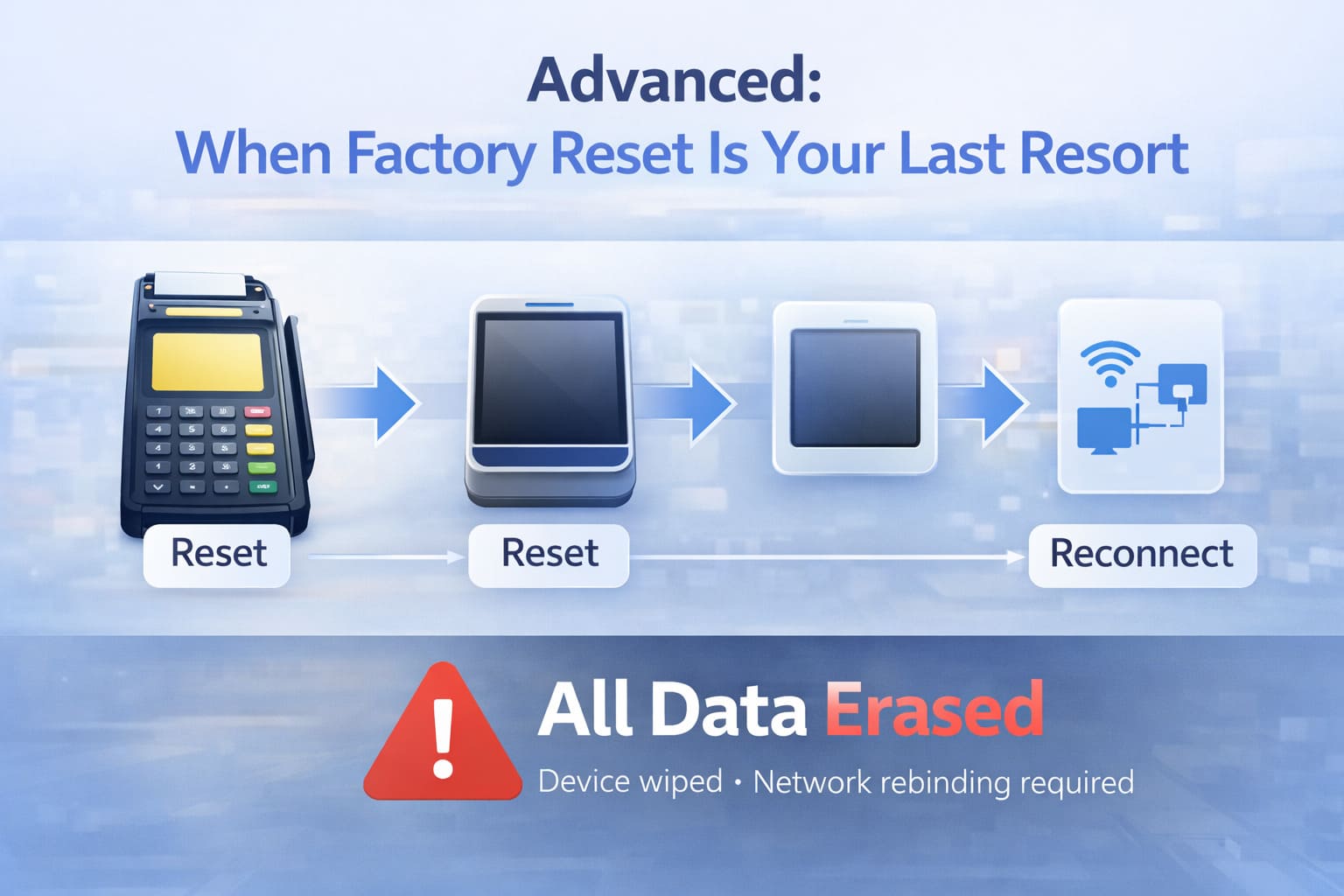
Advanced: When Factory Reset Is Your Last Resort
Don’t do this unless your processor tells you to. A factory reset erases all configuration, keys, and personalization. After reset, the terminal is blank. You’ll need to re‑personalize it (load keys, register with your processor), which takes hours and requires technical support.
Scenario for Factory Reset: Terminal is stuck in a boot loop or recovery mode and soft reboots don’t work. Software corruption is so severe that even firmware updates fail. Your processor explicitly directs you to reset.
- Before You Reset: Backup Configuration: Write down or photograph: Terminal IP address, gateway, DNS. Merchant ID, Terminal ID. POS connection type (COM/USB/Ethernet). Contact Your Processor: Inform them you’re resetting. They’ll guide re‑activation and may pre-load keys after reset. Document the Reset: Note the date/time and reason in your maintenance log.
- How to Reset (varies by brand): Verifone: Service Menu > System > Reset/Format > Confirm (asks for password; default varies). Ingenico: Service Menu > System > Erase Device/Factory Reset (similar warning screen). PAX: Settings > Reset > Factory Reset (usually requires PIN).
- After Reset: Power on. Terminal will ask for merchant/terminal IDs or connect to TMS server. Follow processor’s guidance to personalize. Load EMV keys (CAPK, TSK, etc.). Test transaction. Inform your POS that the terminal is re-active (may need rebinding).
Backup Payment Methods When Terminal Fails
While you troubleshoot, you can’t wait. Your staff needs to accept payment now.
Virtual Terminal (Web-Based)
Most processors (Square, Toast, Shift4) offer a web interface where you log in and manually enter card details to process payment.
- Steps: Log into your processor’s website. Find “Virtual Terminal” or “Process Payment” menu. Enter cardholder name, card number, exp date, CVV, and amount. Click “Process.” Receipt prints from your POS or is emailed.
- Security Note: Manually entering card details (MOTO—Mail Order/Telephone Order) raises fraud risk. You lose the “Card Present” protection. Card schemes charge higher chargeback fees for MOTO. PCI-DSS rules restrict manually typing card numbers. Use only when terminal is down.
Mobile Reader Backup
If you have a small mobile reader (Square Reader, SumUp, Clover Flex), it can be a quick fallback.
- Insert card into mobile reader. Process on the mobile device. Note the transaction in your register POS (manually or via integration).
- Limitation: Mobile readers often have daily limits ($1000–$2000) and lower speed than terminal.
Diagnostic Checklist Before Contacting Support
If you’ve reached step 8 and the terminal is still offline, gather this before calling:
| Information | Where to Find | Why It Matters |
|---|---|---|
| Terminal Model & Serial # | Settings > About or label on device | Identifies exact device; support can look up config |
| Current POS Software Version | POS settings or help menu | Diagnose driver/compatibility issues |
| Network Test Result | Terminal Menu > Diagnostics > Network Test | Pinpoints if problem is local network or processor |
| Your Network Setup (Wi-Fi SSID, Ethernet switch model) | Router label, switch | Diagnose network-level issues |
| Processor Name (Shift4, TSYS, First Data) | Processor invoice or merchant portal | Validate processor status page and contact info |
| Last Change Made | Your notes | Often root cause |
| Error Code | Terminal screen or POS log | Specific error codes accelerate diagnosis |
| Logs from POS & Terminal | POS settings > Logs or Terminal USB export | Engineers can trace exact failure sequence |
Maintenance Schedule: Preventing "Terminal Not Found" Errors
- Weekly: Inspect card reader slot for debris. Clean with lint-free cloth if dirty. Visually check all cables and connectors for damage. Monitor Wi-Fi signal strength on the terminal.
- Monthly: Restart the terminal (power off, wait 30 sec, power on). Clears transient memory leaks. Verify Ethernet cable and port lights are stable. Review POS logs for any failed connection attempts.
- Quarterly (Every 3 Months): Update terminal firmware (if not auto-updated). Verify CAPK expiration date is > 90 days away. Test your backup payment method (virtual terminal or mobile reader).
- Annually: Deep clean card reader (isopropyl alcohol, gentle). Audit network configuration (IP addresses, routing, firewall rules). Replace worn Ethernet cables or pinpad connectors.
- Replacement Cycle: Terminals typically function reliably for 3–5 years under heavy use. After 5 years, firmware support and security patches often end. Plan hardware replacement before end-of-support.
Proactive maintenance ROI: Terminals maintained with weekly checks, monthly restarts, and quarterly firmware updates extend their viable life to 5–7 years, whereas unmaintained terminals decline to 2–3 years.
SkyTab & Modern POS: How Better Integration Reduces Terminal Errors
Not all POS systems are built the same. SkyTab, Toast, Square, and older systems like R‑Keeper each handle terminal integration differently.
SkyTab’s Approach: SkyTab integrates with terminals through a unified driver model, which pre-configures many settings (IP, port, timeout values) based on your terminal brand. When you set up a new terminal in SkyTab, the system:
- Auto-detects the terminal model (Verifone, PAX, Ingenico).
- Loads the correct driver from SkyTab’s library.
- Sets sensible defaults (network timeout, retry logic).
- Tests the connection before marking it active.
This approach reduces misconfiguration errors compared to manual setup. A typical manual POS requires you to manually select the port, enter the IP, and guess at timeouts. Modern platforms like SkyTab also implement redundancy: Automatic failover to virtual terminal if the physical terminal drops. Queuing of transactions during brief outages, then retry when terminal comes back. Real-time alerting (SMS or email) when terminal goes offline so staff knows immediately.
Many restaurant operators report improved uptime and fewer terminal errors after migrating to SkyTab. Better integration means your staff spends less time troubleshooting and more time serving.
Learn more about SkyTab POS integration benefits and how it compares to other systems, or explore our full POS systems guide for detailed comparisons.
When to Call the Experts
You’ve exhausted the checklist. Terminal still offline. Here’s what to do.
Gather This Information First
- Terminal model & serial number (label on device).
- POS software name & version (iiko, Toast, SkyTab).
- Current IP address of terminal (Terminal > Settings > Network).
- Network test result from terminal diagnostics.
- Processor/acquirer name (who’s your bank/payment company?).
- Screenshot or photo of the error message on terminal or POS.
- Exact date/time the error started.
- Recent changes (POS update, network change, terminal moved).
Who to Call
- Your Processor/Acquirer First — If Shift4, TSYS, First Data—they own the backend connection. Call their merchant support. They can: Check if your merchant account is active. Verify the terminal is registered in their system. Confirm their servers are up and receiving transactions from your location.
- Your POS Vendor — SkyTab, Toast, iiko. They can: Verify driver compatibility. Check if recent updates broke terminal binding. Remote into your register to diagnose software issues.
- Terminal Manufacturer Support (if your processor/POS can’t help) — Verifone, Ingenico, PAX—they handle hardware/firmware issues: Diagnose firmware bugs. Arrange replacement if hardware is faulty. Push OTA updates if needed.
- Your IT/Network Admin (if you have one) — They can verify: Router is functioning. Firewall isn’t blocking payment ports. Network configuration is correct.
What to Expect
- Phone support: 15–30 min wait during business hours. Have the above info ready; you’ll be up and running in 20–40 min if it’s a known issue.
- Remote access: Processor or POS vendor may ask to log into your register to troubleshoot. Say yes—it’s secure and faster.
- On-site visit: If hardware is failing, they’ll schedule a technician. Cost varies: free if covered by contract, $100–300 if out of warranty.
Still stuck? Reach out.
If you’ve worked through this guide and your terminal is still offline, don’t waste more time. Contact a professional:
- Call your processor’s merchant support (number on your invoice).
- Reach out to your POS vendor (Toast, SkyTab, iiko).
- Contact Smart Payment Solutions — we diagnose and fix POS/terminal integration issues for restaurants and retail chains across the USA. 24/7 support, experienced engineers, average resolution time under 20 minutes.
Further Reading & Resources
- PCI Security Standards Council: PCI DSS compliance requirements for card data security
- EMVCo Specifications: Payment terminal standards for EMV chip & NFC transactions
- Verifone Support Portal
- Payment Terminals Overview — Complete guide to terminal selection and setup
- Complete POS Systems Overview — Comprehensive resource on POS hardware, software, and support
Key Takeaways
- “Terminal Not Found” is usually solvable in 5 minutes. Power → Restart → Cable → Settings → Test. Most issues are here.
- Network is the second failure point. Wi-Fi signal, Ethernet cable, DNS, firewall rules. Diagnose systematically.
- Software binding (POS configuration) is third. Verify the POS knows about the terminal: correct port, IP, model, serial number.
- Keep firmware & CAPK keys current. Outdated firmware = bugs and incompatibility. CAPK expiration = chip card declines.
- Maintenance prevents most outages. Weekly cable/signal checks, monthly restarts, quarterly firmware updates.
- When stuck: gather info and call. Don’t guess. Processor, POS vendor, or terminal manufacturer can solve in minutes if you have the data.
- Backup methods exist. Virtual terminal, mobile reader—know them for emergencies.
- Better POS integration saves money and stress. Modern platforms like SkyTab reduce configuration errors and outage time significantly.
From Max Artemenko, Founder & Chief Payment Systems Architect, Smart Payment Solutions:
“I’ve watched restaurants bleed $400–$800 per night because a terminal went dark and nobody knew the fix. The reality? Most ‘Terminal Not Found’ errors resolve in under 5 minutes if you know where to look. After 12 years troubleshooting payment systems across 23 states, I can tell you: hardware failure is rare. Connection glitches, config drift, or a power hiccup—that’s your usual culprit.”
The bottom line: A terminal that works is a terminal that makes you money. A terminal that breaks down costs you transactions, frustrates customers, and ties up your capital in emergency repairs. Start with the 5-minute checklist. Build a weekly maintenance routine. And when you’re stuck, call someone who knows the systems—Smart Payment Solutions is here to help 24/7.

What do our customers think about us
Frequently Asked Questions

Other Articles
How to Handle Decline Code 51 (Insufficient Funds) at Your Restaurant
Code 05 “Do Not Honor”: What It Means and What Merchants and Customers Should Do
Merchant Override Decline: What It Means and How to Fix It
