

What Does “SEC Violation” Mean on Your Credit Card Terminal?

"I've seen this error kill transaction flow for restaurants and retail countless times. The worst part? Most business owners think it's their fault, but the reality is it's often a mismatch in card data or your terminal's encryption keys are out of sync with the acquirer host. The fix is straightforward once you know where to look—and I'm going to walk you through it."
What Does “SEC Violation” (Code 63) Mean on Your Credit Card Terminal?
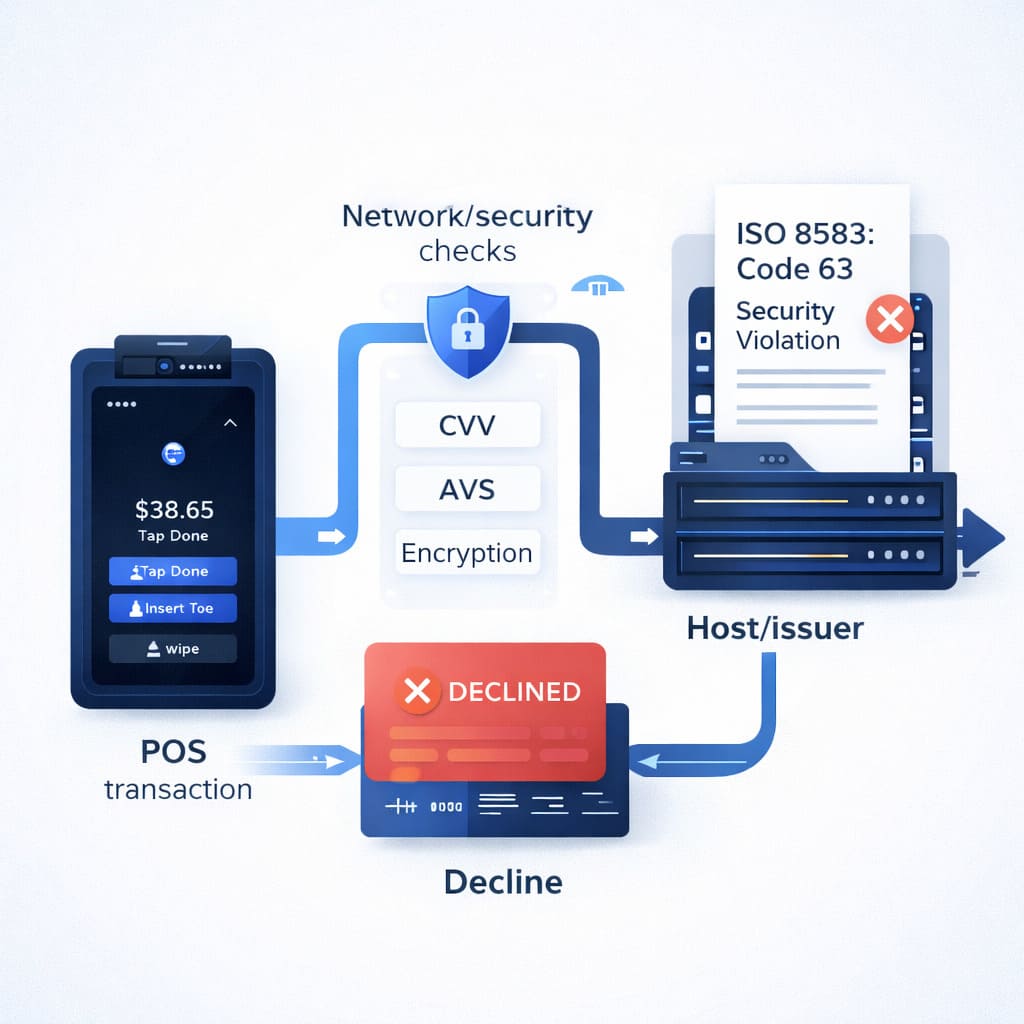
SEC Violation—or “Security Violation” code 63—is an ISO 8583 response code that means your payment processor (the host) rejected the transaction because security verification failed. It’s not your terminal breaking down. It’s the host saying: “This transaction doesn’t pass our safety checks.”
The error appears as a hard decline on your POS screen—the transaction stops, the payment doesn’t go through, and the customer’s card stays in limbo. Unlike soft declines (which disappear if you retry), code 63 usually doesn’t budge until the root cause gets fixed.
Here's what's happening under the hood:
- Your terminal sends transaction data to the acquiring bank (your merchant processor).
- The acquirer routes the request to the card’s issuing bank for approval.
- The issuer checks the security parameters: CVV, expiration date, billing address, encryption keys.
- If something doesn’t match their records—code 63 fires back, and your terminal displays the decline.
Because payment networks compress everything—they call it “SEC Violation” on receipts and terminal screens, but officially it’s ISO 8583 Response Code 63. Both terms mean the same thing.
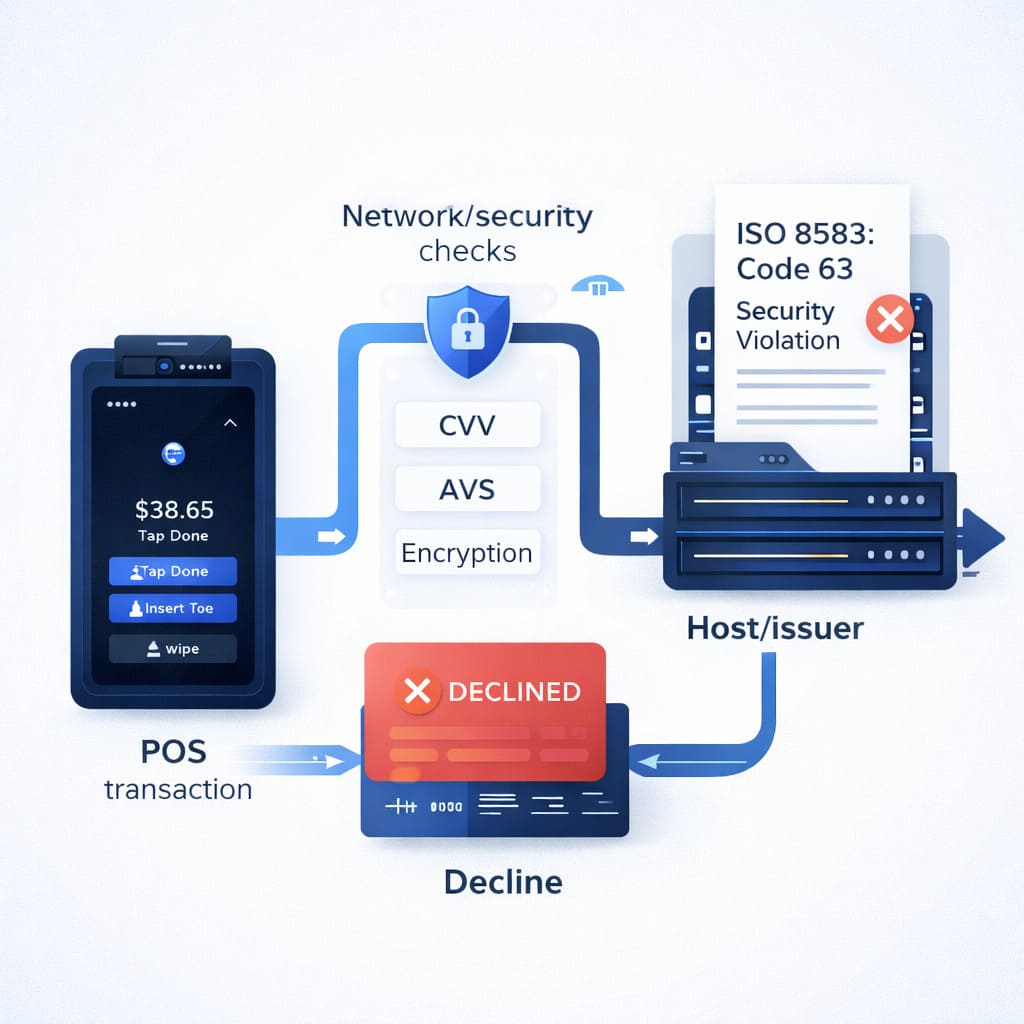
“Code 63 is classified as a hard decline—your processor won’t retry it automatically. It’s not a temporary glitch like insufficient funds. The transaction is blocked until the security issue is resolved. That’s why understanding the root cause matters so much.”
— Max Artemenko, Smart Payment Solutions
Why Does “SEC Violation” (Code 63) Appear: Main Causes
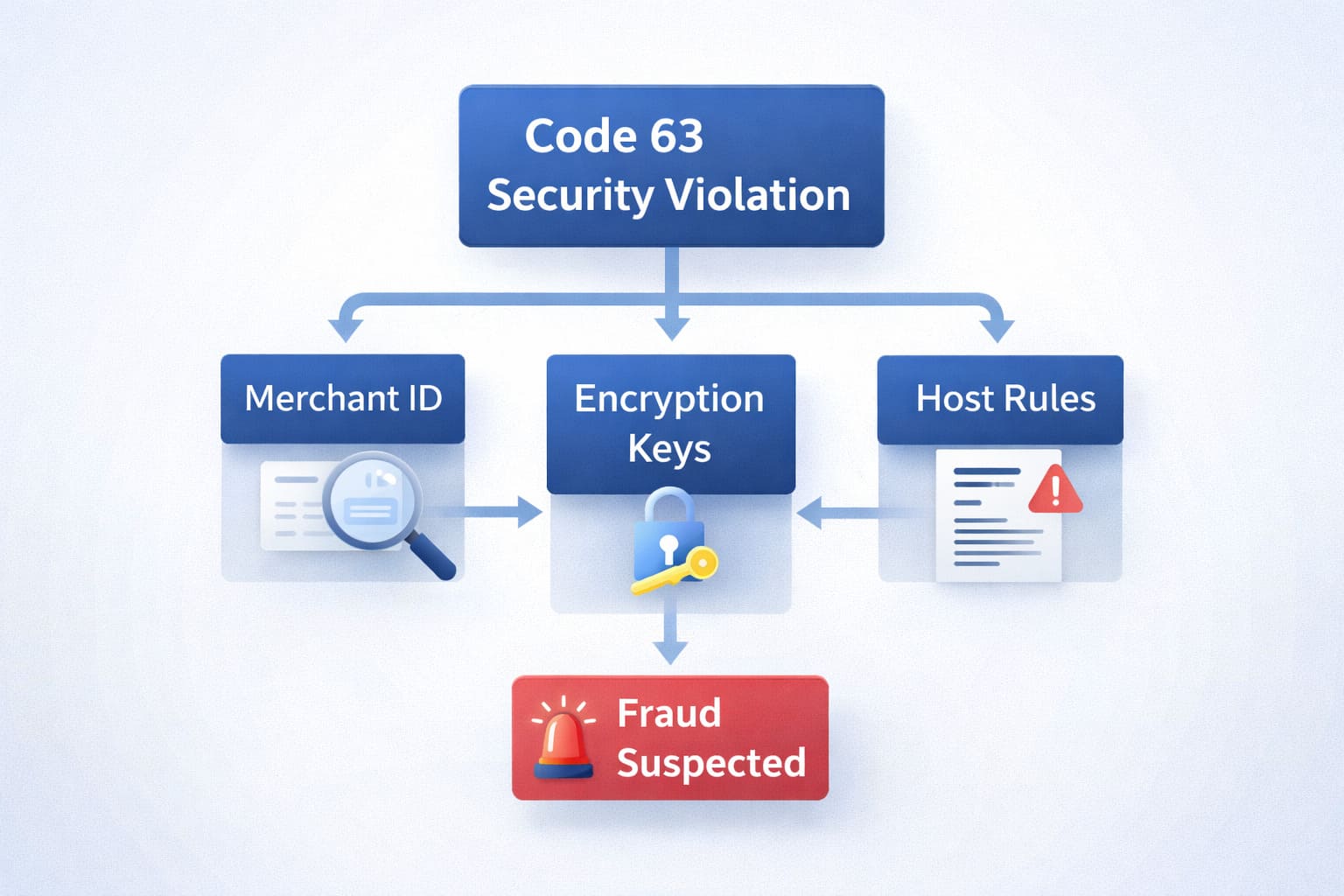
Not all code 63 errors are identical. The security violation umbrella covers several sub-causes. Here’s what actually triggers it:
1. Incorrect CVV or Card Data Mismatch
This is among the most common triggers. If the customer (or your staff) enters the wrong CVV, expiration date, or billing address—the issuer’s verification fails.
What happens:
- CVV check fails: “That 3-digit code doesn’t match what we have on file.”
- Expiration date mismatch: Card expired or date entered wrong.
- Billing address doesn’t match: The ZIP code or street address differs from bank records.
Result: Hard decline, code 63.
In most in-store EMV (chip) transactions, the billing address is not entered at the terminal. AVS (Address Verification System) checks apply primarily to keyed/MOTO (Mail Order, Telephone Order) transactions or when payment details are entered manually. For chip card transactions, CVV mismatch is the primary security concern.
2. Invalid Merchant ID (MID) or Terminal ID (TID)
Your terminal is assigned a Merchant ID (MID) by your acquirer—usually 15 digits. The terminal itself gets a Terminal ID (TID)—usually 8 digits. If either is misconfigured or doesn’t match your acquirer’s records, the host rejects the transaction as a security violation.
Why this matters:
- Misconfigured MID = the processor doesn’t know who you are.
- Wrong TID = the terminal can’t authenticate to the host.
- Result: The host blocks the transaction as unverified.
This often happens after:
- Moving to a new acquirer.
- Adding a new terminal to your account.
- Re-provisioning a terminal incorrectly.
For deeper context on how merchant accounts work, see our merchant account guide.
3. Terminal Encryption Keys Out of Sync
POS terminals use DUKPT encryption (Derived Unique Key Per Transaction) to secure cardholder data. Each terminal has encryption keys that must match the keys stored at your acquirer’s host.
When keys fall out of sync:
- Your terminal encrypts data with Key A.
- The host tries to decrypt with Key B.
- Decryption fails → security violation.
- Code 63 fires.
Common trigger: Encryption keys expire, or the terminal hasn’t been re-provisioned in months.
Each transaction generates a unique KSN (Key Serial Number)—a 64-bit value that encodes your terminal ID and a transaction counter. The KSN advances with each transaction, enabling the processor’s HSM (Hardware Security Module) to independently derive the correct decryption key without needing the original key. If your KSN stops incrementing (visible on receipts), your encryption keys may be stale.
4. Host-Side Security Rules or Fraud Flags
Sometimes the issuer or acquirer has flagged the transaction as suspicious activity—not because of bad data, but because:
- Transaction amount exceeds cardholder limits.
- Purchase pattern looks unusual (e.g., $10,000 purchase from a new merchant in a different country).
- The card is locked for security review.
- Cardholder hasn’t confirmed the transaction in their bank app.
Result: The host declines with code 63 as a protective measure.
How to Fix “SEC Violation” (Code 63) on Your Terminal: Step-by-Step Guide
The fix depends on who’s responsible—the customer, your terminal, or the host. Here’s the diagnostic flow:
Step 1: Quick Troubleshooting (First 5 Minutes)
- Reboot the terminal. Hard power-cycle: unplug for 10 seconds, plug back in. Let it complete boot-up.
- Retry the transaction. Use the same card. See if code 63 appears again.
- Test with a different card. If code 63 only hits this one customer’s card, the problem is their card/data—not your terminal.
- Check terminal connectivity. Ensure your POS has internet or dial-up connection to the processor. No connection = no authorization = decline.
If the error persists on all cards → move to Step 2.
Step 2: Verify Your Merchant Account Configuration
This is where most code 63 errors live. Your Merchant ID (MID) and Terminal ID (TID) must match what’s registered with your acquirer.
Check these:
- Log into your merchant portal (ask your processor for credentials if you don’t have them).
- Locate your Merchant ID and Terminal ID in the settings.
- Verify your terminal’s settings match:
- On most terminals: press [MENU] → [SETUP] → [NETWORK SETTINGS] or similar.
- Compare the MID/TID on screen to what’s in your merchant portal.
- If they differ, update the terminal settings or contact your processor.
What you’re looking for:
- MID and TID must be exactly the same (no typos, no extra spaces).
- Transaction types (sale, refund, void) must be enabled for your account.
- Your terminal authorization method (dial-up, internet, leased line) must be active.
If everything matches → move to Step 3.
Step 3: Update Encryption Keys and Terminal Software
If card data is correct and MID/TID align, the problem is usually encryption keys or outdated terminal firmware.
Re-provision your terminal:
- Contact your processor’s tech support (or your terminal manufacturer).
- Request a terminal re-provisioning via Terminal Management Server (TMS).
- The processor sends new encryption keys to your terminal over a secure connection.
- Your terminal reboots and syncs keys with the host.
- Test a transaction.
Update terminal firmware/EMV parameters:
- Ask your processor if your terminal has pending software updates.
- If so, request they push the update remotely (most modern terminals support this).
- After update, power-cycle and test.
What gets updated:
- EMV configuration (chip card settings) — see our EMV reader guide for details.
- AID lists (card brand identifiers).
- Encryption keys and Key Serial Numbers (KSN).
- TVR/TSI risk parameters.
If the error still appears → move to Step 4.
Step 4: Escalate to Your Processor's Support
At this point, the issue likely sits on the host side—something your processor or bank needs to fix.
Prepare this information before calling:
- RRN (Retrieval Reference Number): 12-digit code on the declined transaction receipt.
- STAN (Systems Trace Audit Number): 6-digit code, also on the receipt.
- Merchant ID & Terminal ID: Your MID/TID from settings.
- Transaction time and amount: Exact timestamp and dollar value.
- EMV data (if chip card): AID (Application Identifier), TVR (Terminal Verification Results), TSI (Transaction Status Indicator).
- Error screenshot: Photo of what appeared on screen.
“I’m getting code 63 (Security Violation) on multiple transactions. Here’s my RRN, STAN, MID, and TID. Can you check the host logs to see why the authorization is being declined?”
Your processor will:
- Run diagnostics on their end.
- Check if your MID/TID is active and properly configured.
- Verify encryption key sync between terminal and host.
- Look for security flags or restrictions on your account.
- Re-provision if needed or escalate to the card network.
Important: Don’t Confuse Terminal Code 63 with “Payment Gateway Security Error”
This is a critical distinction that trips up many business owners.
| Aspect | Terminal Security Violation (Code 63) | Payment Gateway Security Error (Online) |
|---|---|---|
| Where it happens | Physical POS terminal (in-store, card-present) | Web-based payment form or API (online) |
| Root cause | Card data mismatch (CVV, expiration, billing address), encryption key sync failure, or MID/TID misconfiguration | Incorrect gateway credentials, SSL/TLS certificate expired, API authentication failure, or fraudulent transaction flagged by gateway |
| What’s being checked | The terminal verifies card details against issuer records using chip/magstripe data | The online gateway verifies API keys, encryption protocol, and cardholder identity verification (3D Secure) |
| How to fix it | Re-enter card, update terminal settings, re-provision keys, contact processor | Update gateway credentials, check SSL certificates, enable/disable fraud filters, test API authentication |
Terminal code 63 = local device security problem; gateway error = cloud/internet security problem.
Real example:
- Restaurant owner gets code 63 at register: Check terminal settings and encryption keys.
- Same owner’s online order form (website) shows “Payment Gateway Security Error”: Check website SSL certificate and payment processor API credentials.
These are two separate issues with two separate fixes.
The Technical Backbone: ISO 8583 and Code 63
If you’re dealing with processors or integrators, you’ll hear them reference ISO 8583—the international standard for payment messaging. Here’s what you need to know:
ISO 8583 is the standard that defines how payment messages travel between terminals, processors, and banks. Think of it as the “language” all payment systems speak.
Code 63 appears in Field DE 39 (Response Code) of the ISO 8583 message structure. When the host sends back a response to your terminal’s authorization request, it includes a 2-digit code. Code 63 specifically means: “Security Violation.”
Message structure overview:
- MTI (Message Type Indicator): 4-digit code identifying the message class and function. Authorization responses use MTI 0110.
- Data Elements (DE): Numbered fields carrying transaction data. Field DE 39 holds the response code.
- Field DE 39 (Response Code): Contains the 2-digit response from the host. Code 63 = Security Violation.
Why it matters to you:
- Code 63 is classified as a hard decline—your processor won’t retry it automatically.
- It’s not a temporary glitch (like a soft decline from insufficient funds).
- The transaction is blocked until the security issue is resolved.
- The customer can’t try again with the same card until the underlying problem is fixed.
Other common ISO 8583 codes for context:
| Code | Name | What It Means | What You Do |
|---|---|---|---|
| 63 | Security Violation | Security check failed (CVV, encryption, MID/TID) | Check card data, re-provision terminal, contact processor |
| 05 | Do Not Honor | Bank declined (often fraud-related) | Offer alternative payment |
| 14 | Invalid Card Number | Bad card number or typo | Ask customer to re-enter |
| 54 | Expired Card | Card past expiration date | Offer different card |
| 57 | Transaction Not Permitted | Operation blocked for this card | Contact issuing bank |
Diagnostic Checklist for Merchants: From Settings to Keys
If code 63 hits your business, use this checklist to isolate the problem:
| Problem | Where to Check | Quick Action | Contact |
|---|---|---|---|
| Invalid Merchant ID (MID) | Terminal settings (MENU → SETUP) | Verify MID matches merchant portal; update if needed | Processor/Acquirer |
| Invalid Terminal ID (TID) | Terminal settings (MENU → NETWORK) | Verify TID matches merchant account; re-provision if mismatch | Processor or Terminal Vendor |
| Encryption Keys Out of Sync | Check terminal re-provisioning date | Request new key injection via TMS or direct processor support | Processor or Terminal Vendor |
| EMV Configuration Outdated | Terminal firmware version (MENU → INFO) | Request firmware/EMV update from processor | Processor or Terminal Vendor |
| Host-Side Security Rules | Merchant portal (Transactions / Restrictions) | Check for account flags, limits, or fraud holds | Processor/Acquirer Support |
| CVV or Expiration Mismatch | N/A (cardholder data) | Customer re-enters correct CVV/expiration | Customer/Cardholder |
| Temporary Network Outage | Terminal connectivity (signal/internet) | Restart terminal, check internet connection or dial-up line | ISP or Terminal Vendor |
What Cardholders Should Do When Facing Code 63
If your customer hits code 63 at your register, here’s what they can do:
Step 1: Verify Card Details
- Double-check CVV (3 digits on back, or 4 on Amex).
- Confirm expiration date is correct.
- Ensure billing address ZIP code matches their bank records.
- Ask them to spell out their name as it appears on the card.
Step 2: Check Account Status and Limits
- Ask them to open their bank’s mobile app or call their bank’s customer service.
- Have them verify:
- Account is active and not frozen.
- Available balance is sufficient for the transaction.
- Daily transaction limit hasn’t been exceeded.
- No recent fraud alerts or security holds.
Step 3: Attempt Transaction Again
- Retry the payment immediately after verifying the above.
- If it succeeds, great—move on.
- If code 63 appears again, move to Step 4.
Step 4: Contact Their Card Issuer
- Ask them to call the number on the back of their card.
- They’ll speak with their bank and can:
- Ask why the transaction was declined.
- Request the hold/flag be lifted if it was a security block.
- Update any information (address, phone, email) if data was mismatched.
- Authorize another attempt.
Step 5: Offer Alternative Payment
- Different card.
- ACH/bank transfer (if online).
- Check.
- Digital wallet (Apple Pay, Google Pay—sometimes works better with NFC contactless payment).
Code 63 is usually not the customer’s fault, and it’s rarely your fault either. It’s a security system working as designed. Be empathetic, help them verify their data, and escalate to their bank if needed.
Prevention and Best Practices: Keep Code 63 Declines Away
Code 63 errors are preventable with smart practices:
1. Regular Terminal Maintenance
- Monthly: Power-cycle your terminals (unplug 10 seconds, replug).
- Quarterly: Check for firmware updates via your processor’s TMS portal.
- Annually: Request full terminal audit and re-provisioning from your processor.
2. Encryption Key Management (DUKPT)
Your terminal uses DUKPT (Derived Unique Key Per Transaction) to encrypt cardholder data. Keys expire.
Key practices:
- Know your key expiration date. Ask your processor when your terminal keys expire.
- Schedule key rotation. Before expiration, request re-keying via TMS.
- Track KSN (Key Serial Number). This counter on your receipt advances with each transaction. If it stops incrementing, keys may be stale.
3. EMV Configuration Updates
EMV standards evolve. Payment networks (Visa, Mastercard) update AID lists and risk parameters.
- Request quarterly EMV updates from your processor.
- Check terminal info screen monthly (MENU → INFO → Firmware Version) to see your last update date.
- If updates are more than 6 months old, request a fresh configuration push.
4. Fraud Rules Calibration
If your acquirer’s anti-fraud system is too aggressive, it flags legitimate transactions.
- Monitor your decline rate weekly (check your merchant portal for metrics).
- If declines spike, contact your processor’s risk team—they can adjust sensitivity.
- Balance is key: You want protection, not false declines.
5. Staff Training
Your team should know:
- Never write down or store CVV codes. (PCI DSS violation.)
- Ask customers for card details carefully. Misheard expiration dates cause code 63.
- When to reboot vs. escalate. Simple reboot for one failed transaction; escalate to tech support if error persists.
- How to document transaction details for support calls.
Glossary: Key Terms for POS Processing
| Term | Definition | Where Used |
|---|---|---|
| ISO 8583 | International standard defining how payment messages are structured and transmitted between terminals, processors, and banks. Specifies data element formats, message types, and response codes (including code 63). | All card transaction processing |
| Merchant ID (MID) | 15-digit unique identifier assigned by your acquiring bank to your merchant account. Routes transactions to the correct account for settlement. | Terminal configuration, transaction routing |
| Terminal ID (TID) | 8-digit unique identifier for a specific POS device or payment terminal. Distinguishes devices within a single merchant account. | Terminal configuration, transaction logging |
| RRN (Retrieval Reference Number) | 12-digit code generated for each transaction, used to retrieve transaction records during disputes or troubleshooting. | Transaction receipts, support calls |
| STAN (Systems Trace Audit Number) | 6-digit number that tracks transactions chronologically. Helps identify specific transactions in logs. | Transaction receipts, audit trails |
| CVV (Card Verification Value) | 3-digit security code on the back of Visa/Mastercard/Discover; 4 digits on Amex front. Verifies physical card possession. | Card-not-present transactions, security checks |
| AVS (Address Verification System) | Security check comparing billing address entered at register to address on file with issuer. Primarily used in keyed/MOTO transactions. | Manual entry transactions, fraud prevention |
| DUKPT (Derived Unique Key Per Transaction) | Encryption method that generates a unique key for each transaction. Prevents key reuse and enhances security. | Terminal encryption, PCI compliance |
| KSN (Key Serial Number) | 64-bit value that encodes terminal ID and transaction counter. Enables secure key derivation on receiving end without transmitting the original key. | Transaction receipts, encryption management |
| EMV | Global standard for chip-based credit/debit cards. Reduces counterfeit fraud and enhances transaction security. | Chip card transactions, terminal configuration |
Summary: Code 63 = Security Check, Not a Crisis
ISO 8583 response code 63 (Security Violation)—a hard decline triggered when transaction data doesn’t pass security verification.
Why it happens:
- Incorrect CVV, expiration, or billing address.
- Merchant ID or Terminal ID misconfigured.
- Encryption keys out of sync with host.
- Host-side security rule triggered.
How to fix it:
- Verify card data (cardholder).
- Check terminal settings and MID/TID (merchant).
- Request re-provisioning and key update (processor).
- Escalate to technical support if persists (all parties).
How to prevent it:
- Monthly terminal reboots.
- Quarterly firmware updates.
- Annual re-provisioning.
- EMV configuration updates twice yearly.
- DUKPT key rotation before expiration.
Code 63 errors stop when you treat payment infrastructure like the operational asset it is. Routine maintenance, timely updates, and proactive support calls prevent the vast majority of these declines.
Your customers want frictionless payments. Your business needs reliable transaction processing. Code 63 is just a reminder that both require attention—and that attention pays dividends in reduced declines, lower chargeback risk, and sustained revenue flow.
Need Help With Code 63 Errors?
Smart Payment Solutions specializes in helping restaurants and retail operations reduce payment processing costs and eliminate errors like code 63. Our team brings years of experience in merchant processing, payment systems architecture, and technical integration.

What do our customers think about us
Frequently Asked Questions

Other Articles
What to Do if Your Credit Card Machine Says “Terminal Not Found”

Best Credit Card Machines for Small Business in 2026
How to Handle Decline Code 51 (Insufficient Funds) at Your Restaurant
